
Managing data structures
A data structure defines the columns expected in indicator CSV files: names, labels, SDMX column types, data types, time-period formats, and optional links to global codelists.
See Structural metadata for how the registry relates to indicator projects. Column types are described in Structural metadata (project).
Open the data structures registry
From the main navigation, click Data structures.
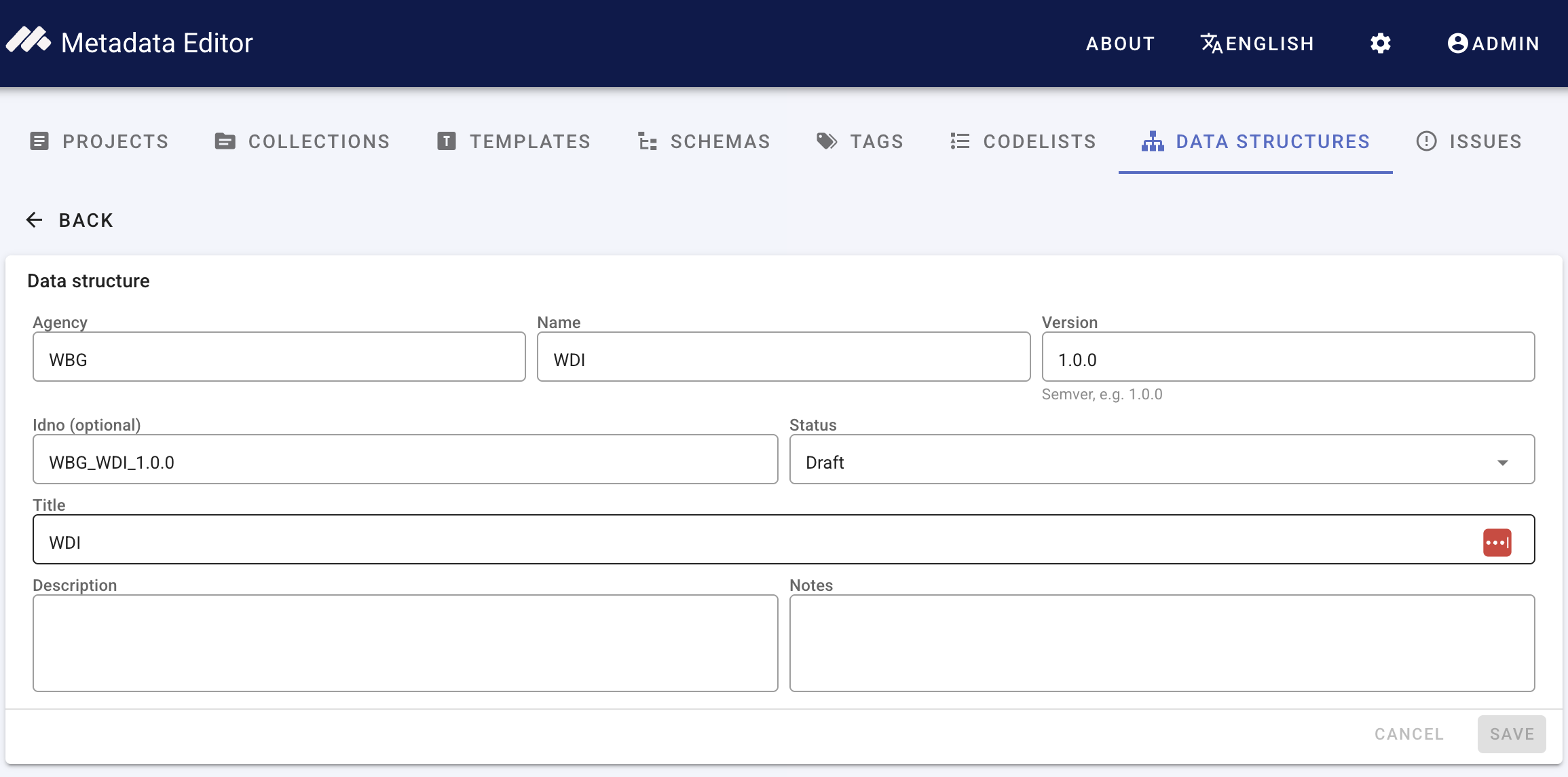
Screenshot: New data structure — identifying metadata (agency, name, version, title).
Create a data structure manually
Use this path when you know the column layout and want to define each component yourself (or link existing codelists).
Click New data structure.
Enter idno, agency, name, version, title, and optional description.
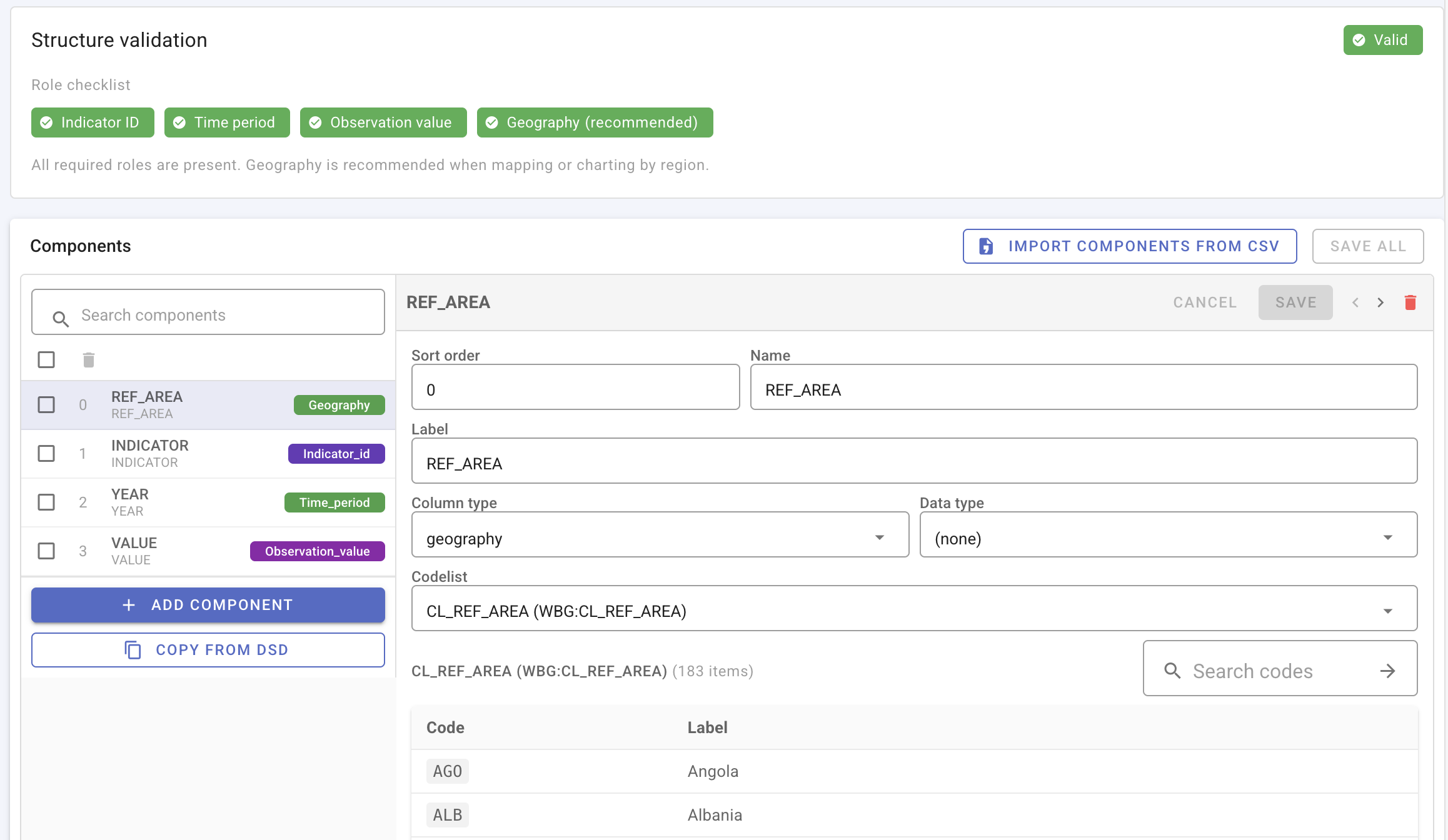
Add components (one per CSV column). For each component, set:
- Name — column header in the CSV (must not start with
_; system columns such as_ts_yearare derived at import). - Label and optional description.
- Data type — String, Integer, Float, Date, or Boolean.
- Column type — SDMX role (see Column types).
- Time period format — when the column type is Time period (for example
YYYY,YYYY-MM). - Codelist — None, or Standard codelist linked from the registry.
- Name — column header in the CSV (must not start with
Resolve structure validation messages before publishing the structure or binding it to indicator projects (see below).
Screenshot: Data structure editor — component list (left) and component detail form (right), including column type and standard codelist picker.
Structure validation
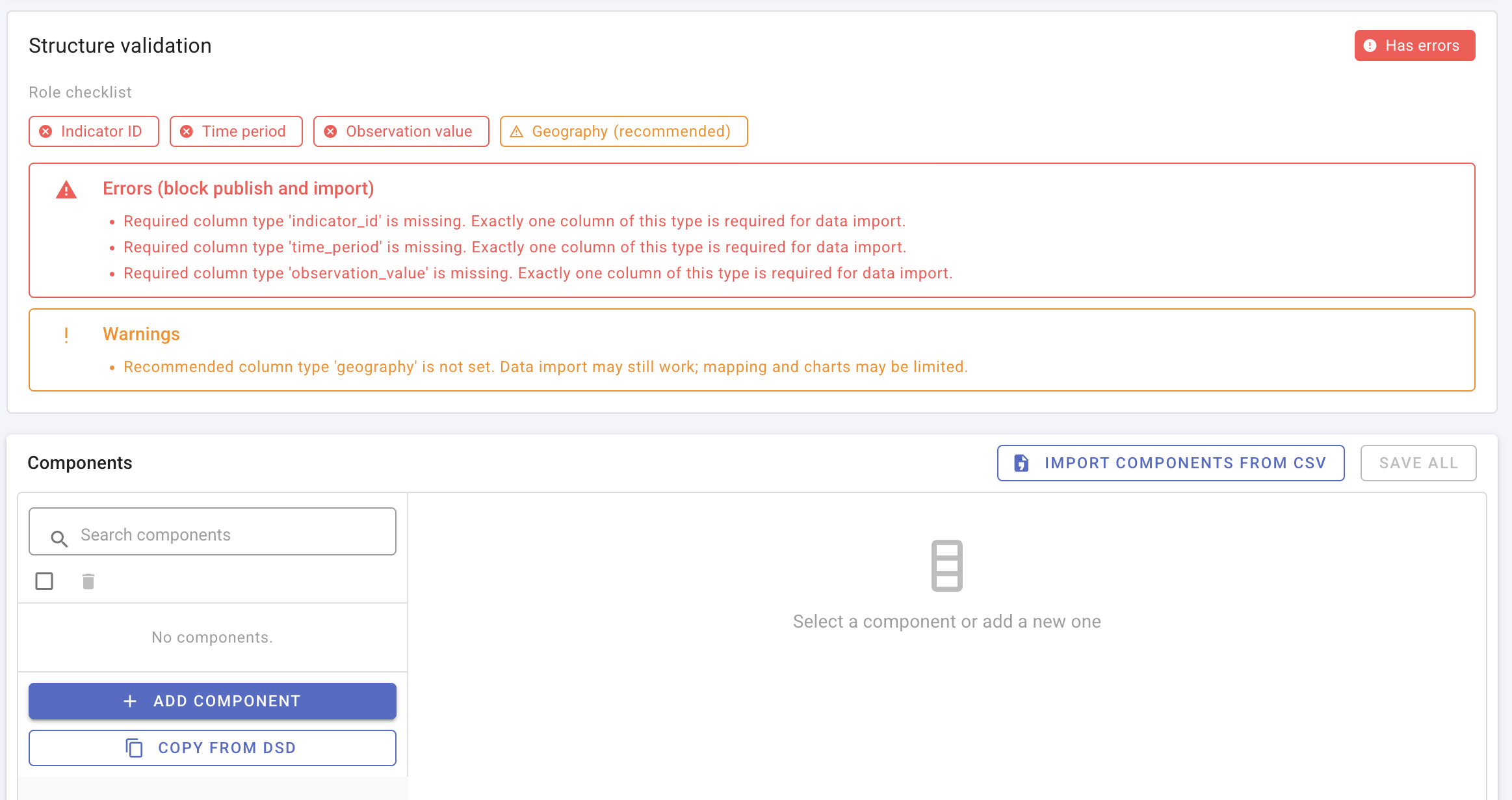
Immediately after you create a data structure, before any components are defined, validation reports errors for missing required column types (Indicator ID, Time period, Observation value) and warnings for recommended types (for example Geography). These must be resolved before the structure can be published or used for import.
Screenshot: Global DSD page — structure validation with no components yet (Has errors; role checklist and error list).
Add components manually, or use Create a data structure from a CSV file below, until validation passes.
Create a data structure from a CSV file
Use this path when you have a sample CSV in long format and want the editor to infer column names and suggest mappings.
The documentation example uses the World Bank indicator SI.POV.DDAY (Poverty headcount ratio at $3.00 a day (2021 PPP) (% of population)). Download:
SI.POV.DDAY_countries_data-long.csv
Example file layout
| REF_AREA | REF_AREA_LABEL | INDICATOR | INDICATOR_LABEL | YEAR | VALUE |
|---|---|---|---|---|---|
| ARG | Argentina | SI.POV.DDAY | Poverty headcount ratio at $3.00 a day (2021 PPP) (% of population) | 2010 | 1.5 |
| ARG | Argentina | SI.POV.DDAY | Poverty headcount ratio at $3.00 a day (2021 PPP) (% of population) | 2015 | 1.1 |
| ARM | Armenia | SI.POV.DDAY | Poverty headcount ratio at $3.00 a day (2021 PPP) (% of population) | 2010 | 2.9 |
Suggested column mapping
| CSV column | Column type | Codelist |
|---|---|---|
INDICATOR | Indicator ID | None |
INDICATOR_LABEL | Indicator name | Label-only (not imported as a data column) |
REF_AREA | Geography | Create from CSV, or link an existing codelist; label field REF_AREA_LABEL |
REF_AREA_LABEL | — | Label-only |
YEAR | Time period | Format YYYY |
VALUE | Observation value | None |
Steps
- Click New data structure and enter identifying metadata (for example title WDI poverty headcount DSD).
- Under Components, click Import components from CSV.
- Upload
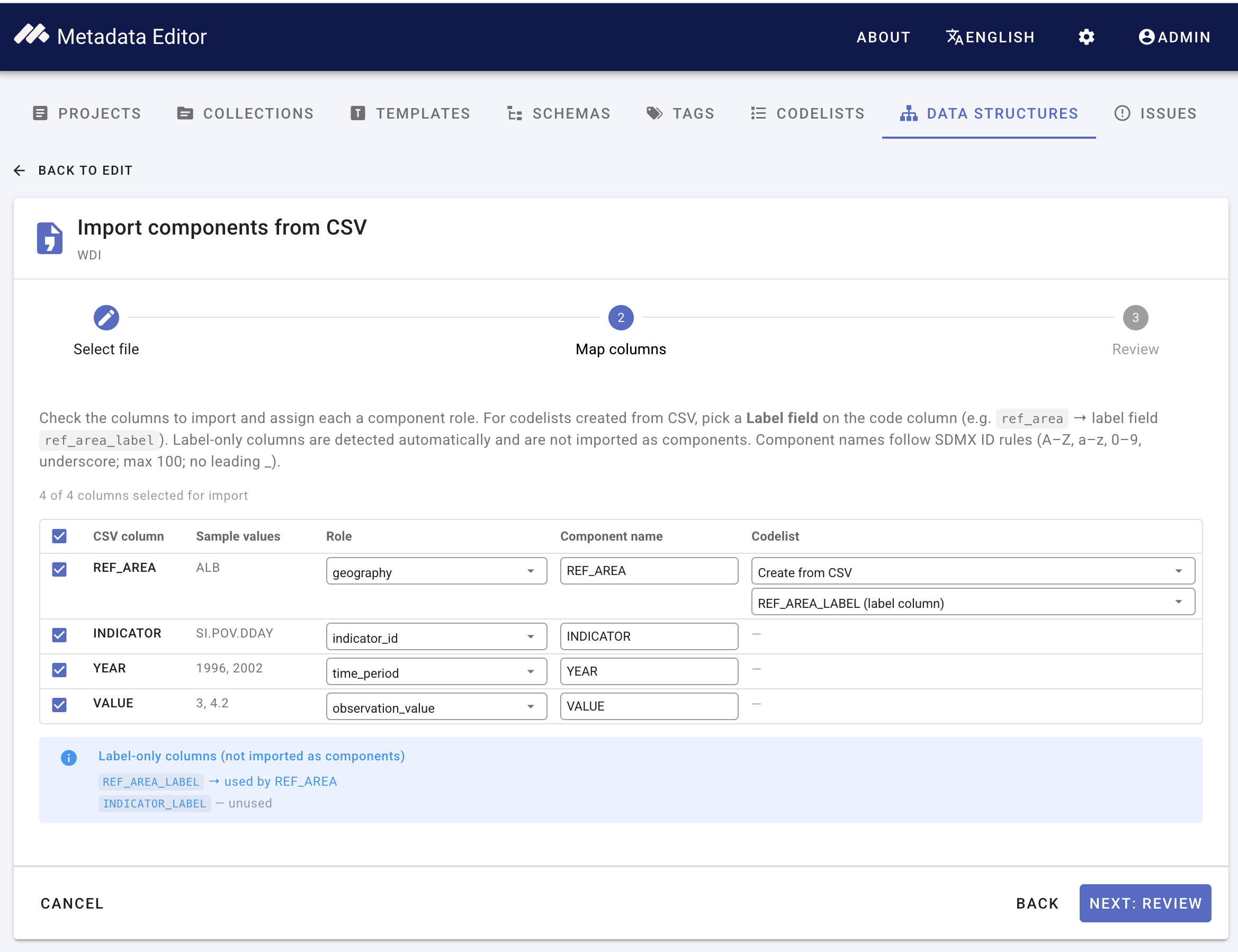
SI.POV.DDAY_countries_data-long.csv. Leave delimiter as Comma (,) and continue to Map columns. - Confirm mappings match the table above. Create a geography codelist from
REF_AREA/REF_AREA_LABELif prompted. - Save the structure and resolve any validation messages before publishing.
Screenshot: Data structure CSV bootstrap — column mapping step with SI.POV.DDAY columns mapped.
Do not use the wide WDI export (SI.POV.DDAY_countries_data.csv) for DSD bootstrap — year columns would be misread as separate components. That file is for metadata coverage only. See Long vs wide format.
Publish and export
- Draft structures can be edited freely. Published structures are locked; create a new version to change components after publication.
- Validate — run structure validation before binding to projects or publishing to NADA.
- Export JSON — download the DSD (including nested components) for backup or transfer.
- Import JSON — load a full DSD export (may include embedded codelists).
- Import SDMX-ML — import an SDMX structure message.
- Duplicate / delete — maintain version families; see linked Projects view for impact before deleting structures in use.
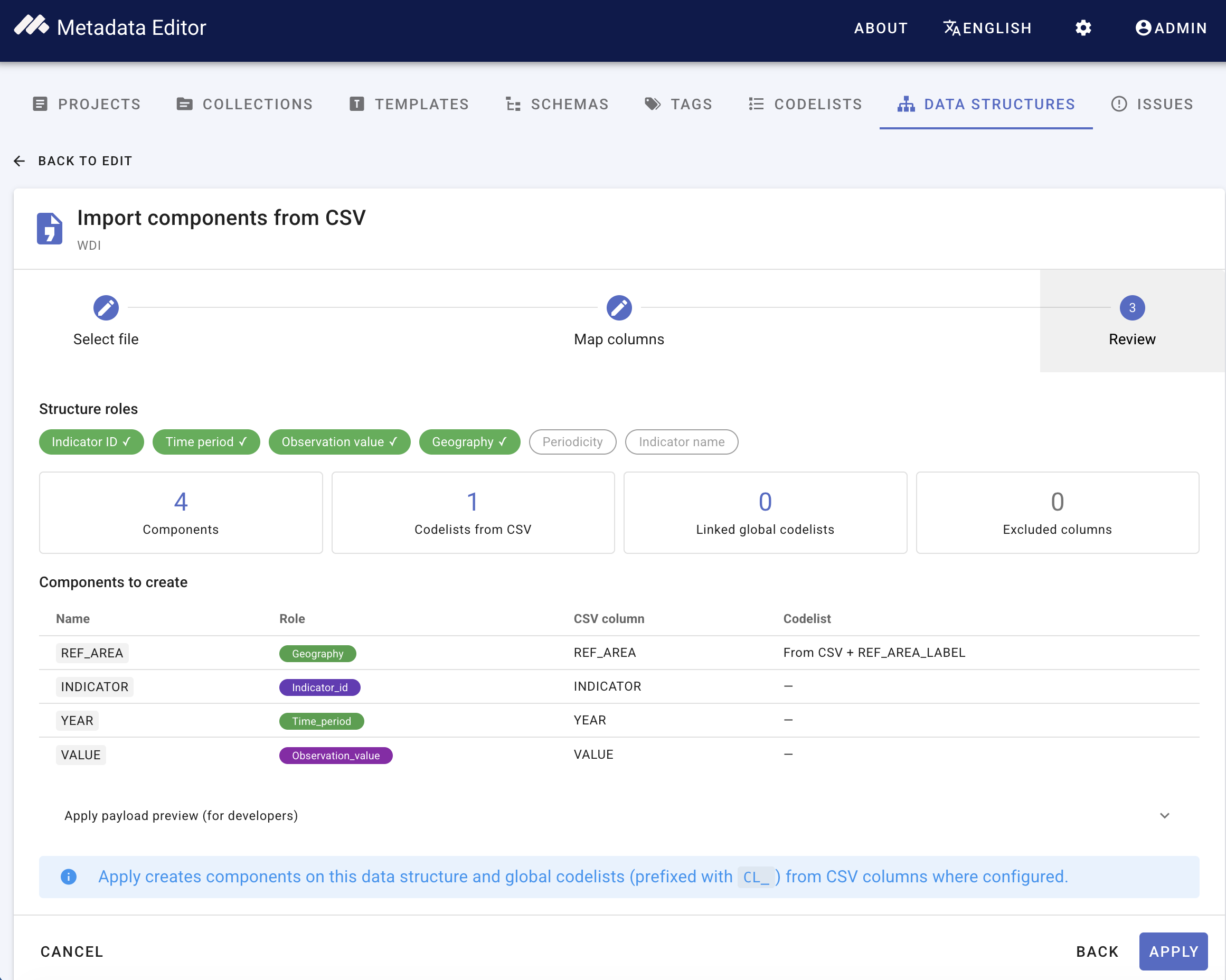
Screenshot: Import from CSV — review mapped components before saving.
Projects using a structure
From a data structure detail page, open Projects (or the equivalent linked-projects view) to see which indicator projects are bound to the structure.
Next steps
- Attach the structure to an indicator project.
- Import observation data using the same long-format CSV.