
Installation Guide (Desktop installer)
This section outlines detailed instructions for installing and operating the Metadata Editor on desktop computers with Windows 10 or 11. The Metadata Editor is designed as a web-based application for deployment within an organisation’s internal web server environment. Desktop installation is primarily intended for individual learning, training, and development purposes, and is not recommended for production use by organisations.
To support these objectives, the installer package includes the NADA cataloguing application, along with sample data files that enable users to follow the Quick Start examples featured in the Metadata Editor User Guide and eLearning course.
As a web-based solution, the installation and operation of the application on a desktop computer differs from typical software deployments. Installation requires extracting the application and associated materials into a dedicated folder allowing running executable files. Subsequently, the application is accessed by using the desktop computer as a local host for the web interface.
eLearning Sandbox
If you cannot install the Metadata Editor on your desktop, you can still practice using the online eLearning Sandbox:
https://dev.ihsn.org/metadata-editor-elearning
To access, please register using your email address and activate your account to use the system.
⚠️ The sandbox is for training purposes only — please do not upload sensitive or personal data.
System Requirements
Operating System and Hardware Requirements
- Operating System: 64-bit Windows 10 or later
- Memory: Minimum 8 GB RAM (16 GB recommended)
- Processor: Multi-core processor (Intel i5/AMD Ryzen 5 or better recommended)
- Storage: 5 GB available disk space
- Installation requires approximately 1.5 GB
- Additional space is needed for project data and user files
[!Visual C++ Runtime for Windows 10]
If your PC runs on Windows 11, Visual C++ Runtime should already be installed. For PC running Windows 10, this required application may have to be installed.
Visual C++ Runtime for Windows 10: Download and install the latest Visual C++ Redistributable from Microsoft: https://learn.microsoft.com/en-us/cpp/windows/latest-supported-vc-redist?view=msvc-170
Direct link to download Visual C++ Runtime (x64): https://aka.ms/vs/17/release/vc_redist.x64.exe
Download and Installation
Step 1: Download the Installer
- Navigate to the official download page: https://ihsn.org/download/MetadataEditorDesktop-1.0.0.zip
- Download the ZIP file to your computer
Step 2: Extract the Installation Files
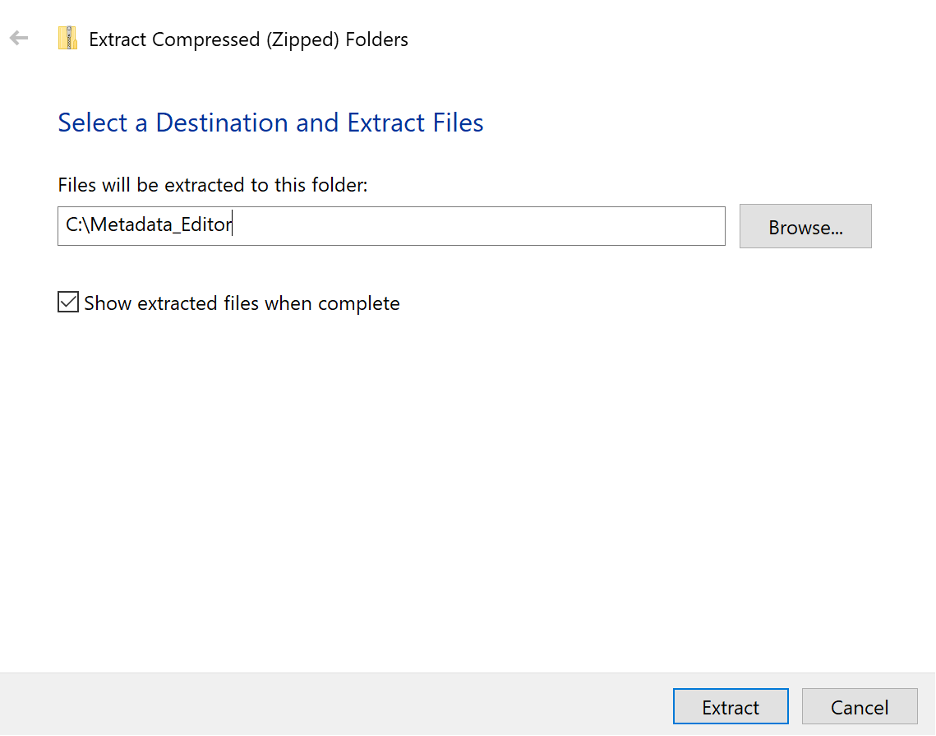
- Right-click on the ZIP file and select "Extract All..." or use your preferred extraction tool
- Choose a dedicated destination folder; create a new folder if necessary (e.g.,
C:\Metadata_Editor) - Click "Extract" to unzip the files
Step 2.5: Create a Desktop Shortcut (Optional)
For easier access, you can create a desktop shortcut to the MetadataEditor application:
- Navigate to the extracted folder where you installed the MetadataEditor
- Right-click on
MetadataEditorDesktop.exe - Select "Create shortcut" from the context menu
- Move the shortcut to your desktop:
- The shortcut will be created in the same folder
- Drag and drop the shortcut file to your desktop
- Or right-click the shortcut and select "Cut", then right-click on your desktop and select "Paste"
- Rename the shortcut (optional):
- Right-click on the desktop shortcut
- Select "Rename"
- Enter a name like "Metadata Editor" or "ME Desktop"
Alternative method using Send to Desktop:
- Right-click on
MetadataEditorDesktop.exe - Select "Send to" → "Desktop (create shortcut)"
This will create a shortcut directly on your desktop for quick access to the application.
Step 3: Launch the Application
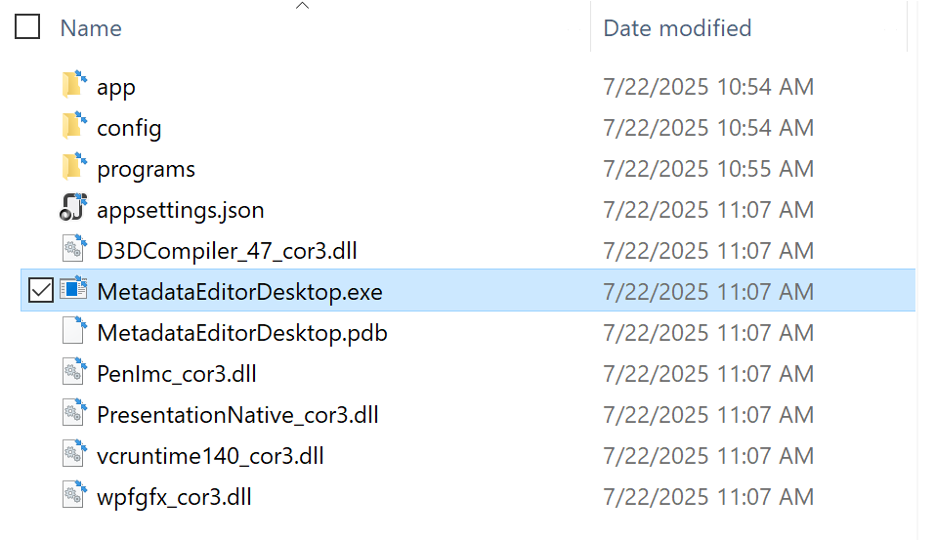
- Navigate to the extracted folder
- Double-click on
MetadataEditorDesktop.exeto start the application popup.
- Note 1: Windows protection system may display a "Windows protected your PC" popup with a single option to not run the program. This warning is intended to avoid running executable files of unknown or non-trusted provenance. If you downloaded the installation package from the IHSN website (link provided above; do not use zip files from other sources), click on "More info" in that popup screen, then select "Run anyway".
- Note 2: For first-time startup, it may take a few minutes for the application to initialize and start properly.
Step 4: Access the App Launcher
The application will display the App Launcher interface, which provides access to both the Metadata Editor and NADA Catalog.
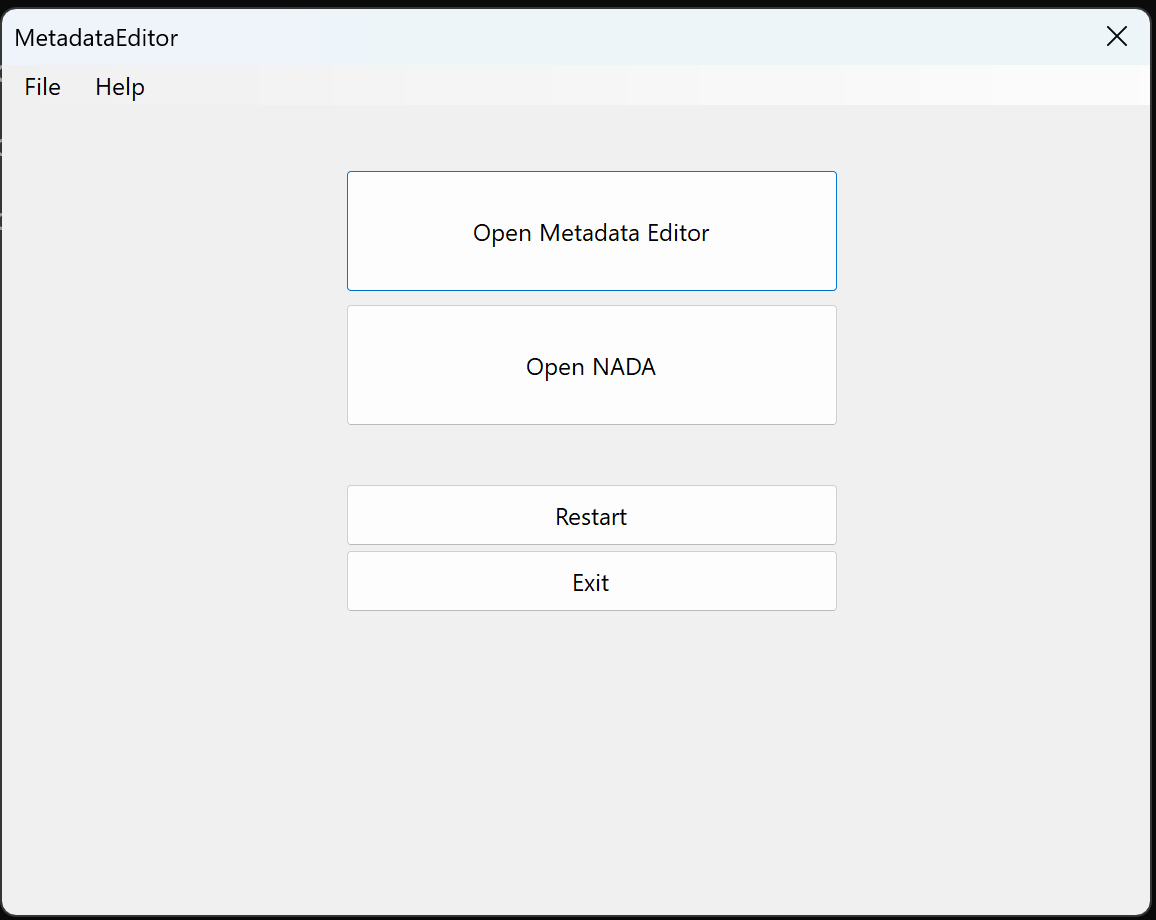
NOTE: The application runs a database in the background. The Restart button allows you to restart it if it crashes for any reason. The Exit button will stop the database application (closing the Metadata Editor web browser windows will not close the application).
Setting Up the Metadata Editor
Step 5: Install the Metadata Editor
- Click the "Open Metadata Editor" button in the App Launcher
- The Metadata Editor will open in your default web browser
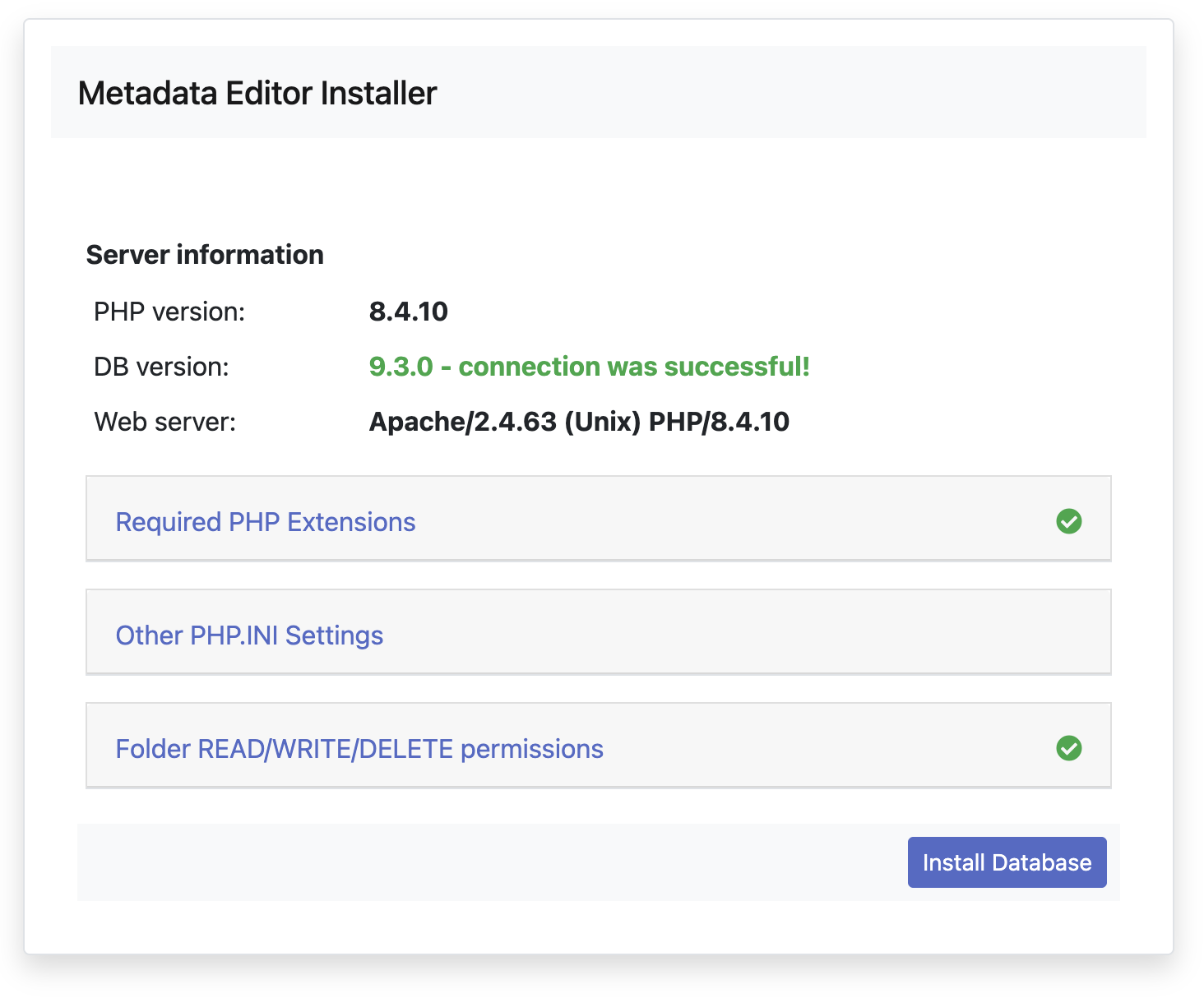
- You will be presented with the web installer interface
Step 6: Configure the Database
- Click "Install database" to proceed with the initial setup
- The system will automatically configure the required database components
- Wait for the installation process to complete
Step 7: Create a User Account
- After database installation, you'll be prompted to create an administrator account
- Fill in the required information (the information will only be stored on your PC; no data is transferred):
- First name, Last name
- Email address
- Password
- Click "Create Account" to proceed
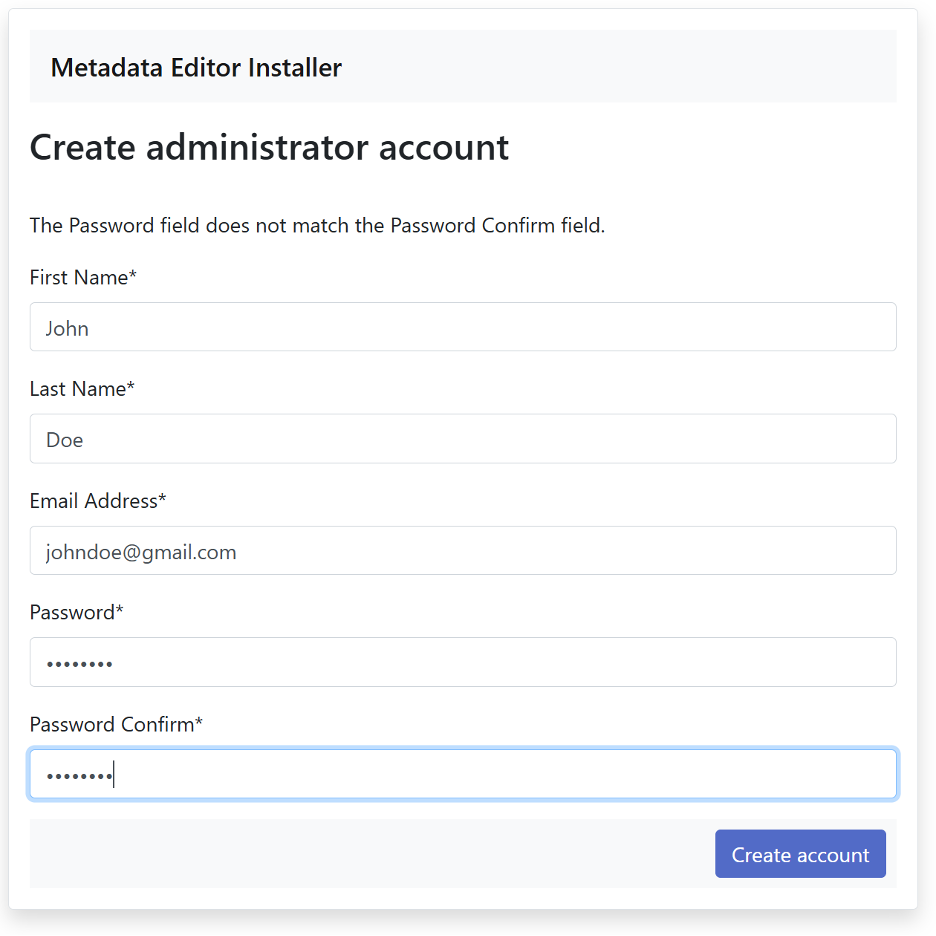
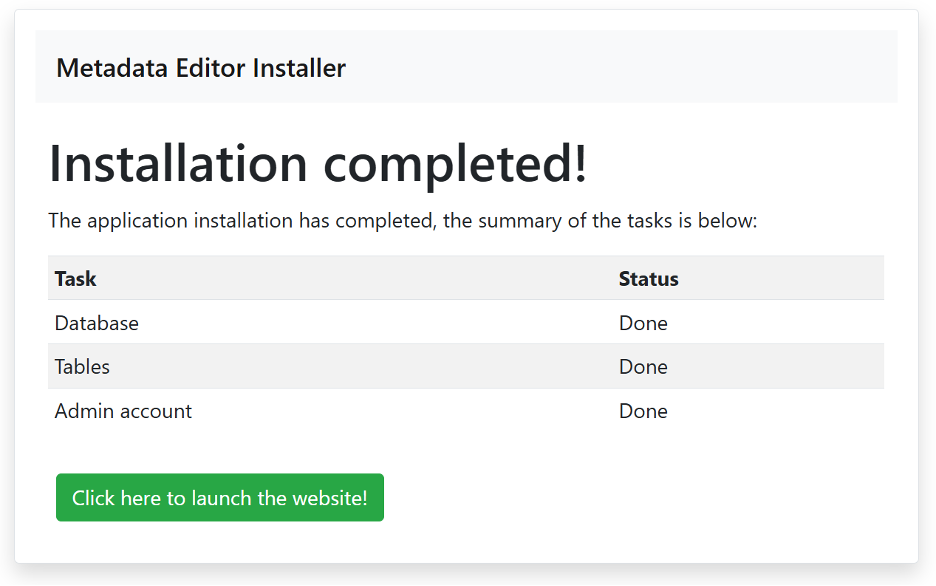
Step 8: Complete Installation
- Review the installation summary
- Click "Launch Application" to start using the Metadata Editor
- You will be redirected to the main application interface
Setting Up NADA Catalog (Optional)
You can optionally install NADA on your desktop. This will allow you to practice the publishing of metadata in a local data catalog using the "Publish to NADA" option provided in the Metadata Editor.
Step 9: Install NADA (Optional)
- Return to the App Launcher
- Click the "Open NADA" button
- NADA will open in your default web browser
- Follow the on-screen instructions to set up user accounts and configure NADA
- Complete the installation process similar to the Metadata Editor
- To publish projects from the Metadata Editor to NADA Catalogs, see user guide for Publishing to NADA
First-Time Startup Notes
Important Considerations
- Initial Startup Time: The first launch may take several minutes as the system initializes all components.
- Browser Access: If the editor doesn't appear immediately after clicking the button, wait a few minutes and try again.
- Application Restart: If issues persist, restart the application using the App Launcher.
Troubleshooting Startup Issues
If the application fails to start properly:
- Check the log files located in the
programs/apache24/logs/folder (within the folder where you installed the Metadata Editor). - Review the error messages in logs/error.log for details.
- If Apache fails to start and the logs reference php_curl or missing DLLs, the issue may be due to a missing Visual C++ Runtime.
- Make sure the application has been installed in a folder that allows you to run the executable file. If you do not have administrator credentials on your PC, note that your organization may have restrictions on where the application can be installed.
To resolve:
- Download and install the Microsoft Visual C++ Redistributable for Visual Studio (x64).
- After installation, restart Apache.
- Recheck the logs to confirm the issue has been resolved.
- For folder permissions issues, contact your IT helpdesk.
Windows Firewall Configuration
During the first startup, Windows Firewall may prompt for network access permissions:
- MySQL Service: Allow private network access only.
- Apache Service: Allow private network access only.
- Select "Private networks" when prompted, not "Public networks"
Training Materials
The application includes training materials:
- Locate the
quick_start_files.zipfile in the installation directory. - Extract the contents to access sample datasets and documentation.
- Use these materials to learn the application features and workflows. See Quick start section.
Data Management
User Data Storage
- All user uploaded data are stored in the
userdatafolder - This folder is created automatically during installation
- Regular backups of this folder are recommended
Support and Troubleshooting
Getting Help
For technical support and troubleshooting:
- Email: datatools@worldbank.org
- Community: Check for updates on Github https://github.com/worldbank/metadata-editor
Common Issues
- Application won't start: Verify system requirements and Visual C++ Runtime installation
- Browser doesn't open: Check firewall settings and try restarting the application
- Database errors: Review log files in the
programs/apache24/logs/directory - Performance issues: Ensure adequate RAM and close unnecessary applications
Updates and Maintenance
Updating the Application
Note: Update procedures will be documented in future releases
Regular Maintenance
- Monitor available disk space
- Review log files periodically
- Maintain regular backups of user data