
Managing custom schemas
See Custom metadata schemas for an overview and how this feature relates to templates and structural metadata.
Open the schema registry
From the main navigation, click Schemas.
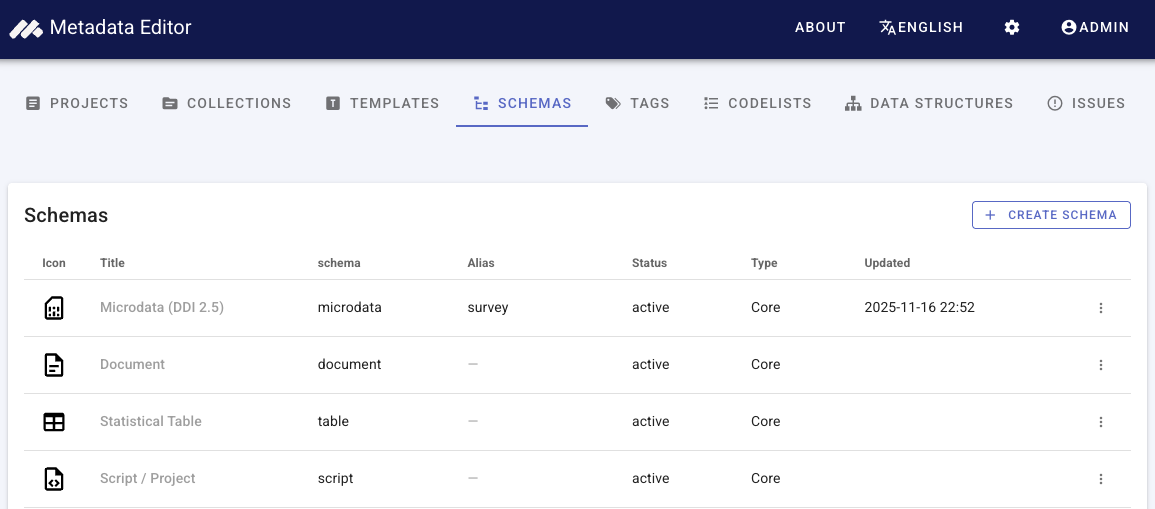
The registry lists core schemas (built-in types) and custom schemas (organization-defined types). Each row typically shows an icon, Title, UID, Alias (if set), Type (Core or Custom), Last updated, and an actions menu.
- Click a custom schema title to open its edit page.
- Core schema titles are not editable from this screen; use Preview from the actions menu to inspect the specification.
Create a custom schema
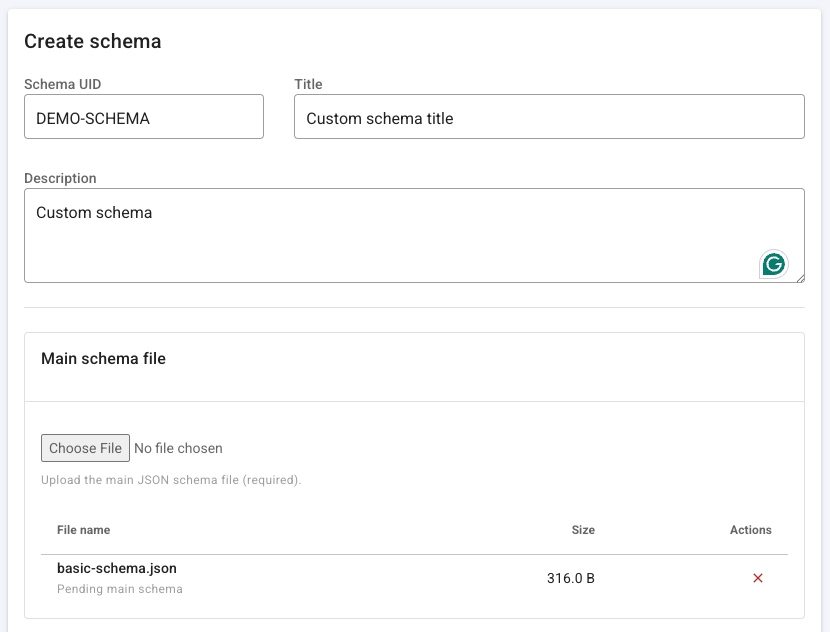
- Click Create schema.
- Enter:
- Schema UID — unique identifier, 3–64 characters (letters, numbers, dash, underscore). Cannot be changed after creation. Do not use reserved UIDs.
- Title — display name in the registry and project UI.
- Description — optional.
- Under Main schema file, choose the root JSON Schema file (required on create).
- Optionally under Related schema files, add JSON files referenced from the main schema via
$ref. - Click Save.
On success, the editor validates the schema, stores files on disk, registers the type, and generates a default template for the new type.
Edit schema metadata and files
Open a custom schema from the list (title link or Edit in the actions menu).
You can update Title and Description and manage files:
| Action | Purpose |
|---|---|
| Replace main schema | Upload a new root JSON Schema (validated on upload). |
| Add related schema files | Upload additional $ref targets without replacing the main file. |
| Download | Download an existing file from the manifest. |
| Delete (related files) | Remove a related file from the schema directory (not the main file from this action alone — use replace main to change the root). |
If the edit page shows a Reserved root-level properties warning, update the main schema so those names are nested under an object grouping, then replace the main file. See JSON Schema guidelines.
Core field mappings
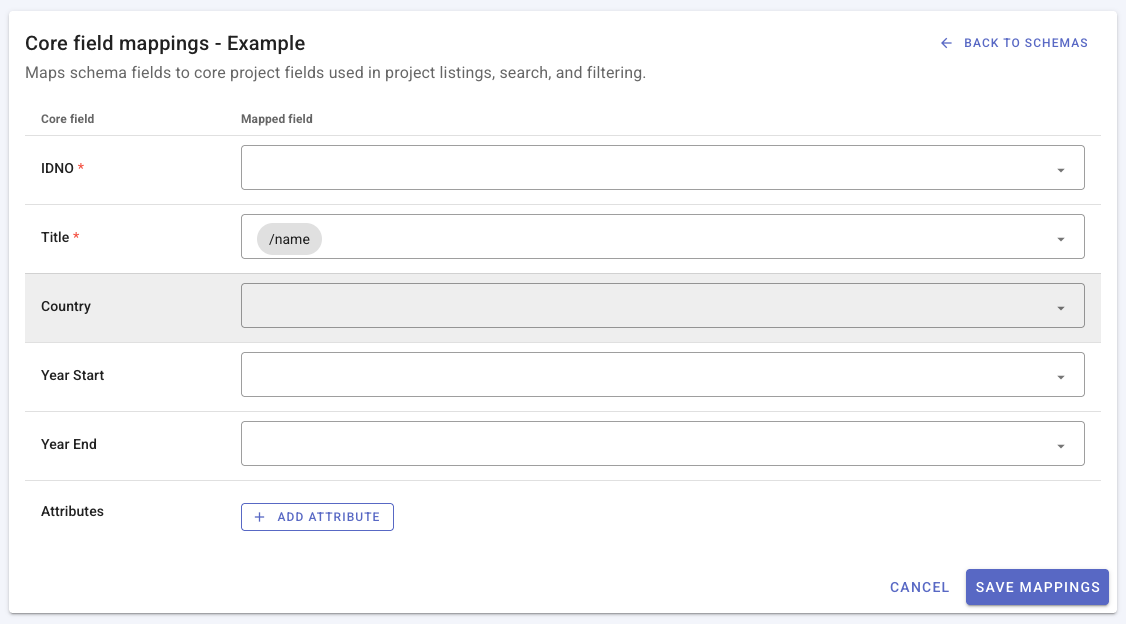
Project lists, search, and filters use a small set of core fields (identifier, title, country, year range, and optional attributes). Each custom schema must map its JSON structure to these fields using JSON pointers (paths into the metadata object).
- From the schema list actions menu, choose Edit core mappings (custom schemas only).
- Map IDNO and Title (required) to one or more schema field paths.
- Optionally map Country, Year start, Year end, and custom Attributes.
- Click Save mappings.
The field picker is built from the compiled schema. After you change the main schema file, review mappings and use Regenerate template if the form layout should match the new structure.
Preview the schema specification
From the actions menu, choose Preview schema to open a read-only API-style view of the schema (OpenAPI/Redoc). Use this to verify structure and share documentation with developers.
You can also download OpenAPI JSON or YAML from the preview page when available.
Templates for custom types
When a custom schema is created or its main file is replaced, the Metadata Editor maintains a generated template that includes fields derived from the JSON Schema. Generated templates are read-only.
To tailor labels, required flags, or layout for curators:
- Open Templates in the main navigation.
- Filter by your custom schema type.
- Duplicate the generated template and edit the copy (same workflow as Designing templates).
From the schema list, Regenerate template rebuilds the generated default from the current schema (overwriting that generated template). Confirm before running if curators rely on the auto-generated layout; customized duplicates are not removed.
Create projects with a custom type
After the schema is active and enabled for new projects:
- Go to Projects and create a new project.
- Select your custom schema type in the type picker.
- Choose a template (generated default or your duplicate).
- Complete metadata entry and save.
Validation uses the registered JSON Schema for that type.
Delete a custom schema
From the actions menu, choose Delete (custom schemas only).
- Deletion is blocked if any projects still use that schema UID.
- Deleting a schema removes all templates associated with that type.
Core schemas cannot be deleted from the registry.
Programmatic management
Administrators can manage schemas through the REST API under /api/schemas (list, create, update, file upload, compiled schema, field list, regenerate template, delete). Operations mirror the UI constraints above. For built-in type payloads and project APIs, see the Metadata Schemas API reference; schema-registry endpoints may be documented in your instance’s OpenAPI export as they are added to the public spec.