
3.2. Installation of ModelFlow#
ModelFlow is a python package that defines the model class, its methods and a number of other functions that extend and combine pre-existing python functions to allow the easy solution of complex systems of equations including macro-structural models like MFMod. To work with ModelFlow, a user needs to first install python (preferably the Anaconda or MiniConda variants). Then install the ModelFlow package and several other supporting packages.
3.2.1. Creation of a ModelFlow environment#
Although it is not strictly necessary, it is a good idea to create a specific python environment[^environ] for ModelFlow, this will be a space where the ModelFlow package itself will be installed and in which the specific dependencies on which ModelFlow relies will be installed. Other environments may require packages that conflict with ModelFlow. Declaring a separate environment for ModelFlow will help prevent conflicts between different versions of packages from arising.
Note
Both Anaconda and Miniconda support the idea of “environments”. Environments are ring-fenced areas on your computer that can have different versions of Python and/or packages installed in them. If one application requires a specific version of pandas to run, and a second application requires a different version, by housing them in separate environment the dependencies of each application can be respected without generating a conflict between them. See here for more.
The commands below create a ModelFlow environment and install into it the ModelFlow package and several supporting packages that are useful when using ModelFlow in conjunction with EViews or Jupyter Notebook.
Note
ModelFlow works equally well under both Jupyter Notebook 6 and Jupyter Notebook 7. However, it was developed using JN6 and this book and its examples were produced using JN6. The installation instructions below will set up you ModelFlow environment to use JN6
The commands should be cut and paste (either one by one, or as a block) into the Anaconda or Miniconda command prompt environment. Instructions for activating the environment in windows are included in the box.
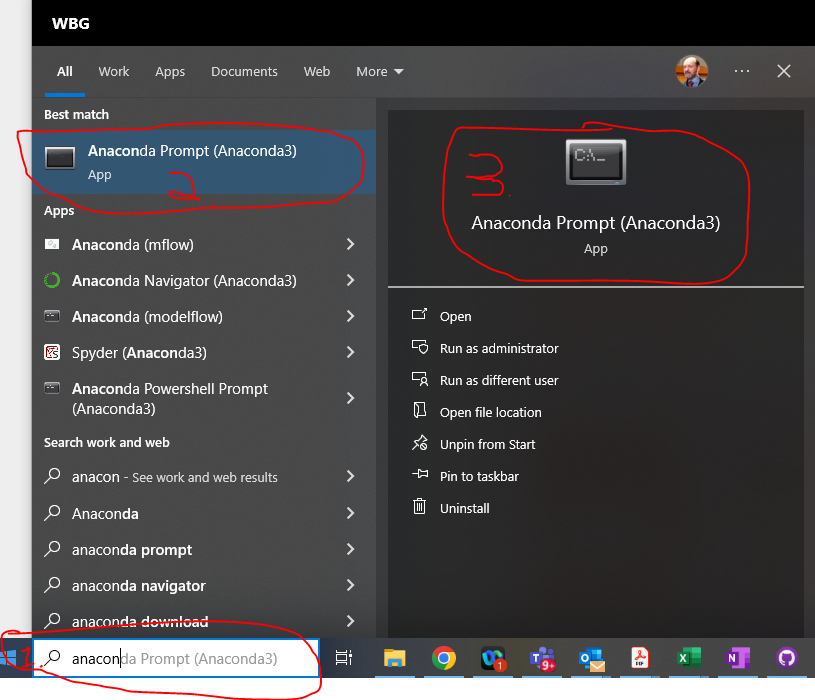
Box 1. Opening the Anaconda/MiniConda prompt under windows
To open the Anaconda/MiniConda prompt:
In the windows command prompt, type Anaconda (or Miniconda)
If Anaconda/Miniconda have been successfully installed an icon entitled Anaconda(Minoconda) Prompt will be available in windows. Click on this.
This will open a python command shell where the commands listed in the main text can be entered.
conda create -n ModelFlow -c ibh -c conda-forge ModelFlow_book -y
conda activate ModelFlow
##################
# Note skip the next line if installing under linux or Macintosh
#################
conda install py2eviews -c eviews

#############
# Continue from here on all Operating Systems
#############
pip install dash_interactive_graphviz
jupyter contrib nbextension install --user
jupyter nbextension enable hide_input_all/main
jupyter nbextension enable splitcell/splitcell
jupyter nbextension enable toc2/main
jupyter nbextension enable varInspector/main
Note
Meaning of the command lines
The first line in the code snippet above simultaneously creates the
ModelFlowenvironment (the -n argument names the environment) and installs theModelFlow_bookpackage from conda-forge into this environment.[NB:There also exists aModelFlow_stablepackage. The book package will be frozen at its current state of evolution to ensure that all the examples in this book will run usingModelFlow_book, the stable version may evolve over time and potentially break specific examples. Longer-term users may wish to switch to the stable version, once they have absorbed the material in this book.]The second command “activates” the newly created ModelFlow environment.
The subsequent commands install some additional packages into the ModelFlow environment that are used by
ModelFlow.The
py2eviewspackage allows python to execute EViews commands on a machine where EViews has also been installed (this is only useful if the user intends to import existing EViews workfiles into the python environment ofModelFlow).the
dash_interactive_graphvizpackage enables a series of interactive dashboards which can be handy when using ModelFlow in Jupyter Notebooks.The last 5 commands activate some useful jupyter notebook extensions.
Depending on the speed of your computer and of your internet connection, installation could take as little as 5 minutes or more than 1/2 an hour.