The Model
Learning objective
By the end of this page you'll understand the four levels of the GeoE3 model (indicator, factor, dimension and analysis), how weights aggregate one level into the next, and why every score, at every level, lands on the same 0–5 Likert scale.
Indicators, factors, dimensions and analysis
The model tree you met on The Interface page organises every output into three categories, which we call dimensions: the Contextual dimension, the Accessibility dimension and the Place Characterization dimension. Those are further subdivided into factors (the second-level grouping), and each dimension may have one or more factors associated with it.
- Dimensions: there are 3 (Contextual, Accessibility, Place Characterization), the broadest grouping, each with its own weight in the final score.
- Factors: there are 16 across the three dimensions, the themes you'll configure one by one (e.g. Workplace Discrimination, Women's Travel Patterns, Active Transport).
- Indicators: there are 35 in total, the actual calculated layers. Most factors are a single indicator. A couple of them (Women's Travel Patterns and Environmental Hazards) expand into five indicators each: childcare, schools, groceries, pharmacies and green space for the former; fire, flood, landslide, cyclone and drought for the latter.
Every grid cell in an analysis has a score from 0 to 5 for each indicator, combined into factor, dimension and overall scores. This is the same diagram the PDF report opens its Methodology section with:
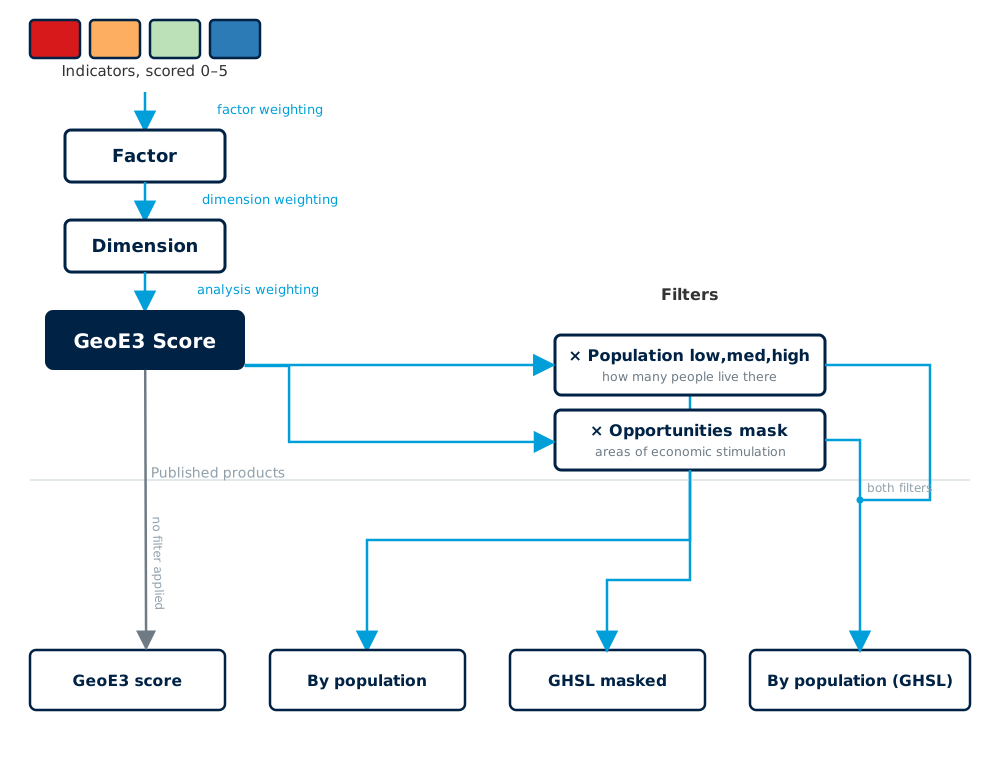
Every level of that cascade works the same way: you assign a weight to each child item, and the tool combines them into its parent's score.
- Indicators → Factor: a factor's indicators are combined using the weights you assign them (most factors have only one indicator, so this step is invisible; Women's Travel Patterns and Environmental Hazards are the exceptions, each combining five).
- Factors → Dimension: each dimension's factors are weighted and combined the same way. Double-click a dimension to see and change those weights.
- Dimensions → Analysis: the three dimensions are weighted and combined into the final GeoE3 Score, the same pattern one level up again.
Whenever you change a weight, the total of the weight values must add up to one. If it doesn't, the weight values are shown in red and you can't confirm the dialog. If you want to assign every enabled item an equal weight, press Balance Weights rather than typing each value by hand. This applies the same way whether you're balancing indicators within a factor, factors within a dimension, or dimensions within the analysis. The mechanics of opening an item's dialog, setting weights, excluding items you don't have data for, and running the workflow are covered once, generically, in Configuring Items, since they're the same regardless of which level of the tree you're working on.
The 0–5 Likert scale
Every indicator, factor, dimension and the final analysis score all land on the same scale: each cell gets a score of enabling or not enabling, on a scale of 0 to 5 (blue is enabling, red is not enabling). This is the same 5-class legend used to colour every result layer in the plugin:
| Score | Class | Colour |
|---|---|---|
| 0 – 1 | Very Low Enablement | |
| 1 – 2 | Low Enablement | |
| 2 – 3 | Moderately Enabling | |
| 3 – 4 | Enabling | |
| 4 – 5 | Highly Enabling |
When you run the final analysis, the result comes through in this same Likert scale: red cells are very low economic enablement, orange is low, yellow is intermediate, green is enabling, and blue is very enabling.
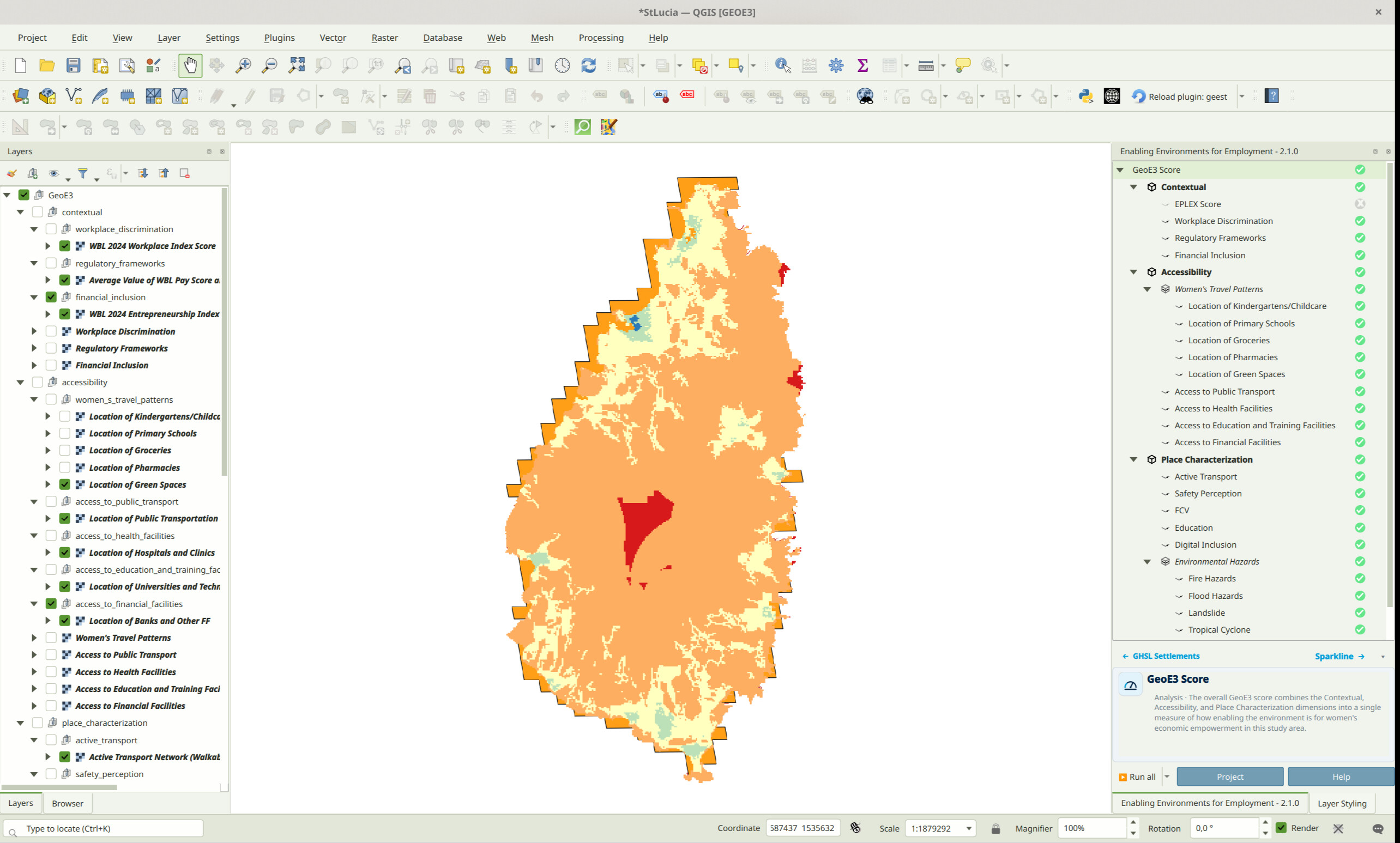
Rescaling every indicator onto the same 0–5 range (whether the underlying data was a percentage, a distance in metres, a travel time, or a published index score out of 100) is what makes it valid to combine completely different kinds of data into one number. How each indicator actually gets converted onto that scale depends on what kind of data it starts from. That's the subject of the next page, Processor Types.
Recap
- Four levels: indicator → factor → dimension → analysis. Each level combines its children using weights you assign, the same way every time.
- At any level, the weights must add up to one (shown in red if they don't). Balance Weights resets every enabled item to an equal share rather than normalising whatever you'd typed in.
- Every score, at every level, lands on the same 0–5 enablement scale: 0–1 Very Low Enablement through to 4–5 Highly Enabling.