Positron-Stata integration
To be able to run Stata code in Positron, you need to install a Positron extension that connects the editor to Stata. The recommended extension is Positron Stata, which provides native integration with console, data viewer, and plots.
Stata has no built-in editor integration. Extensions bridge the gap by connecting Positron to Stata’s backend, enabling an AI-assisted coding workflow. Three components work together:
- Stata 18+ with Model Context Protocol (MCP) support executes Stata code.
- Python +
uv— sends code to Stata and captures output. - A Positron extension — surfaces results in the editor UI.
Step 1. Install the Stata for Positron
Native Positron integration of Stata with console, data viewer, plots, help, and documentation are on GitHub along with issue reporting: github.com/ntluong95/positron-stata.
To install it:
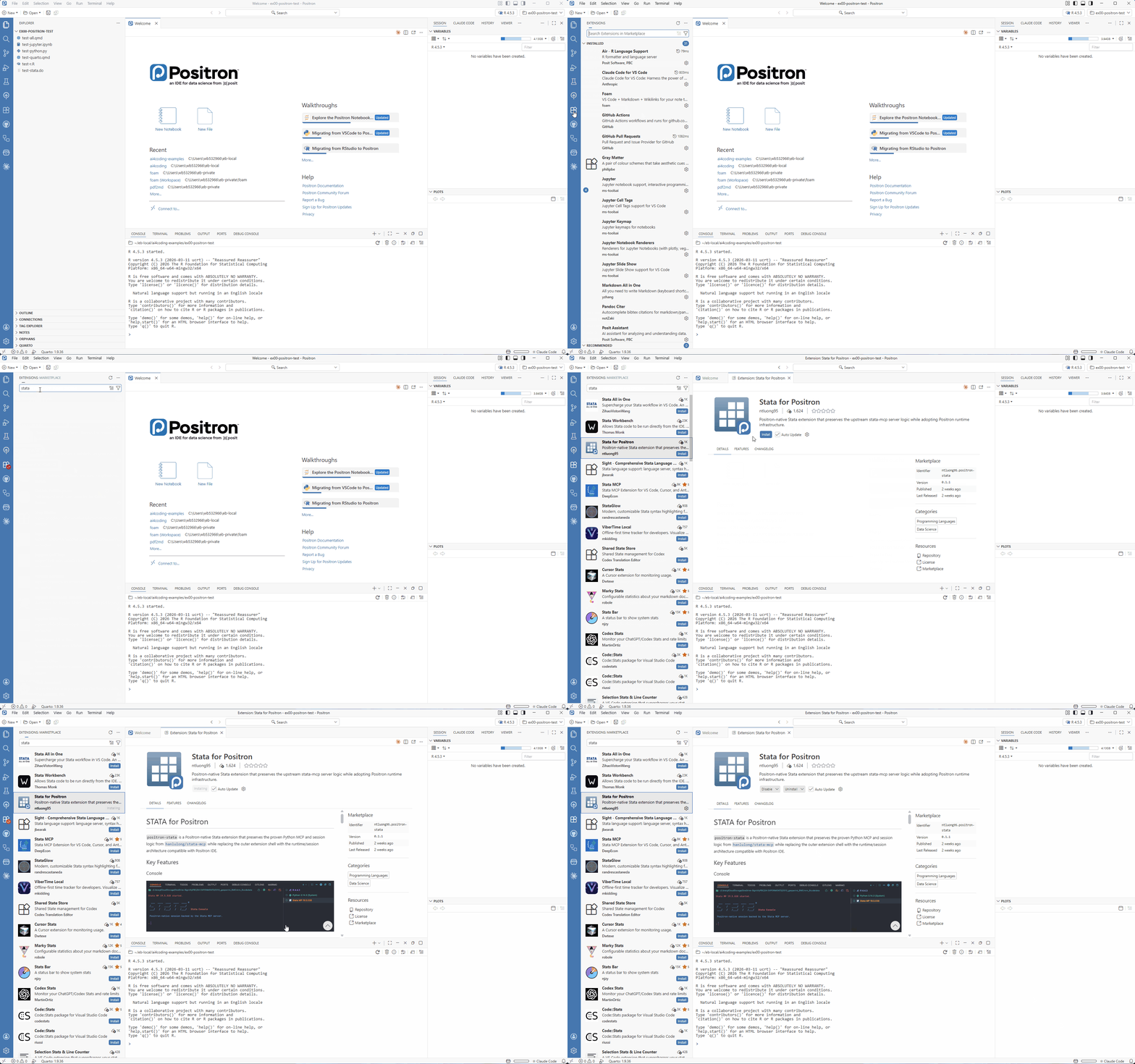
Open the Extensions panel (
Ctrl+Shift+X)Search for Stat for Positron or
ntluong95.positron-stataClick Install -> Trust and Install
Reload Positron:
Ctrl+Shift+P→Developer: Reload Window
Step 2. Configure the extension
Open settings in Positron (
Ctrl+,).Search for
positron.stata.installationPathNote setting name is “Positron > Stata: Installation Path”. Check this is correct! Especially if you have or had multiple stata extensions installed in positron.
Set the path to your Stata installation, e.g.
C:\Program Files\StataNow19\It also works with Stata 18.
Step 3. Verify Stata runs in Positron
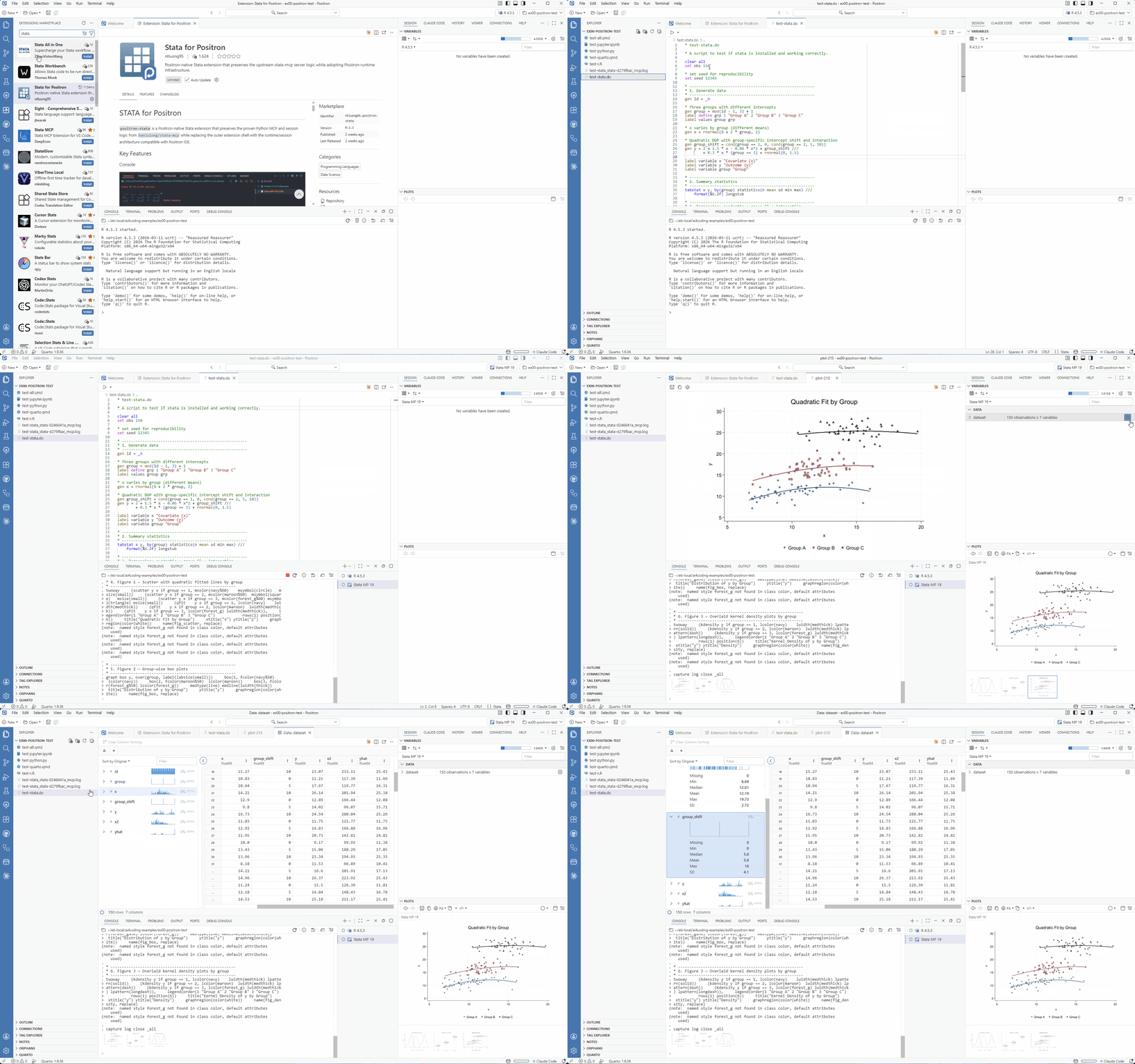
1 Create a new .do file and run example code to verify the extension is working (or open an existing one).
create
test.dowith:Save the file (
Ctrl+S) — unsaved edits are not executed.Run the file (
Ctrl+Shift+DorCtrl+Shift+P→Stata: Run Current File)
- Create and run
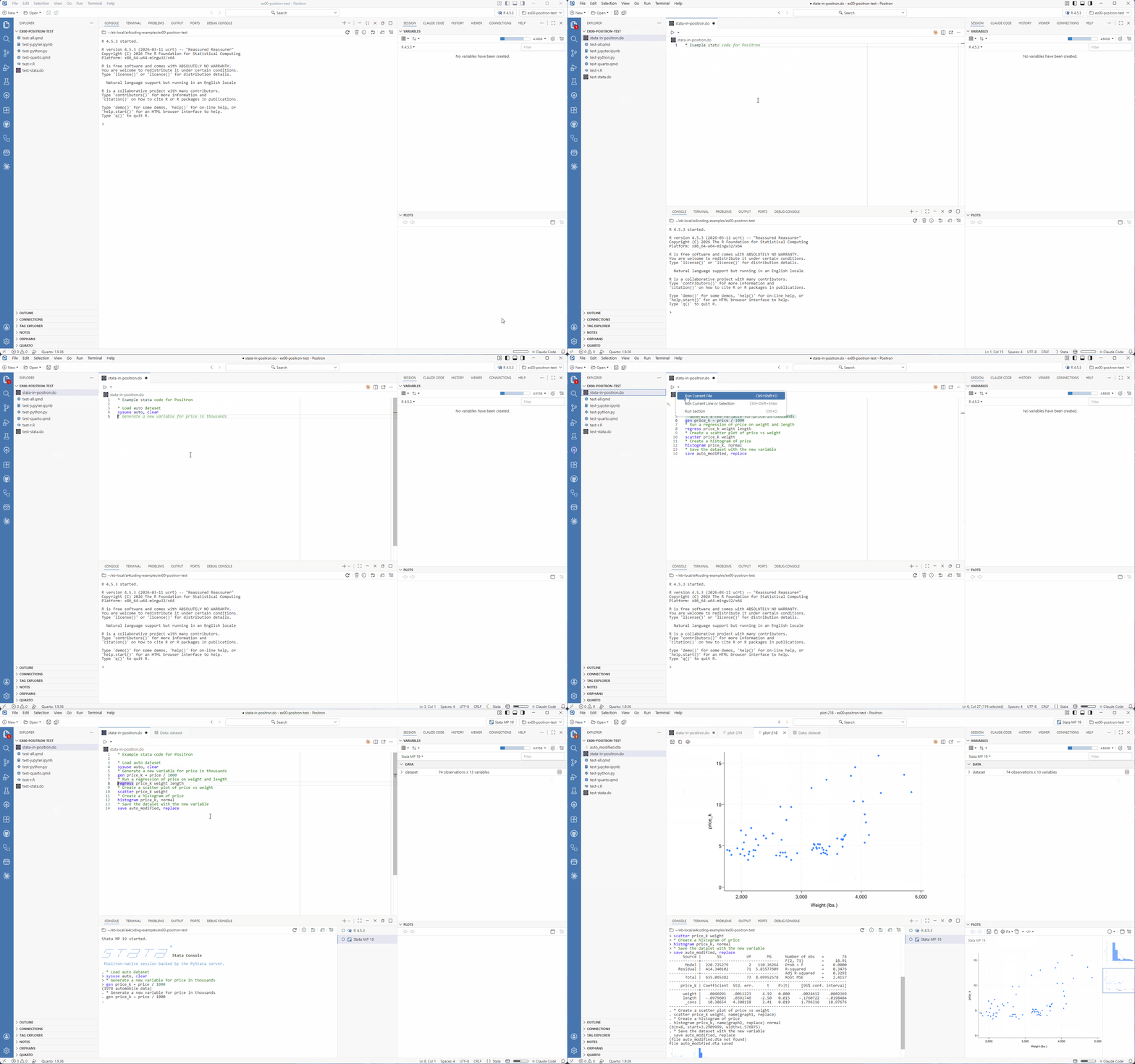
.dofiles - AI agent integration
- Console: execute Stata code and see output
- Environment: variables and globals
- Data: view, and explore
- Figures: display, manage, and export
- Have multiple Stata sessions
Step 4. Stata-MCP feature (optional)
The extension also supports Model Context Protocol (MCP) for AI agent use. MCP allows AI agents to have full context of your Stata environment, including variables, data, and figures bypassing the console and enabling more powerful AI-assisted coding without distracting the user.
This reduce control as allows stata to run code without user explicitly accepting to run it. Use with caution!
In positron:
Ctrl+Shift+P→MCP: Open User ConfigurationPaste in there:
Save the file
Ctrl+Shift+P→MCP: List Servers→stata-mcp→Start Server
Step 5. Troubleshooting
Stata console does not start
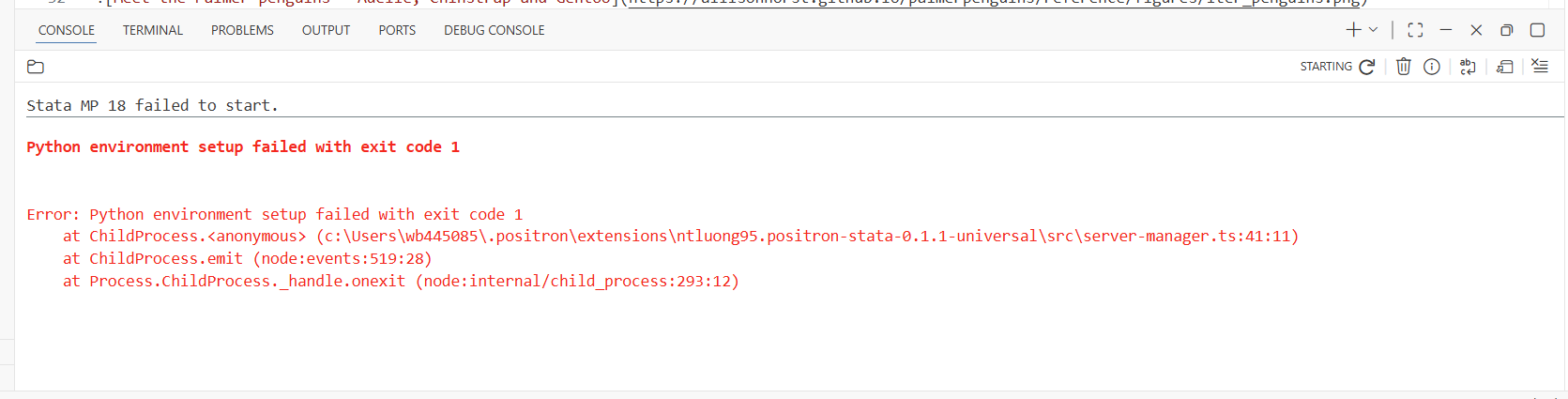
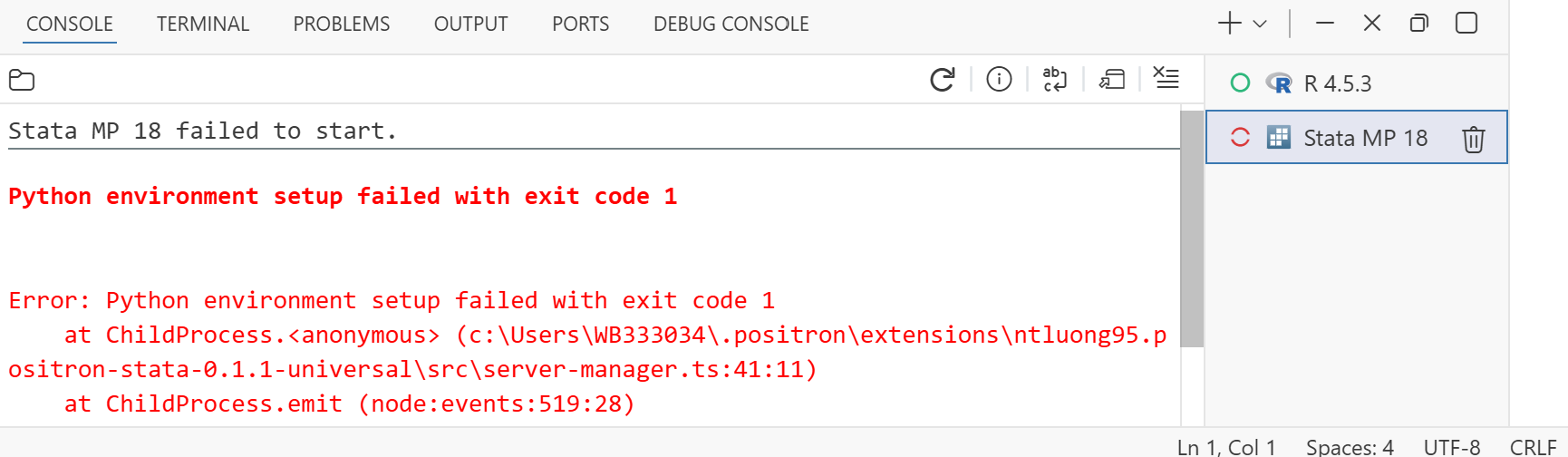

This error can have multiple causes. Common fixes include:
UV is not properly installed. Check Step 3:
uv(Python package manager)Python cannot set environment using
uv. Sometimes even whenuvis installed, the extension cannot use it to set up the Python environment because of the software security settings on the laptops.to bypass it you may try manually installing python packages using
pip installand once those are installed, it may start working.Required packages are in requirements.txt. They include:
fastapi==0.119.1
uvicorn==0.38.0
fastapi-mcp==0.4.0
mcp==1.18.0
pydantic==2.11.1
pandas==2.3.3
httpx==0.28.1
You can install them in the global python environment by:
Keyboard
Windows>PowerShellPaste in the power shell replacing
wbXXXXXXwith your WB username. check ifrequirements.txtexists in the folder specified before running the command.
Restart Positron and try running Stata again.
No stata runtime is available
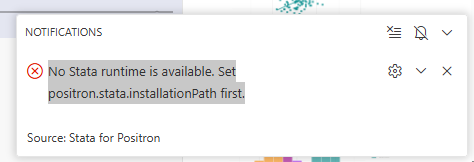
This means that:
You did not set the Stata installation path, see Configure the extension
You set the path, but it is wrong. Check the path is correct and points to your Stata installation directory, e.g.
C:\Program Files\StataNow19\.You set a correct path but to the wrong setting. Multiple extensions may require to set a Stata path. Make sure you set the path for the setting names
positron.stata.installationPathand not another one (e.g. from a different Stata extension).
Step 5. Limitations
Custom logs not supported — log using <filename> conflicts with the extension’s own logging. Stata only allows one log at a time. Use capture log using <filename> to bypass this limitation.
**Closing logs _all with capture breaks the code**. do not use cap log close _all because this will also close the logs used by the extension to capture Stata output, which will break the extension’s functionality. Instead, close logs individually with cap log close <filename>.
- Bugs are possible — report issues to the extension developers
Alternative stata extension: Stata MCP
Stata MCP is an alternative extension that integrates stata into the Positron. It is designed for VS Code / Cursor users, but underperforms in Positron, and does not have native Positron integration (e.g. no data viewer or plots in Positron). Installation is similar to Positron Stata above.
Key differences:
| Feature | Positron Stata | Stata MCP |
|---|---|---|
| Console output in Positron | ✅ | ✅ |
| Data viewer | ✅ | ❌ |
| Multiple Stata sessions | ✅ | ❌ |
| AI agent integration | ✅ | ✅ |
| MCP support | ✅ | ✅ |
| Maturity | New (2026) | More mature (2023) |
| Good for… | Positron users who want native integration | VS Code / Cursor users who want MCP support |
Extensions in Positron
Positron/VS Code ships with minimal built-in functionality by design — extensions add support for specific languages, tools, and workflows without bloating the core editor.
Notable extensions for this course:
stataglow extension for Stata syntax highlighting.
Positron Assistant — installed by default; provides AI code suggestions and completions via GitHub Copilot and other AI providers.
Claude Code — agentic AI coding using Anthropic’s Claude models.
Positron Databot — AI-assisted data analysis and visualization.
VScode-pdf (tomoki1207.pdf) — view PDF files directly in Positron (e.g. for documentation).
Excel Viewer (GrapeCity.gc-excelviewer) — view Excel files directly in Positron.
Installing any extensions
Open the Extensions panel with Ctrl+Shift+X or click the square icon  on the left sidebar.
To install any extension:
Search for it by name and hit Enter, e.g.
positron assistantorclaude code. Note that if in the search bar there is a tag starting with “@”, remove it.Click Install
If prompted “Do you trust the publisher?”, click Trust and Install
If needed, reload Positron:
Ctrl+Shift+P→Developer: Reload Window
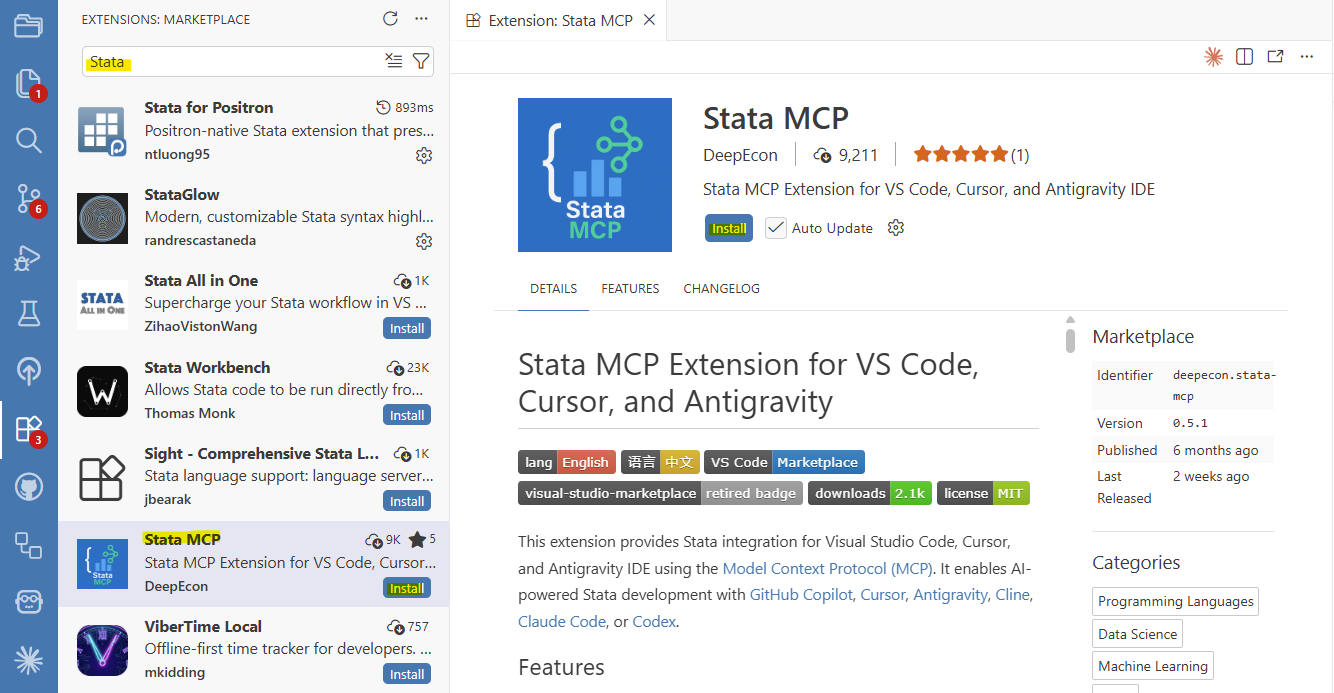
An alternative is the Stata MCP extension, which supports Model Context Protocol (MCP) for AI agent use.