Merging and merge conflicts
What happens when two branches meet, and what to do when Git cannot decide for you
A merge is how work comes back together. Most merges are boring: Git works out the combined result on its own and you never notice. A conflict is the small minority where it cannot, and asks you.
This page is about both. As on the previous page, every step is shown first in Visual Studio Code / Positron and then on the command line.
Start with Git branching: an introduction if you have not read it.
1 First, three commands that get confused
Almost every merge surprise comes from not knowing which of these you just ran.
fetch- Download the commits from GitHub, but change nothing in your files. After a fetch you can look at what other people did before deciding anything.
pull-
fetchplusmerge— download and fold those commits into your current branch, in one step. This is why apullcan suddenly ask you to resolve a conflict: the merge half is doing it. push- Send your local commits up, once your history contains everything the remote has.
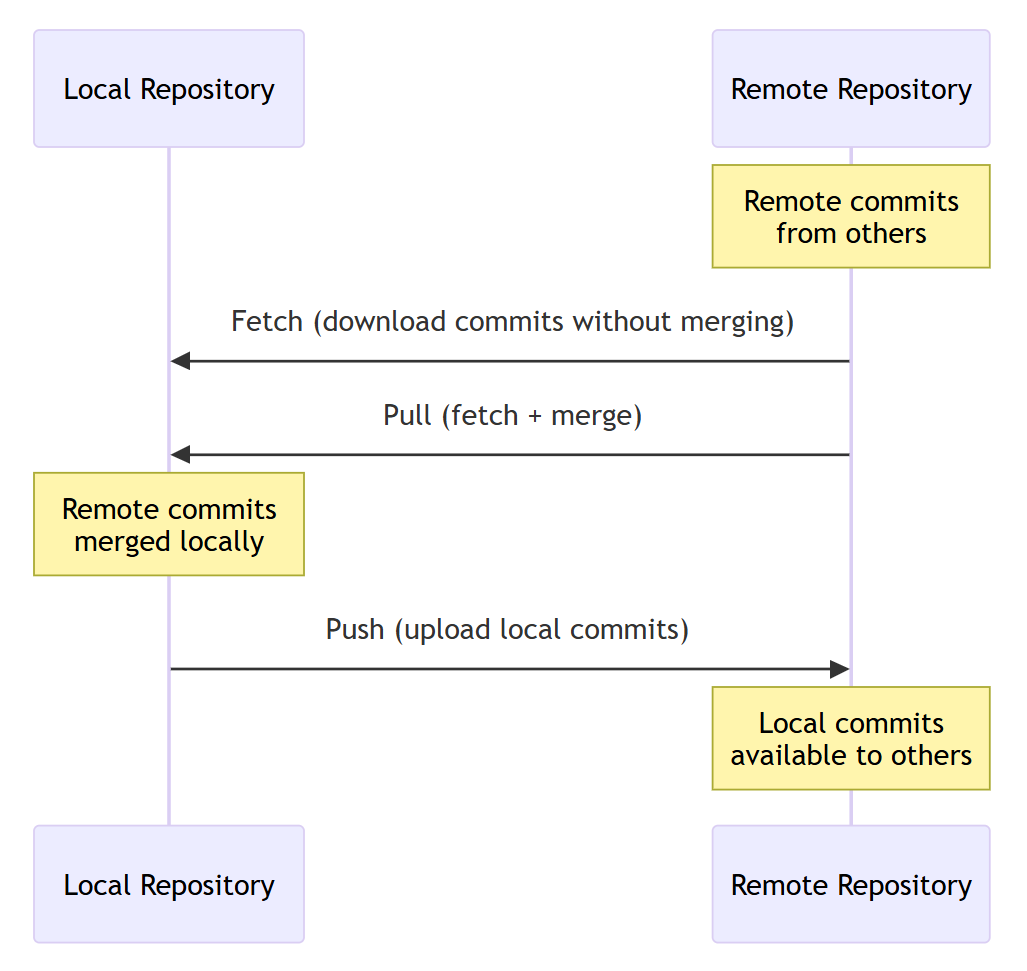
fetch downloads, pull downloads and merges locally, push uploads. Source: VS Code — Source control overview.
Sync Changes is pull then push in one click, and it is what you will use most of the time. When you want them separately — or want to fetch and look first — use the … menu at the top of the Source Control view.
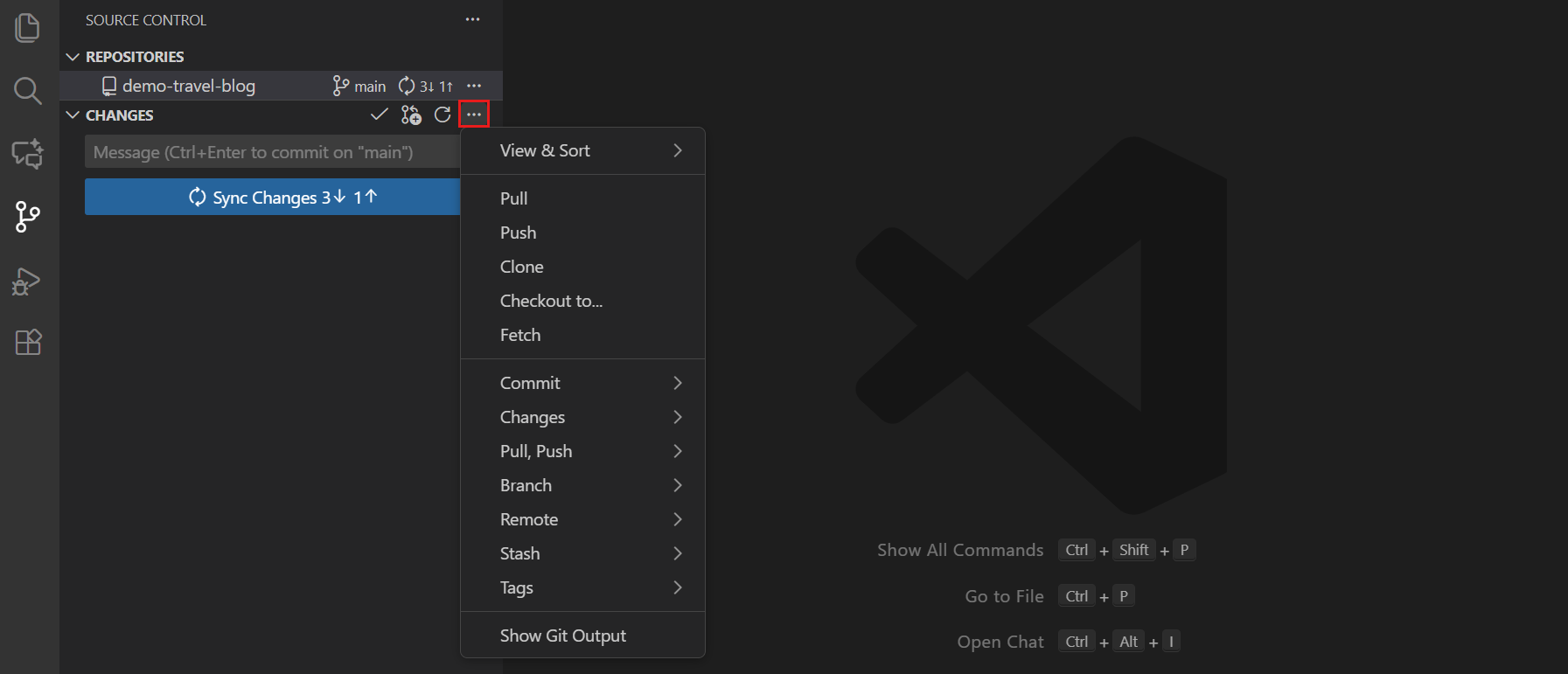
git fetch          # look, don't touch
git pull           # fetch + merge into the current branch
git push           # send yours up
2 The story: two people, one file
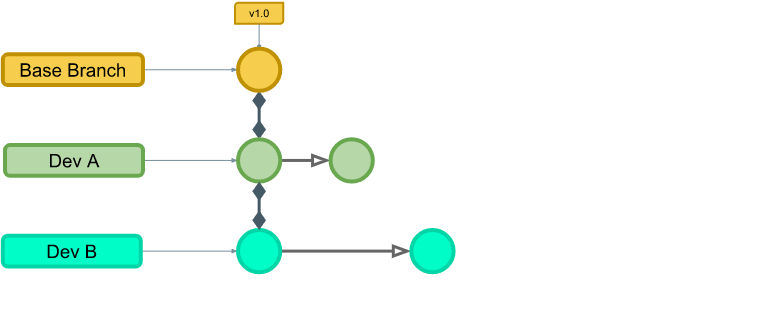
The clearest way to understand a conflict is to watch one form. Two colleagues, Dev A and Dev B, both start from the same version of a shared branch.
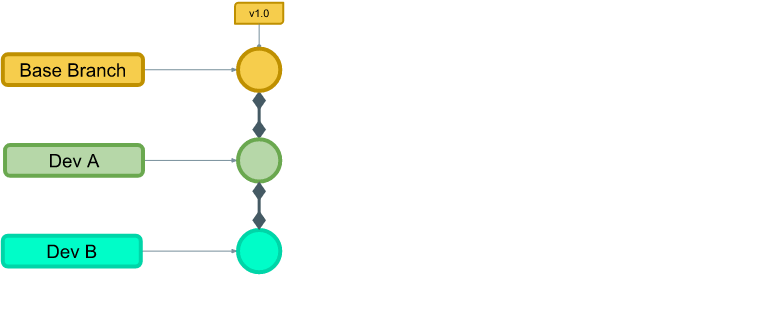
v1.0, and each person creates their own branch from that exact commit. Source: Camping Coder — Git merges demystified.
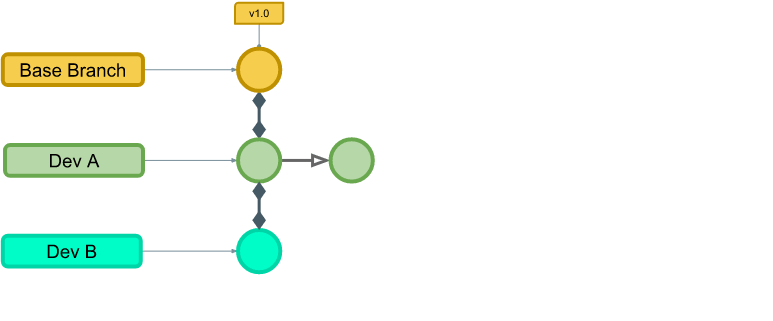
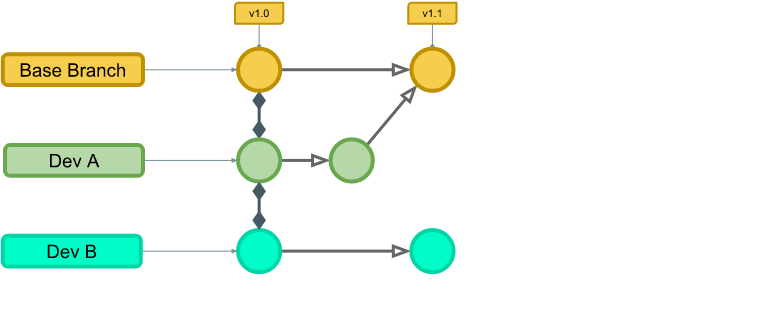
v1.1. Source: Camping Coder — Git merges demystified.
Here is the moment everything turns on. Dev B’s branch was created from v1.0, but the base branch is now at v1.1. His branch is behind, and if he touched the same lines Dev A did, Git cannot merge it on its own.
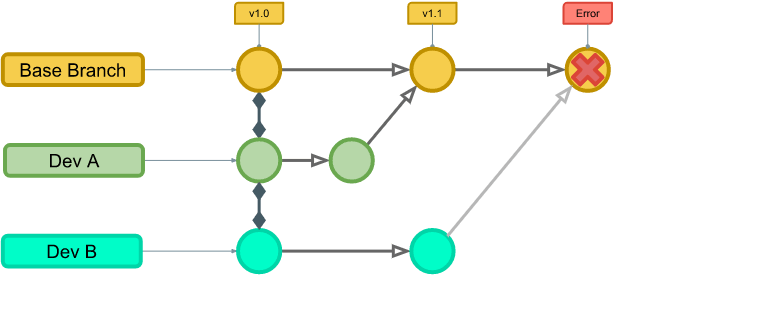
The fix is not to argue about it. It is for Dev B to bring the base branch into his own branch first, and sort out the overlap there — on his branch, where nothing is at stake.
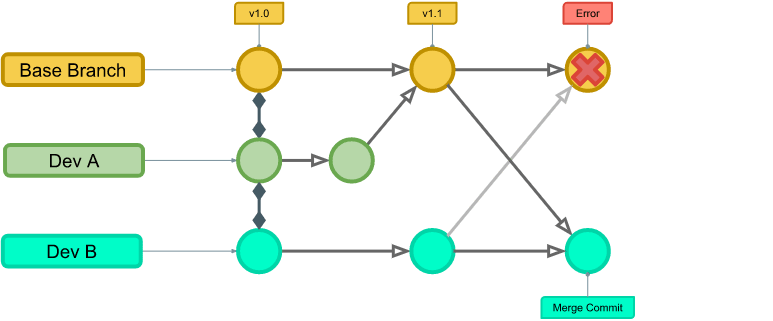
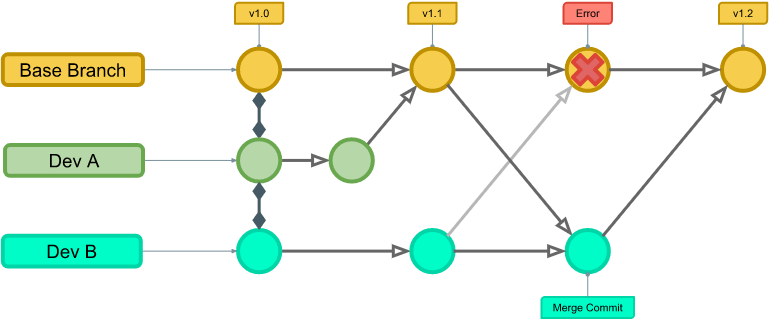
v1.2. Source: Camping Coder — Git merges demystified.
Nobody did anything wrong. Dev B’s branch simply aged while he was working on it.
The rule that follows is short: before you ask anyone to merge your branch, pull the base branch into it and deal with any conflict there.
3 Bringing main into your branch
This is Figure 8, in practice.
- Click the branch name in the status bar and switch to
main. - Click Sync Changes to pull down what has been merged.
- Switch back to your branch.
- Open the … menu → Branch → Merge… and choose
main.
VS Code shows how far behind you are before you start: the incoming and outgoing changes section lists the commits that are about to arrive.
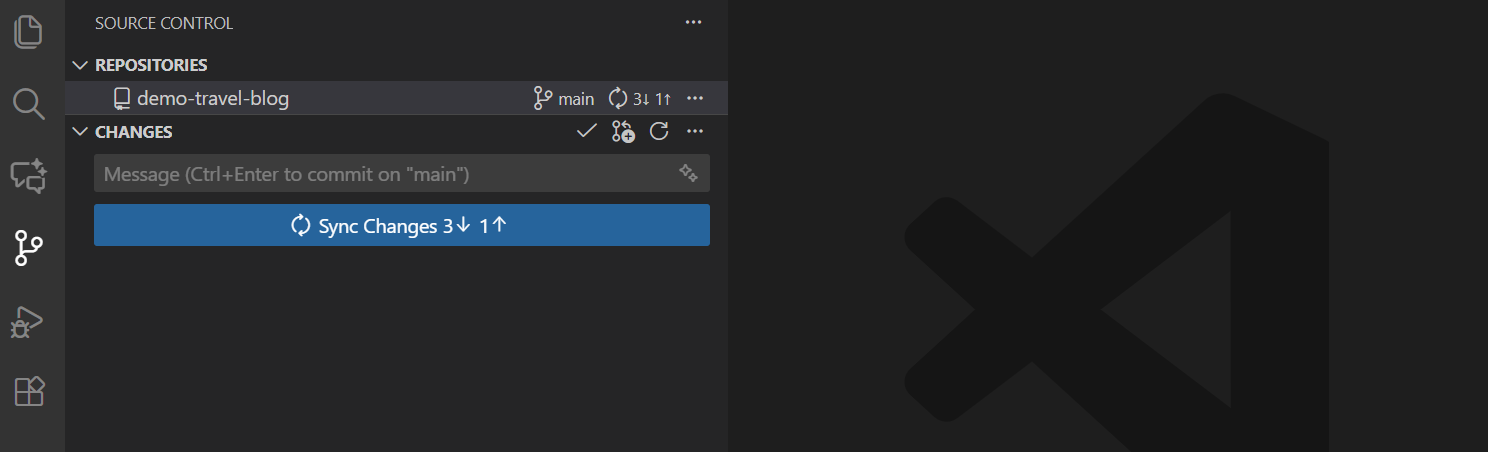
git switch main
git pull
git switch add-region-dummies
git merge main            # bring main's new commits into your branch
If nothing overlaps, that is the end of it. If something does, Git stops and asks — read on.
4 Resolving a conflict
A conflict means two people changed the same lines of the same file, and Git will not pick a winner. It marks the disputed region and hands it to you.
It does not mean anyone broke anything. It means two edits landed on the same spot, and a human has to say what the combined version should be.
Often the right answer is keep both.
Conflicting files appear in the Source Control view under Merge Changes. Open one, and each disputed block gets a row of actions above it.
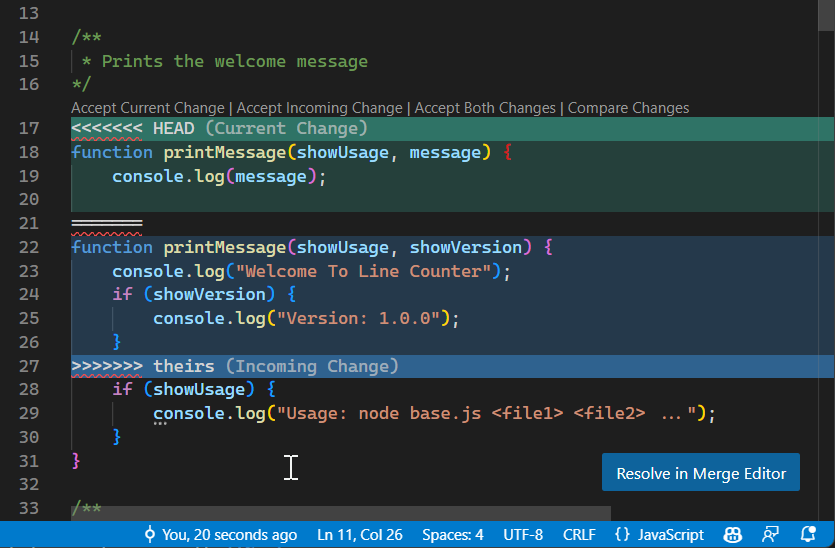
For anything more than a trivial clash, click Resolve in Merge Editor. It shows three panes: Incoming on the left, Current on the right, and the Result you are building at the bottom.
- Tick the changes you want from either side, or Accept Combination to take both.
- Edit the Result pane directly if neither side is quite right.
- Click Complete Merge when the counter says no conflicts remain.
- Commit as usual.
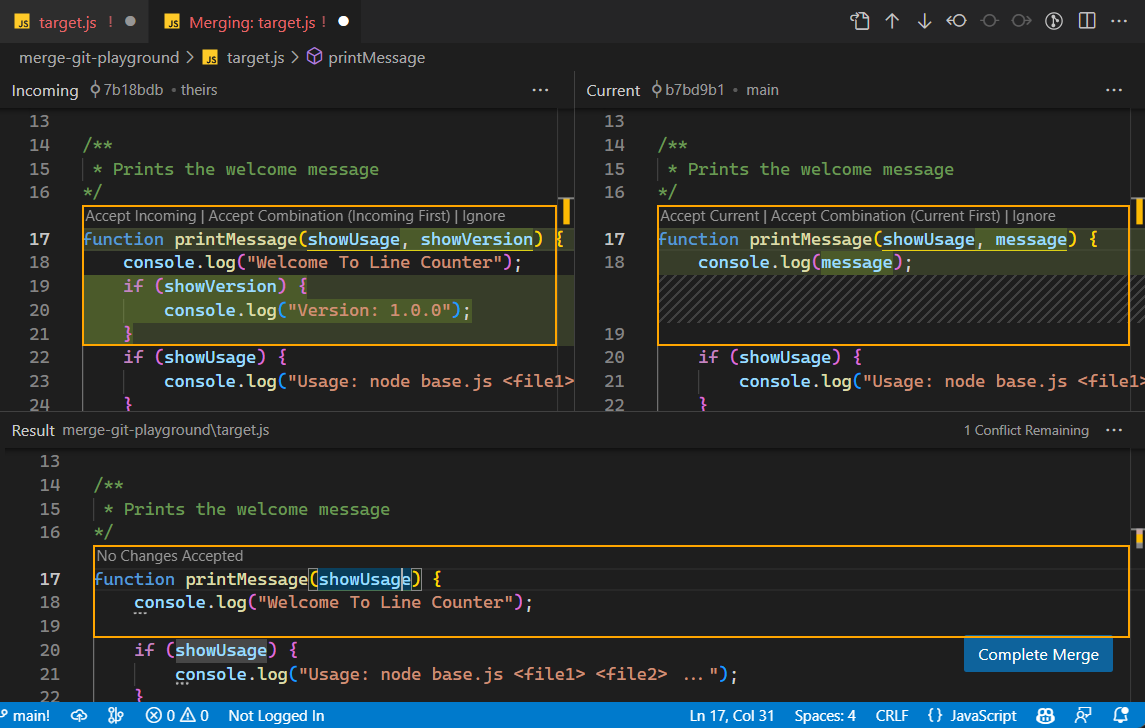
Git rewrites the disputed region of the file with markers:
<<<<<<< HEAD
global root "C:/Users/aigerim/hh-survey"
=======
global root "/home/daniyar/projects/hh-survey"
>>>>>>> main- Everything between
<<<<<<<and=======is your version. - Everything between
=======and>>>>>>>is theirs.
Open the file, decide what the correct combined content is, delete all three marker lines, then:
git add clean_analyze.do
git commit                # records the resolved merge
git push
git status lists every file still waiting on you. git merge --abort throws the whole merge away and puts you back where you started, if you would rather think about it first.
The temptation is to accept whichever version makes the red markers go away. That silently deletes a colleague’s work.
Read both versions. Write the version that is actually correct — which is often neither one on its own.
5 Where to resolve it matters
You can resolve the same conflict in three places, and they are not equally good.
| Where | What it costs |
|---|---|
| On your branch, before opening the PR | Cheapest. Nothing shared is affected, and you can take your time. Do this. |
| In the pull request, when GitHub flags it | Fine. It is visible and reviewable, which is the whole point of a PR. |
On main, after a rejected push |
Worst. One person, under time pressure, with no review. |
That last row is the rejected-push story on the branching page, and it is exactly what branches exist to avoid.
6 Habits that prevent most conflicts
Conflicts are mostly a symptom of how work is organised, not of Git.
- Pull from the base branch often. A branch that is one day behind conflicts rarely; one that is two months behind conflicts everywhere.
- Keep branches short-lived. Days, not months.
- Split large files. One 3,000-line
sim.dothat everybody edits will conflict constantly. Several focused do-files will not. - Commit only what you meant to change. Editor settings, log files and re-saved output create conflicts that carry no information at all. Keep them out with
.gitignore. - Divide work by section, not by line. If two people must touch the same block, agree who goes first rather than racing.
7 Exercise: cause a conflict on purpose
Ten minutes, in pairs, on a throwaway repository. The point is to meet a conflict when nothing is at stake.
- Both clone the same repository and confirm you are on the same commit.
- Each create a branch:
<yourname>-conflict. - Both edit the same line of
README.md, differently. - Both commit and publish.
- Person A opens a pull request and merges it.
- Person B pulls
maininto their branch — the conflict appears. - Person B resolves it in the merge editor, keeping both contributions, commits, and pushes.
- Person B’s pull request now merges cleanly.
- Both pull
mainand confirm the two changes coexist.
Then do it again and let Git surprise you: GitHub Skills — Resolve merge conflicts runs the same drill inside a real repository, with instructions built in.
8 Sources and further reading
Where the pictures come from
- Camping Coder — Git merges demystified — source of Figure 3 through Figure 9, and of the Dev A / Dev B story.
- VS Code — Resolve merge conflicts — source of Figure 11 and Figure 12, and the merge editor steps above.
- VS Code — Source control overview — source of Figure 1 and Figure 10.
- VS Code — Source control quickstart — source of Figure 2.
Read more on merging
- GitHub docs — About merge conflicts and Resolving a merge conflict on GitHub.
- Atlassian — Git merge — fast-forward versus three-way merges, illustrated.
- Pro Git — Basic merge conflicts — the definitive explanation, free.
- Learn Git Branching — the Introduction Sequence levels on
mergeandrebase, played rather than read.
Elsewhere in these guides
- Git branching: an introduction — why branches exist and how to work on one.
- Git and GitHub: team workflow — the full team drill, including a deliberate conflict.
- MML’s spaces on GitHub — the Lab’s rules on repositories, access and naming.