Every step below is shown twice: first in Visual Studio Code / Positron, which is what we use day to day, and then on the command line, which is the same thing spelled out in words. Use whichever you like — they do exactly the same job.
1 The problem: two people, one branch
Alone on main, Git never argues with you. Nobody can change the remote behind your back, so push always works.
Add a second person and keep that single main, and it stops being true.
Both clone at commit C3. Both then work at the same time, and the shared history moves under the feet of whoever pushes second.
sequenceDiagram
  autonumber
  participant A as Person A — laptop (main)
  participant O as GitHub — origin/main
  participant B as Person B — laptop (main)
  Note over O: main = C1 → C2 → C3
  O->>A: git clone — A starts at C3
  O->>B: git clone — B starts at C3
  Note over A: commits C4-A locally<br/>(not pushed yet)
  Note over B: commits C4-B locally
  B->>O: git push — accepted
  Note over O: main = C1 → C2 → C3 → C4-B
  A--xO: git push — REJECTED<br/>non-fast-forward
  Note over A,O: A's main ends at C4-A, the remote ends at C4-B<br/>the two histories have diverged
  O->>A: git pull — merge C4-B into A's work
  Note over A: resolve the conflict if both<br/>edited the same lines
  A->>O: git push — accepted
  Note over O: main = C1 → C2 → C3 → C4-B → C4-A
Figure 1: Two people, one main. Person B pushes first, so Person A’s push is rejected — their local history and the remote have diverged.
Person A did nothing careless. They built on the newest commit they knew about, C3. Git refuses their push only because accepting it would silently throw away C4-B.
The real problem is not the clash. It is when the clash shows up: at push time, on one person’s laptop, alone, at the exact moment they wanted to be finished. And nobody reviews the fix.
ImportantThis is the whole argument for branches
On a single main, everyone writes to the same line of history and collisions surface at the worst possible moment.
Work on a branch instead, and the two changes sit side by side until someone deliberately brings them together. The clash then happens in a pull request on GitHub — visible, discussed and reviewed before it touches main.
The Lab’s rule follows: never push straight to main on a shared repository.
You can also fix this locally, without branches, by pulling first and merging on your own machine. That works, and on a solo project it is all you need. See Merging and merge conflicts for how, and for why it is a poor deal on a shared repository.
2 What a branch actually is
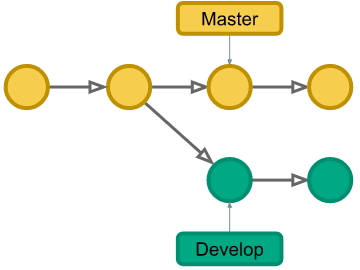
A branch is much less than most people imagine. It is a movable label pointing at one commit. Nothing is copied, no folder is duplicated.
main is a label on the newest commit of the main line of work.
Creating a branch puts a second label on that same commit.
Committing moves your label forward and leaves main where it was.
Switching branches rewrites the files in your folder to match whichever label you point at.
That is why branching is instant, and why having five branches costs nothing.
Figure 2: Creating a branch splits a new line of work off the main one. main (yellow) keeps going; the new branch (green) collects its own commits. Source: Camping Coder — Git branches simply explained.
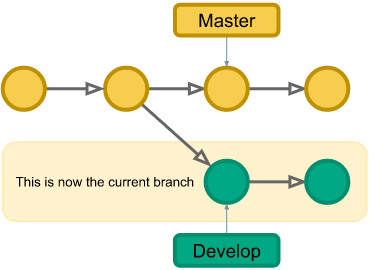
Once the branch exists you switch onto it. From then on, every commit you make lands on the branch and main is untouched.
Figure 3: Switching moves you onto the branch. Your project folder now shows that branch’s files, and new commits land there. Source: Camping Coder — Git branches simply explained.
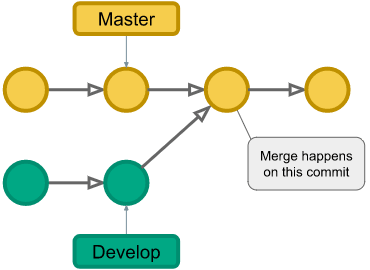
When the work is done, the branch comes back through a merge. Git creates one commit on main that contains both lines of work.
Click the branch name in the status bar, bottom-left, and pick main.
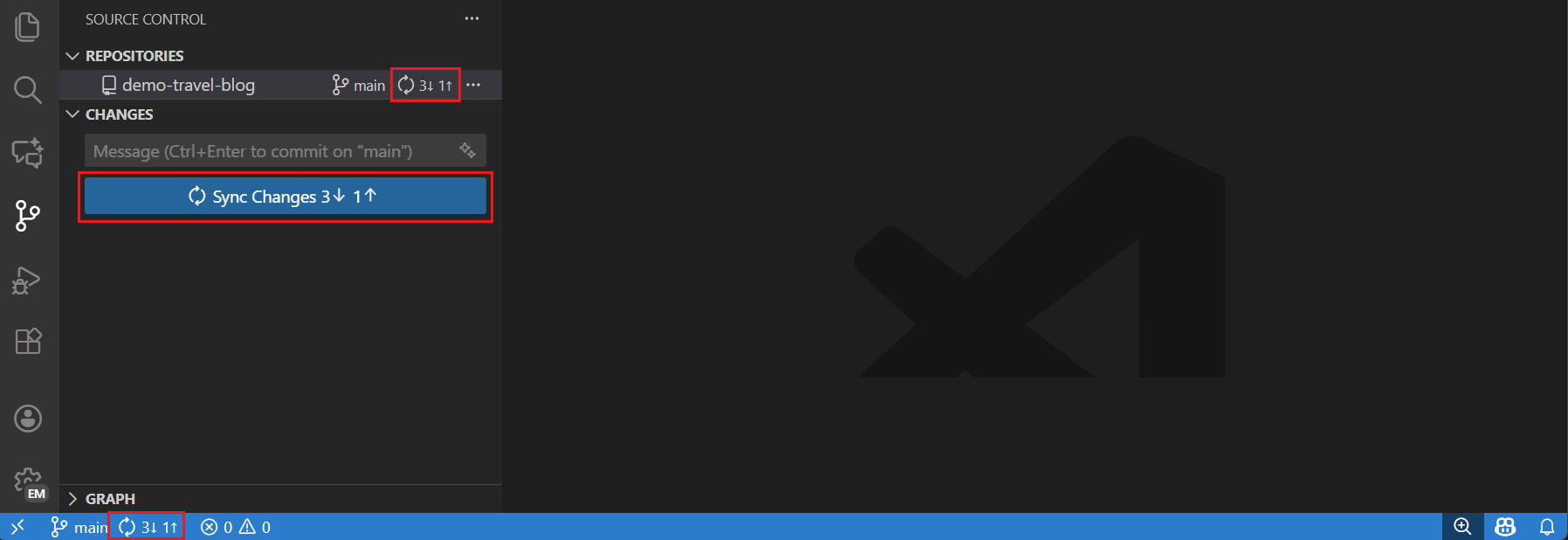
In the Source Control view (Ctrl+Shift+G), click Sync Changes to pull down what other people have merged.
Figure 6: Sync Changes pulls the incoming commits and pushes your outgoing ones in one click. The counters — 3↓ 1↑ — tell you how far behind and ahead you are. Source: VS Code — Source control quickstart.
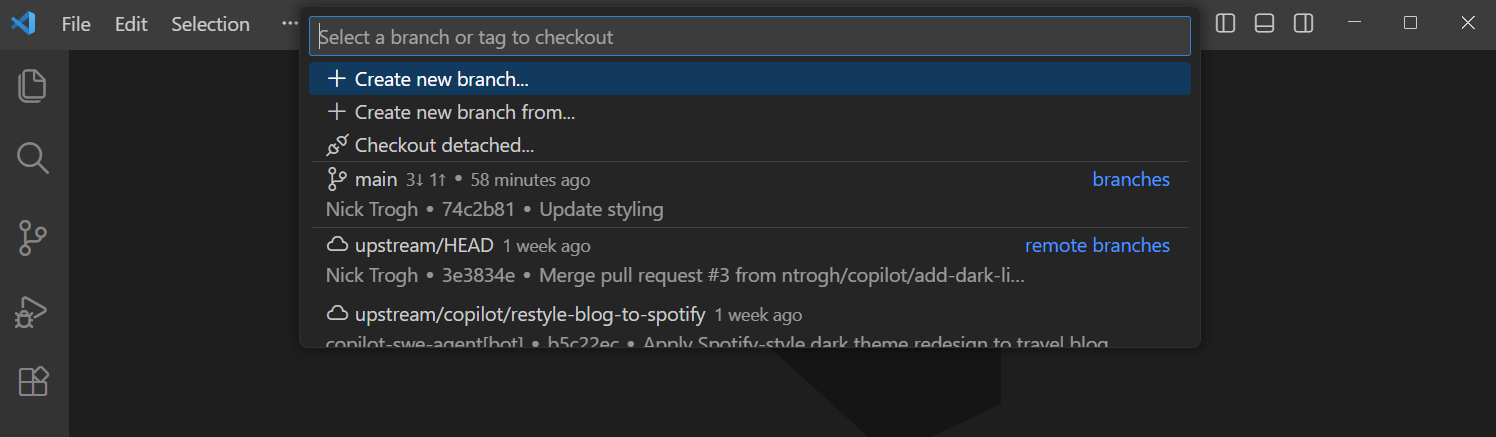
Type the name and press Enter — VS Code creates it and switches you onto it.
The same list is how you move between existing branches later.
Figure 7: Clicking the branch name opens a quick pick with Create new branch… at the top and all existing local and remote branches below. Source: VS Code — Source control overview.
git switch -c add-region-dummies # create it and move onto itgit branch # which branches exist, and where am I?
git switch -c is the modern spelling of git checkout -b. Both do the same thing, and you will meet the older one in most tutorials.
TipName the branch after the change, not after yourself
add-region-dummies, fix-weights-2021, update-readme — lowercase, hyphens, no spaces. A reviewer should be able to guess the content from the name alone. eduard-branch or test2 tells nobody anything, including you in three weeks.
3.3 3. Do the work
Nothing changes about your daily rhythm. The commits simply land on your branch instead of on main.
Open Source Control — changed files appear under Changes. Click one to see the diff.
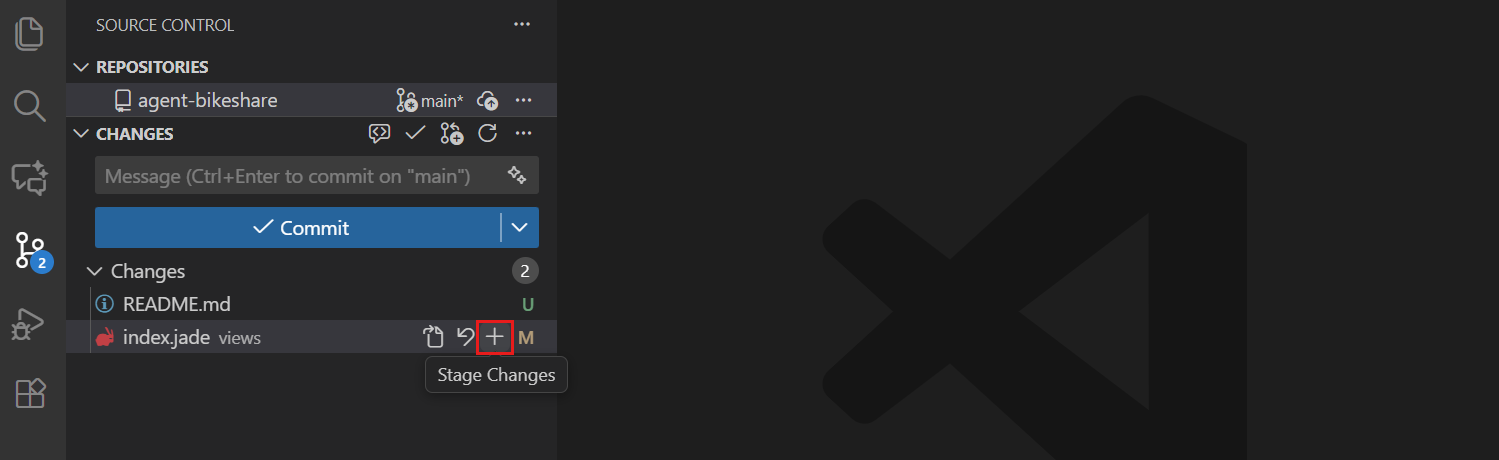
Hover a file and click + (Stage Changes) to include it in the next commit.
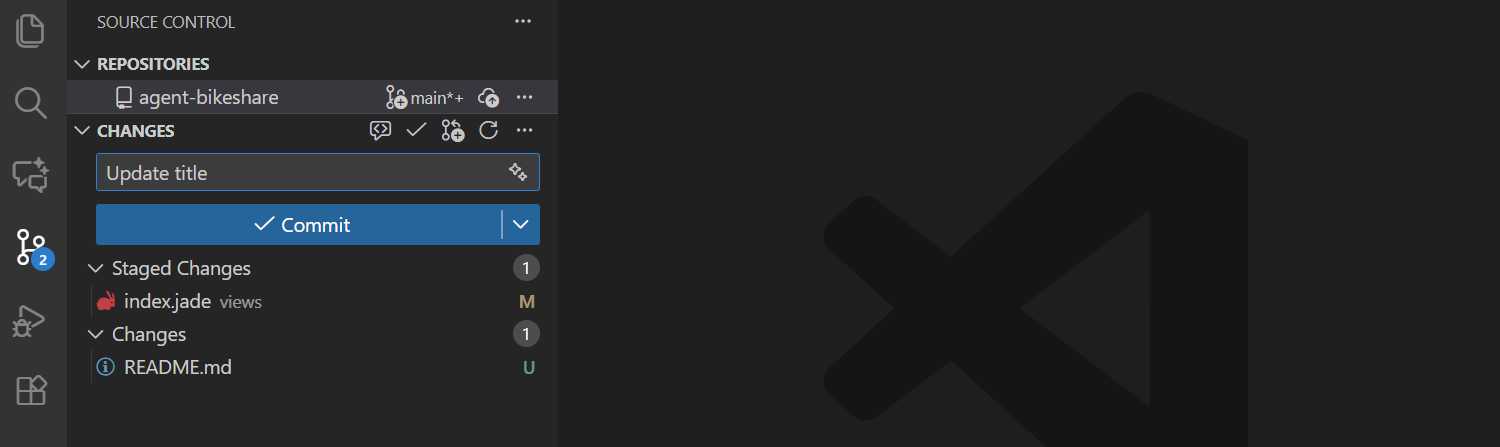
Type a message in the box and click Commit.
Figure 8: Hover a changed file and click + to stage it. Staging is how you choose what goes into this commit and what waits for the next one. Source: VS Code — Source control quickstart.
Figure 9: Staged files move to Staged Changes. Write a message that says what changed and why, then click Commit. Source: VS Code — Source control quickstart.
# edit clean_analyze.dogit add clean_analyze.dogit commit -m"Add region fixed effects to the wage regression"
3.4 4. Publish the branch
The first push has to tell GitHub the branch exists. After that, plain syncing is enough.
Click Publish Branch in the Source Control view. From then on the same button reads Sync Changes (see Figure 6).
git push -u origin add-region-dummies
Your branch is now on GitHub — backed up and visible — and main is still untouched.
3.5 5. Open a pull request and get it reviewed
A pull request (PR) is a request to merge your branch into main. It is where the two things that make collaboration work actually happen: review and conversation.
Install the GitHub Pull Requests extension and you can open, review and merge PRs without leaving the editor: the Pull Requests view lists them, and Create Pull Request starts a new one from your current branch. Otherwise just open the repository on GitHub.
Open the repository — GitHub offers a Compare & pull request button right after your push.
Give the PR a title that says what changes, and a description that says why.
Request a reviewer. In the Lab, that is whoever else touches this repository.
Then:
The reviewer reads the diff, comments on specific lines, and either asks for changes or approves.
You push more commits to the same branch to answer the comments — the PR updates itself.
When it is approved, merge it. GitHub does the merge on the server, so you never had to fight it on your laptop.
3.6 6. Delete the branch and start again
Once merged, the branch has done its job. GitHub offers a Delete branch button on the merged PR — take it.
Switch back to main from the status bar, then click Sync Changes to bring the merge down.
git switch maingit pull # bring the merge downgit branch -d add-region-dummies # remove the local copy
4 When your branch falls behind
Long-lived branches drift. If main moved while you were working, update your branch before asking anyone to merge it, and resolve any clash there — on your branch, where breaking something is cheap.
Tutorials will happily show you force-pushes, history rewriting and long-lived personal branches. Practise anything you like there; on a real repository follow MML’s spaces on GitHub.
6 Exercise: two people, one repository, no collisions
Replay the story from Figure 1 — but with branches this time, and watch the problem fail to happen.
Pair up. Both clone the same repository and confirm you start from the same commit.
Each create your own branch, named <yourname>-readme.
Both edit the same line of README.md — deliberately.
Both commit and publish your branch. Notice that neither push is rejected: you are not competing for main.
Person A opens a pull request and merges it.
Person B now opens theirs. GitHub reports a conflict in the pull request, before anything reaches main.
Both of you: switch to main, pull, and confirm the two changes coexist.
Delete both branches.
The lesson: the conflict still existed. It simply surfaced in a pull request, where it was visible and reviewable, instead of at push time on one person’s laptop.
7 Sources and further reading
The diagrams on this page come from other people’s work, and both are worth reading in full.