Git and GitHub: Your Solo Workflow
One Stata project, one branch, no collaborators: change, stage, commit, push, pull, and read the history back on GitHub
1 Why version control (the five-minute case)
Most data projects die a slow death by file name. You start with analysis.do, then analysis_v2.do, then analysis_final.do, and three days later analysis_final_REALLY.do. Nobody — including future you — can say what changed between them, when, or why.
Git fixes this. Instead of saving copies, you keep one file and let Git record a timeline of snapshots every time you decide something is worth keeping. Each snapshot carries a message (“added region fixed effects”) and a timestamp, so the history is the story of the project. GitHub then puts that history online, where you can browse it, inspect it, and eventually share it.
This exercise is entirely about working on your own: one project, one main branch, no collaboration yet. The aim is to make the core rhythm feel automatic.
This is the practical companion to Version control: Git + GitHub. That page is the Lab’s rulebook — why the MML mandates version control, which GitHub organization to push to, how repositories are created and named, and how to install Git on a Bank machine. This page assumes Git is installed and teaches you to use it.
Our running example. Throughout this guide we work on a small Stata project called
hh-survey. It has one data file,hh2024.dta, and one do-file,clean_analyze.do, that cleans the data and runs a first regression. Every command below acts on this project, so you always have something concrete in front of you. It is deliberately bare: a real MML project also carries a setup header, staged outputs and a dependency record, which are specified in Code reproducibility practices.
Every command below is shown at the terminal, because the words are the same everywhere. In practice you will click most of them. MML edits code in Positron (see Recommended software), which is built on VS Code and ships the same Source Control view, so the VS Code documentation applies to it unchanged. Keep VS Code — Source Control overview open in a browser tab: it is the reference for this guide, and it shows, with pictures, where each command below lives in the interface.
2 Step zero: tell Git who you are
Git stamps every commit with a name and an email address. If you never set them, Git either refuses to commit or guesses an identity from your machine account, and that guess is what the history keeps. So this is the very first thing you do on a new machine — once, and never again.
git config --global user.name "John Doe" # Change with your name
git config --global user.email "johndoe@example.com" # Change with your email
Two things worth knowing:
--globalmeans “for me, on this computer” — every repository you create from now on inherits these settings. Drop the flag inside a project to override them for that project only.- Use the same email as your GitHub account. That is the string GitHub matches on, and it is what makes your commits show up under your profile instead of as an anonymous author.
The third line sets main as the default name for the first branch of every new repository, which is what GitHub expects.
3 Starting a repository: git init
A Git repository is just an ordinary folder with a hidden .git sub-directory inside it, where Git keeps the history. Turning your project folder into a repository takes one command:
cd ~/projects/hh-survey     # go into the project folder
git init                    # create the repository
git status                  # Git now reports untracked files
Nothing has been saved yet — git init only opens the notebook. The first snapshot is yours to take:
git add clean_analyze.do
git commit -m "Add first cleaning and regression do-file"
Decide what Git should ignore. Data projects are full of things that do not belong in history: large
.dtafiles, Stata logs,.xlsxoutput. Create a file named.gitignorenext to your do-file, list one pattern per line — for example*.log,data/raw/,~$*.xlsx— and commit it. Do this before your firstgit add ., or you will spend the morning removing files you never meant to track. In real MML work microdata is not merely ignored: it is archived read-only on SharePoint and read from there — see Data management and archiving.
In Positron, the same thing is one click: open the project folder, go to the Source Control view, and press Initialize Repository. The staging and commit boxes appear in the same panel. The step-by-step version, with screenshots, is in Set up Git in VS Code.
Practice now. Initialize
hh-survey, write a two-line.gitignore, and make your first commit. Rungit statusbefore and after each command and read what it tells you.
4 The core loop: change → stage → commit
This is the heartbeat of Git. You will repeat it constantly, so we drill it first, before anything touches the internet.
Three ideas, in plain language:
- Change. You edit
clean_analyze.doin your editor — nothing special, just normal work. - Stage. You tell Git which changes you want to include in the next snapshot. Think of staging as putting items on a tray before you take the photo.
- Commit. You take the photo. Git saves a permanent snapshot of the staged changes, plus a short message describing what you did.
4.1 The commands
git status                      # what has changed? what is staged?
git add clean_analyze.do        # stage this file for the next commit
git commit -m "Clean age variable and drop missing IDs"
git status is your best friend. Run it constantly — before staging, after staging, after committing. It always tells you exactly where you stand.
4.2 What makes a good commit
- One logical idea per commit. “Recode income and add region dummies” is really two commits. Small commits make history readable.
- A message that finishes the sentence “This commit will…” — for example, “…drop observations with missing household IDs.”
- Commit when something works, not at random. A commit should be a point you would be happy to come back to.
The Lab holds you to a stricter standard than “readable”: a message must carry the reason for a change, because the diff can only ever show what changed. See “Commit messages are documentation” in Version control: Git + GitHub.
Practice now. Make three real edits to
clean_analyze.do— for instance, load the data, then recode a variable, then run a regression — and commit after each one. When you are done, you have a three-snapshot history of your morning.
5 Connecting to GitHub: the remote, push, and pull
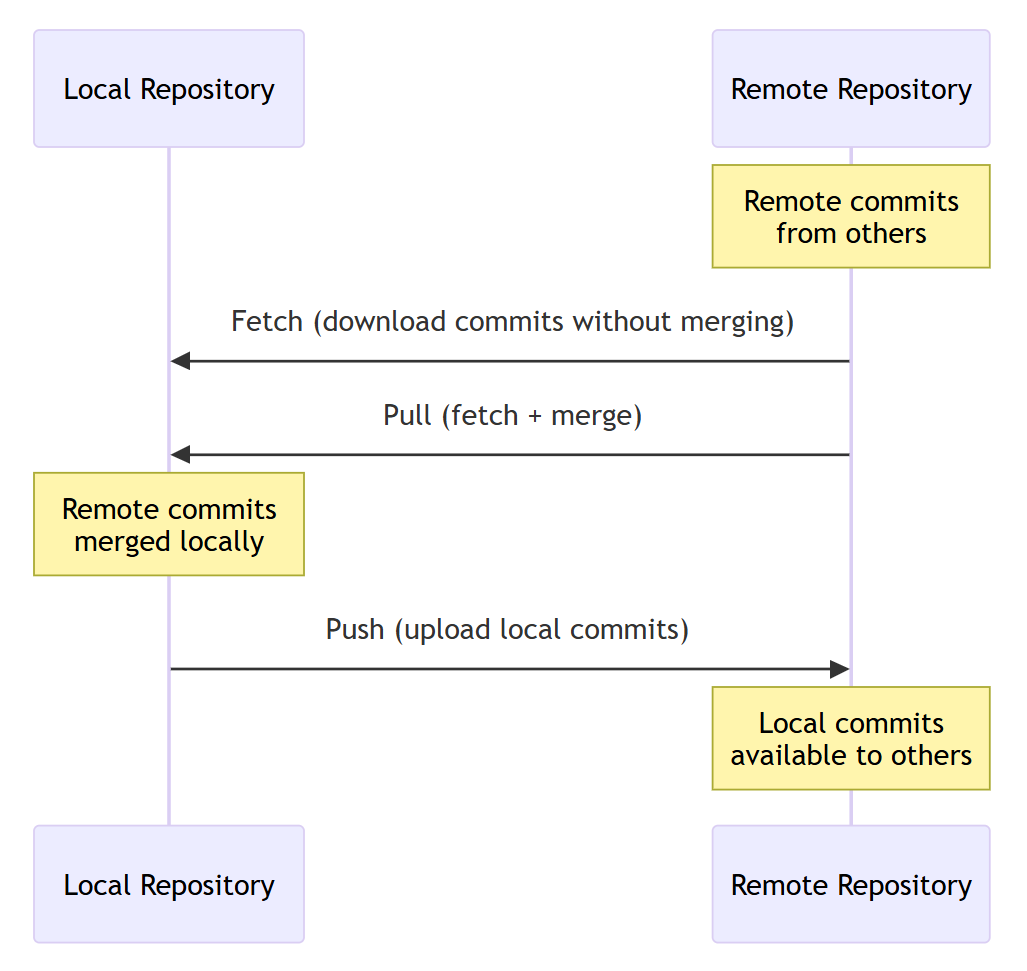
So far everything lives only on your laptop. GitHub is a copy of your project that lives online — we call it the remote. Putting your work there means it is backed up, visible, and ready to share later.
Four keywords anchor this section:
- Commit — a saved snapshot (you already know this one).
- Remote — the online copy of your project on GitHub, nicknamed
origin. - Push — send your local commits up to the remote.
- Pull — bring commits down from the remote to your laptop.
5.1 Create the empty repository on GitHub
On https://github.com, click New repository, name it hh-survey, choose public or private, and — this matters — do not tick “Add a README”, “Add .gitignore”, or “Choose a license”. Those options make GitHub create a first commit of its own, and connecting that to your existing history is a fight you do not need today. You want an empty shell.
GitHub then shows you a URL that ends in .git. That is the address of your remote.
This is the exercise route, not the lab route. For a real MML project you do not create a bare repository under your own account. You create it under
github.com/worldbankfrom themmlTemplatetemplate, which ships a README, a.gitignoreand a licence with the repository, then add the MML team with theMaintainrole and follow the naming rules. Because the template repository already has a first commit, you clone it rather thaninit+ push. The checklist is in Version control: Git + GitHub; cloning is at the end of this page.
5.2 Connect your local repository and push
git remote add origin https://github.com/<your-username>/hh-survey.git
git branch -M main              # make sure the branch is called main
git push -u origin main         # first push: send main and remember it
Three lines, three jobs. git remote add teaches your local repository the address of the remote and nicknames it origin. git branch -M main renames your current branch to main in case it was created as master — if you set init.defaultBranch in step zero it changes nothing, and it is cheap insurance on a machine where you did not. git push -u origin main sends everything up and — thanks to -u — records the link, so from then on plain git push and git pull know where to go.
In Positron, you can skip all three: with a repository initialized and at least one commit made, the Source Control panel offers Publish Branch, which creates the GitHub repository, adds the remote, and pushes, in one prompt. See Source Control overview for the remotes and publishing section.
5.3 The day-to-day commands
git remote -v                   # which remote am I connected to?
git push                        # send local commits to GitHub
git pull                        # get any commits from GitHub
The satisfying part: after git push, open your repository page on GitHub and refresh. The commits you just made on your laptop are now there, each with its message and timestamp. Your work has left the building.
Today’s rule. Everyone works in their own repository on a single
mainbranch, edited from one machine. As long as that holds, nobody is changing the same file behind your back and you cannot produce a merge conflict — conflicts are deliberately left to the collaboration exercise that follows this one. For now the loop is simply: edit, commit, push, refresh GitHub, smile.
6 Reading history on GitHub
Once a handful of commits are online, GitHub becomes the fastest way to read your project’s past. This is where the discipline of good commits pays off. Four things to learn:
6.1 Browse the commit list
On your repository page, the commits view shows every snapshot in order — message, author, and time. This is the narrated timeline of the project. Click any commit to open it.
6.2 Inspect a single commit
Opening one commit shows you exactly what changed in that snapshot: lines added appear in green, lines removed in red. This green-and-red view is called a diff (short for “difference”). It answers the question, “what did this particular commit actually do?”
6.3 Compare two commits
You are not limited to one commit at a time. GitHub lets you pick any two points in history and see the combined diff between them — useful for answering “what changed between last Monday and today?” without reading every commit in between.
6.4 Blame: line-by-line history
Blame is the detective tool. Open a file on GitHub and switch to the blame view, and every single line is annotated with the commit that last touched it — who changed it, when, and in which commit. When you stare at a regression line and think “wait, why is this variable here?”, blame walks you straight back to the commit (and message) that introduced it.
Practice now. On GitHub, open your commit list, click into one commit to read its diff, then compare your first and third commits. Finally, open
clean_analyze.doin blame view and find the commit responsible for one specific line.
7 Issues: tracking work against the project
The last piece of the solo workflow lives on GitHub too. An issue is a small note attached to your repository — a to-do, a bug, or an open question. “Check whether income is top-coded,” or “Standard errors look too small — revisit.”
Issues matter even when you work alone, because they move the mental clutter out of your head and attach it to the exact project it belongs to. Each issue has a title, a description, and a comment thread, and you can close it when the work is done. Later, when you collaborate, issues become the shared to-do list — but the habit starts now.
Practice now. Open two issues on your repository: one real to-do for
hh-survey, and one question you would want to answer later. Close one of them with a comment explaining what you did.
8 Odds and ends
A few things that do not fit the main story but will come up within your first week.
8.1 The other starting point: git clone
Everything above assumed the project began on your laptop. Just as often the repository already exists on GitHub — a colleague’s project, a template, or your own work on a second machine — and you want a copy locally. That is a clone:
cd ~/projects                                        # where the folder should land
git clone https://github.com/<owner>/hh-survey.git   # copy the whole repository
cd hh-survey
git log --oneline                                    # the full history came with it
For MML work that URL is almost always https://github.com/worldbank/<repository-name>.git, and cloning is how you start on every repository the lab already owns.
Cloning is init + remote add + pull, all at once. You get every file, every commit, and origin already wired up — so git push and git pull work immediately, with no setup. Note that git clone creates the hh-survey folder for you: run it from the parent directory, not from inside an existing project.
In Positron, open the Command Palette and run Git: Clone, or press Clone Repository on the Source Control view of an empty window, then paste the URL.
Init or clone — how to choose. If the project starts on your machine,
git initthen push. If it already lives on GitHub,git clone. Never both: cloning already did theinitfor you, and runninggit initin a sub-folder of a repository creates a nested second repository whose commits the outer one cannot see.
8.2 Reading history without leaving the terminal
You do not have to open GitHub to look at the past:
git log --oneline               # one line per commit, newest first
git log --oneline -5            # just the last five
git show <commit-id>            # the full diff of one commit
git diff                        # what have I changed but not staged?
8.3 Undoing things
The three you will actually need:
git restore clean_analyze.do              # throw away uncommitted edits to this file
git restore --staged clean_analyze.do     # unstage, but keep the edits
git commit --amend -m "Better message"    # fix the message of the last commit
Only amend a commit you have not pushed yet. Once a commit is on GitHub, rewriting it makes your history and the remote’s disagree — a problem for the collaboration exercise, not for today.
8.4 Signing in, and the credential prompt
The first time you push over HTTPS, Git asks who you are. On Windows the Git Credential Manager opens a browser window; sign in to GitHub once and it remembers you. If you are ever asked for a password at the terminal, GitHub no longer accepts your account password — you need a personal access token, generated from your GitHub settings and pasted in place of the password.
8.5 Checking what is connected
When something feels wrong, these two answer most questions:
git remote -v                   # which GitHub repository am I pushing to?
git status                      # which branch, what is staged, am I ahead of origin?
git status also tells you “Your branch is ahead of ‘origin/main’ by 2 commits” — that is Git reminding you to push.
9 Recap
By the end of this exercise you should be able to, without looking anything up:
- Explain why Git beats a folder full of
final_v3files. - Set your name and email with
git config --global, and say why the email should match your GitHub account. - Turn a folder into a repository with
git init, and keep junk out of it with a.gitignore. - Run the core loop fluently: change →
add→commit, checkinggit statusthroughout. - Create an empty repository on GitHub, connect it with
git remote add origin, and push so your commits appear online. - Read history on GitHub: browse commits, inspect one commit’s diff, compare two commits, and use blame to trace a single line.
- Open, comment on, and close issues.
- Take the other starting point when a project already exists online:
git clone, and say why you neverinita folder you cloned. - Find your way out of small trouble: read history with
git log, undo withgit restore, and check where you stand withgit remote -vandgit status.
Homework. On your own project, make at least five meaningful commits and push them, then open one issue describing what you plan to tackle next. Then clone your own repository into a second folder and run git log --oneline there — proof that everything you did really is on GitHub, and a rehearsal for the collaboration exercise, which opens with exactly that command and then introduces branches, pull requests, and the conflicts that come with them.
10 Where to read more
Four references, in the order you are likely to need them:
- Version control: Git + GitHub — the MML rules this exercise sits underneath: which organization, the
mmlTemplate, team access, repository naming, and how to install Git on a Bank machine. - VS Code — Source Control overview — the main reference for this guide. Every command above has a button, and this page shows where it is.
- VS Code — Set up Git in VS Code — the shortest path from “nothing installed” to a working repository.
- Pro Git (Chacon & Straub), free online — the definitive book, free in full. When you want to know what Git is actually doing, chapters 1–3 cover everything in this guide and more.