Goals:
- Setup software for AI agent-assisted analysis in Stata and R
- Enable AI-assistance with GitHub Copilot or Claude AI integration
- Be able to reproduce AI-assisted coding workflow demonstrated in the seminar
Overview
To be able to use AI in daily coding and data analysis we need to:
Software setup:
- Stata, R, Python, Positron, Quarto, Git
- Python package
uv - Extensions in Positron (Stata MCP)
GitHub setup:
- Create a GitHub account using private email (not WB email).
- Join World Bank GitHub organization.
- Request GitHub Copilot access from World Bank GitHub organization administrators.
- For a private setup, you need to make a subscription to GitHub Copilot Pro or Pro+ plan.
Connect GitHub Copilot to Positron and enable Positron Assistant in Positron settings.
Known Issues and Troubleshooting
If you have trouble installing software from the Software Center, contact IT Help: ITHelp@worldbankgroup.org or use Walk-in center.
If you have trouble with GitHub World Bank or Github Copilot access from World Bank GitHub setup instructions or contact github@worldbank.org.
GitHub Copilot does not work in Positron after installation:
Make sure you set-up GitHub account properly
Make sure that you have enabled Positron Assistant in Positron settings
Make sure you are signed into GitHub in Positron
Reload Positron after installation and setup:
Ctrl+Shift+P>Developer: Reload Window>Enteror close it and open again.
Stata-MCP extension does not run Stata code from the OneDrive.
This was a known issue with Stata MCP extension that has been resolved after this GitHub issue. It happened when running code from OneDrive folder because our one drive folder has a space in the name (“OneDrive - WBG”). A workaround is to move the code to a different folder without spaces in the path, for example
C:\Users\wbXXXXXXX\code, and run it from there. Once this issue it resolved on the Stata MCP extension side, it will update in positron automatically and you will be able to run code from the OneDrive folder again.
Software setup
Step 1: Install the software
First you need to install the required software on your computer. The table below summarizes the software needed and instructions for installation.
| Software | Note for self-installation | |
|---|---|---|
 |
Stata 19 or higher | Use regular installation |
 |
Positron Latest | Use user-level installation |
 |
Quarto 1.9.+ (latest) | Use admin-level (for all users) installation |
 |
R 4.5.2 (latest) | Use regular installation |
 |
Python 3.13+ (latest) | Use regular installation |
 |
Git 2.52+ (latest) | Use regular installation |
All software listed above is available for installation at the World Bank through the Software Center. Go to the Software Center and install it (if not already installed)  . If some is not available in the Software Center, make a Software Installation Request or contact IT Help: ITHelp@worldbankgroup.org.
If you had an older version of Positron installed, please reinstall it as the one on the software center is more up to date and capable of self-updating.
Private laptop setup
- R: Install R from https://cran.r-project.org/
- Python: Install Python from https://www.python.org/downloads/
- Positron: Install user-level Positron from https://positron.posit.co/download.html
- Quarto: Install Quarto from https://quarto.org/docs/get-started/
- Git: Install Git from https://git-scm.com/download/win
Step 2: Configure the software and install extensions
UV: Required Python Package
Open Command Prompt (cmd) or PowerShell:
- Press
Win + R, typecmdorpowershell, and hit Enter.
- Press
Type
pip install uvand press Enter to install theuvpackage.uvis a package that allows environments management in python, see https://pypi.org/project/uv/
Check if UV is installed correctly by typing
uv --versionin the Command Prompt or PowerShell. You should see the version number displayed, something like this:uv 0.9.18 (0cee76417 2025-12-16)
Stata-MCP: Extensions in Positron for Stata
Extensions in Positron are add-ons that enhance functionality. To install extensions, open the Extensions panel by clicking the square icon  on the left sidebar or pressing
 Ctrl+Shift+X. There are many extensions available for Positron. Below are the key extensions to install for AI-assisted analysis:
Stata MCP Extension enables Model Communication Protocol (MCP) for Stata, providing better context awareness for AI agents and allowing you to run Stata code directly from Positron.
To install it:
| Description | |
|---|---|
 |
Open the Extensions panel in Positron |
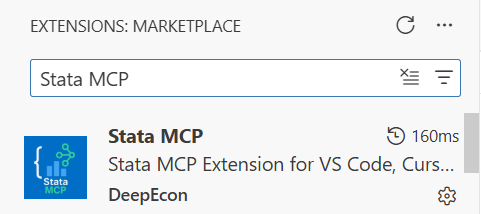 |
Search for “Stata MCP” in the Extensions panel |
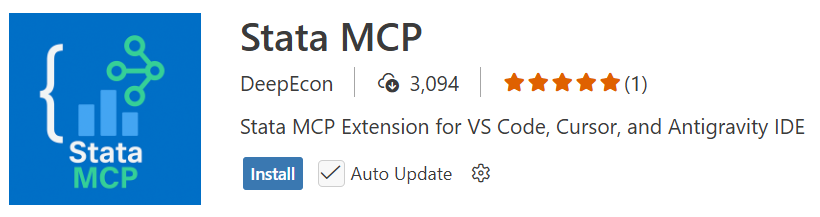 |
Click “Install” to add the extension to Positron |
 |
After installation, restart Positron or reload the window (Ctrl+Shift+P > Developer: Reload Window > Enter) |
Once installed, configure the Stata MCP extension by setting up the path to the Stata executable and Stata edition.
| Description | |
|---|---|
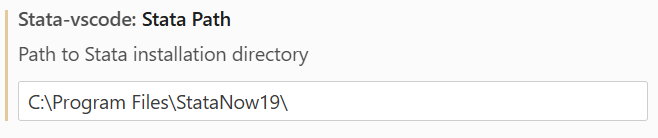 |
Open stata-vscode.stataPath or press Ctrl+, > search “Stata Path” (or stata-vscode.stataPath), and set it to your Stata executable folder: C:\Program Files\StataNow19\ (for most WB laptops and VDIs). |
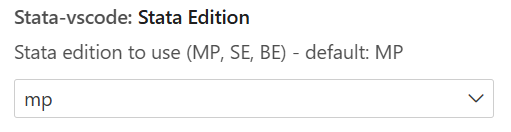 |
Open stata-vscode.stataEdition or press Ctrl+, > search “Stata Edition” (or stata-vscode.stataEdition), and set it to “mp” for Stata MP version. |
Verify Stata MCP is working
Create and save a new Stata .do file with a simple command like:
sysuse auto
summarize price
display "Stata is working!"| Description | |
|---|---|
Save the file (Ctrl+S) before running — any unsaved edits will not be executed. |
|
 |
Press Ctrl+Shift+D in the .do file, or Ctrl+Shift+P > Stata: Run Current File > Enter, or click the run button. |
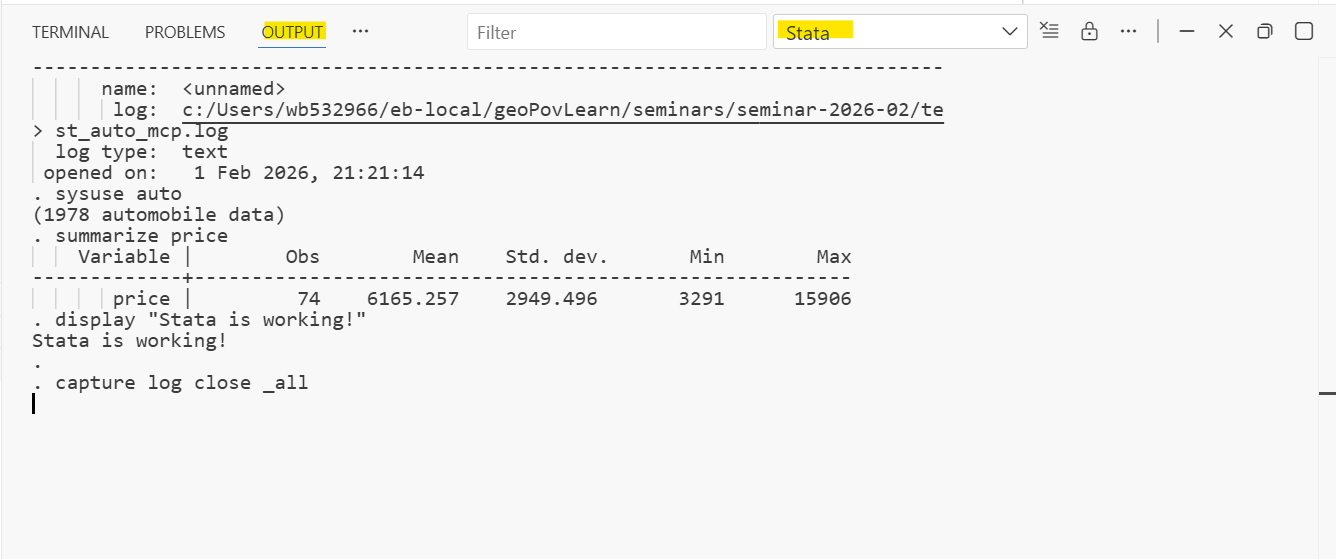 |
Results appear in the Output panel: Ctrl+Shift+P > Output: Show Output Channels... > Enter > Stata. |
 |
You can move the Output panel to a different location in Positron using the button shown. |
GitHub and GitHub Copilot Setup
GitHub setup includes
creating a GitHub account,
joining the World Bank GitHub organization, and
requesting access to GitHub Copilot.
for private developers, instead of joining the World Bank GitHub organization, you can get access to GitHub Copilot through a private subscription to GitHub Copilot Pro or Pro+ plan.
Monitor your usage of premium requests in GitHub Copilot:
- Go to: GitHub > Settings > Copilot settings
- Scroll down to the “Usage” section to see your usage of premium requests.
- 100% is the monthly limit of 300 premium requests from GH Copilot from the WB. If you have a private Pro or Pro+ subscription, you have 500 and 1500 requests respectively.
These steps can be done independently and give different privileges to users, see table below.
| Access Level | GitHub Permissions | GitHub Copilot / AI Assistance | WB GitHub Org Access |
|---|---|---|---|
| No GitHub Account | No: view public repos only | No | No (only view public repositories) |
| Personal GH Account (created at github.com) |
Everything: Create personal repos, collaborate | Usage limit. No access to Claude | No |
| + GH Copilot subscription (Copilot Pro or Pro+) | Everything | Unlimited code completion + Chat. Monthly use limit on Agent Private budget for over-limit use. Premium models (Claude) |
No |
| WB Organization Member (join via eServices) |
Access WB public and internal repos. Create repos under WB org |
Limited (basic completions only; no premium models). | Yes (view / contribute) |
| WB Org + WB Copilot Access (request Copilot via GitHub Settings and email to github@worldbank.org) |
Everything: personal repos + WB org repos | Unlimited code completion + Chat. Limit on Agent (300 requests/month) Premium models (Claude, GPT-4.5) Manager-approved budget for overuse. |
Yes |
Key takeaways:
- For AI-assisted coding: You need at minimum “Private GH account + Copilot Access (private Pro subscription or from World Bank GitHub)”
- To be able to use GitHub Copilot with Claude: You need Copilot Access (private Pro subscription or from World Bank GitHub)
- Email matters: Always use your personal email, not your WB email, when creating your GitHub account
Step 1: Create a GitHub Account
If you don’t have a GitHub account yet, create one at https://github.com/signup or read more GH: get-started
Note: Use your personal email address, not your World Bank email.
Step 2: Join the World Bank GitHub Organization
Submit a “Join GitHub Organization Account Request” on eServices to join github.com/worldbank
Once your request is approved, you will receive an email invitation to join the World Bank GitHub organization
- Email will be sent to the email address associated with your GitHub account
Accept the invitation by clicking the link in the email
You need to confirm your membership in the World Bank organization on GitHub by following steps indicated in the email.
If you don’t confirm within a few days, the invitation will expire, and you will need to request again through eService.
Step 3: Request GitHub Copilot Access from World Bank GitHub Organization
After joining the World Bank organization, request GitHub Copilot access. To do this:
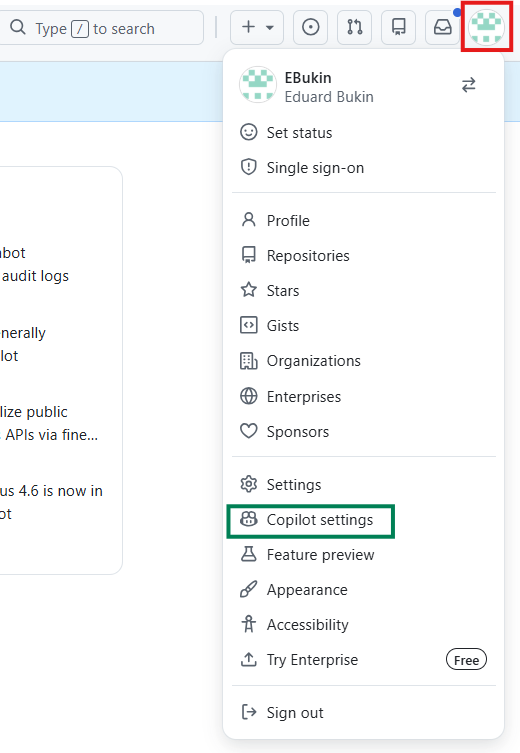
Scroll all the way down to the “Get Copilot from an organization” section and click the “Request access” button from the worldbank organization.
Send an email to github@worldbank.org with the subject line: “Request GitHub Copilot Access”. In the email body, include your GitHub username and a brief reason for requesting access. Copy your manager or team lead for approval.
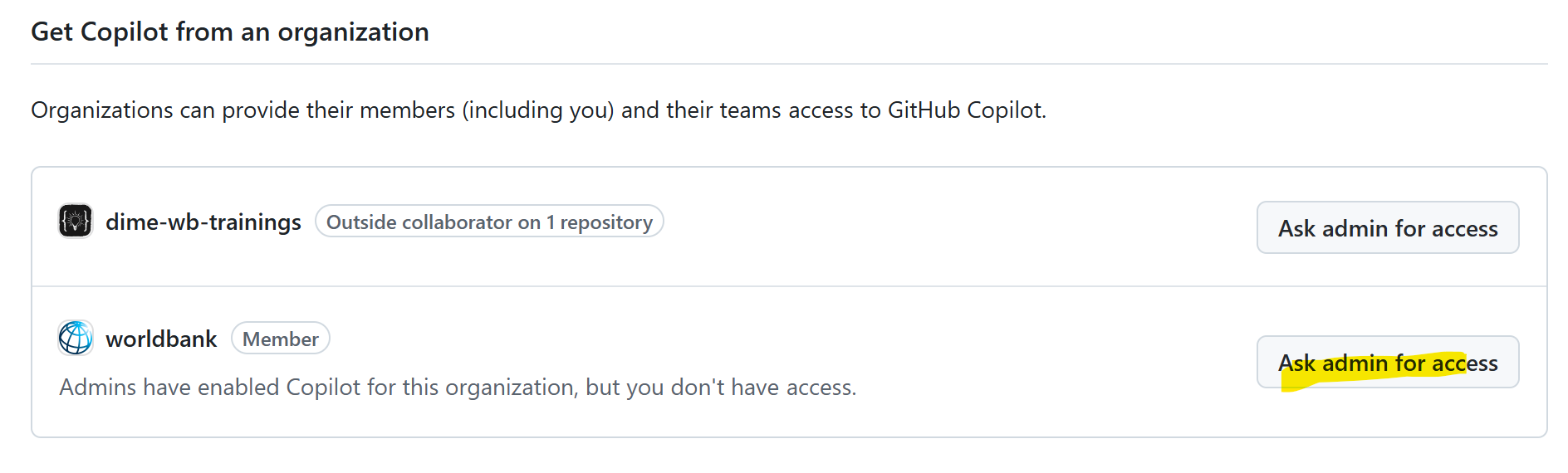
Your request will be reviewed and approved by the GitHub organization administrators.
Tip: Bryan Cahill and github@worldbank.org lead the github.com/worldbank organization and can help with Copilot access requests.
Warning: If you don’t see the “Request access” button or worldbank organization, it means you either:
- were not added to the World Bank GitHub organization yet, or
- did not accept the invitation in due time.
Please complete Step 2 above, wait for the invitation email, and accept it before requesting GH Copilot access.
Once approved, you’ll be able to use GitHub Copilot in Positron
Step 4: Verify GitHub Copilot Access
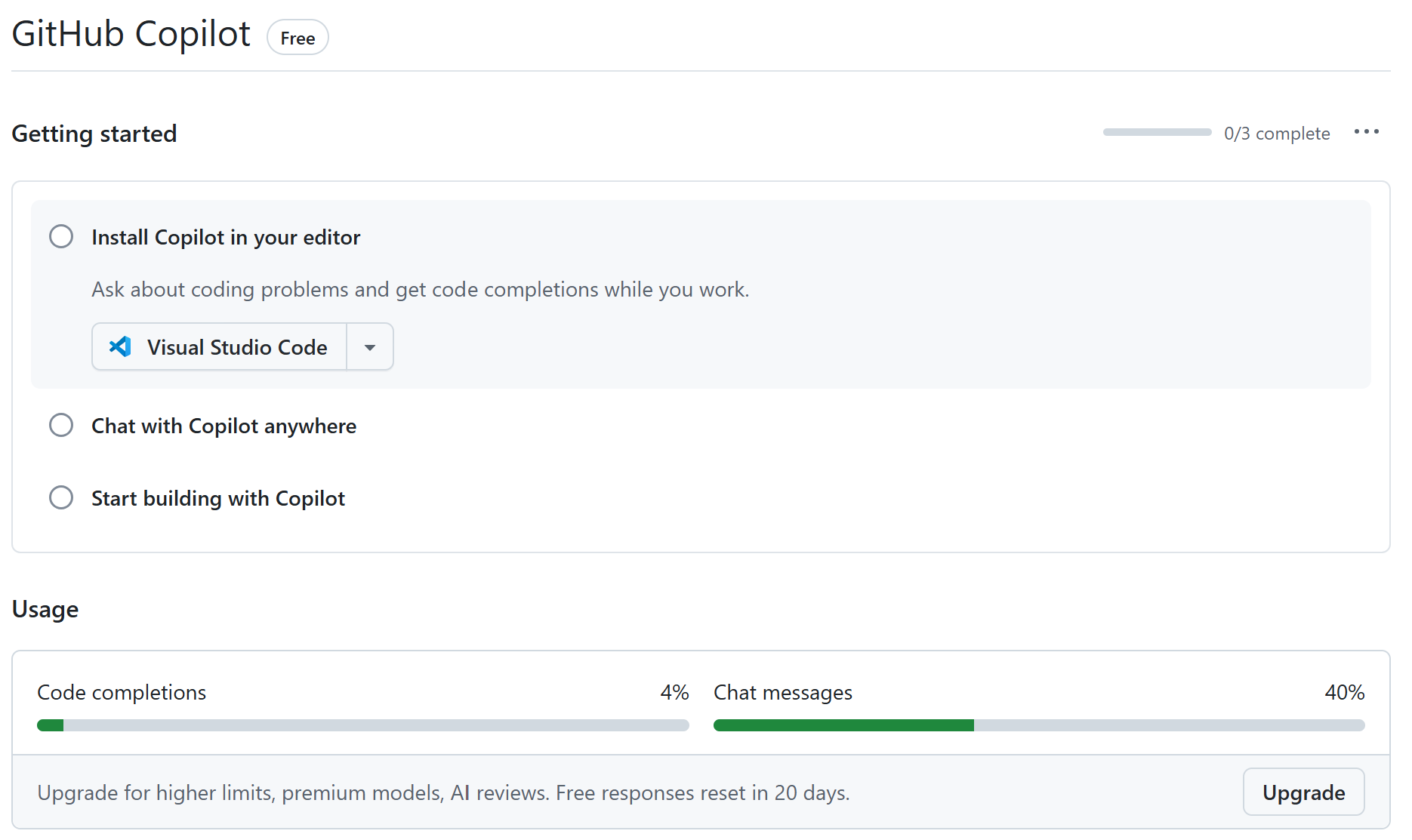
In github.com, go to GitHub > Settings > Copilot settings and verify that you have access to GitHub Copilot through the World Bank organization. Your usage statistics will look like this:
No access to Copilot from World Bank GitHub organization or personal plan Pro or Pro+
Access to Copilot from World Bank GitHub organization or personal plan Pro or Pro+
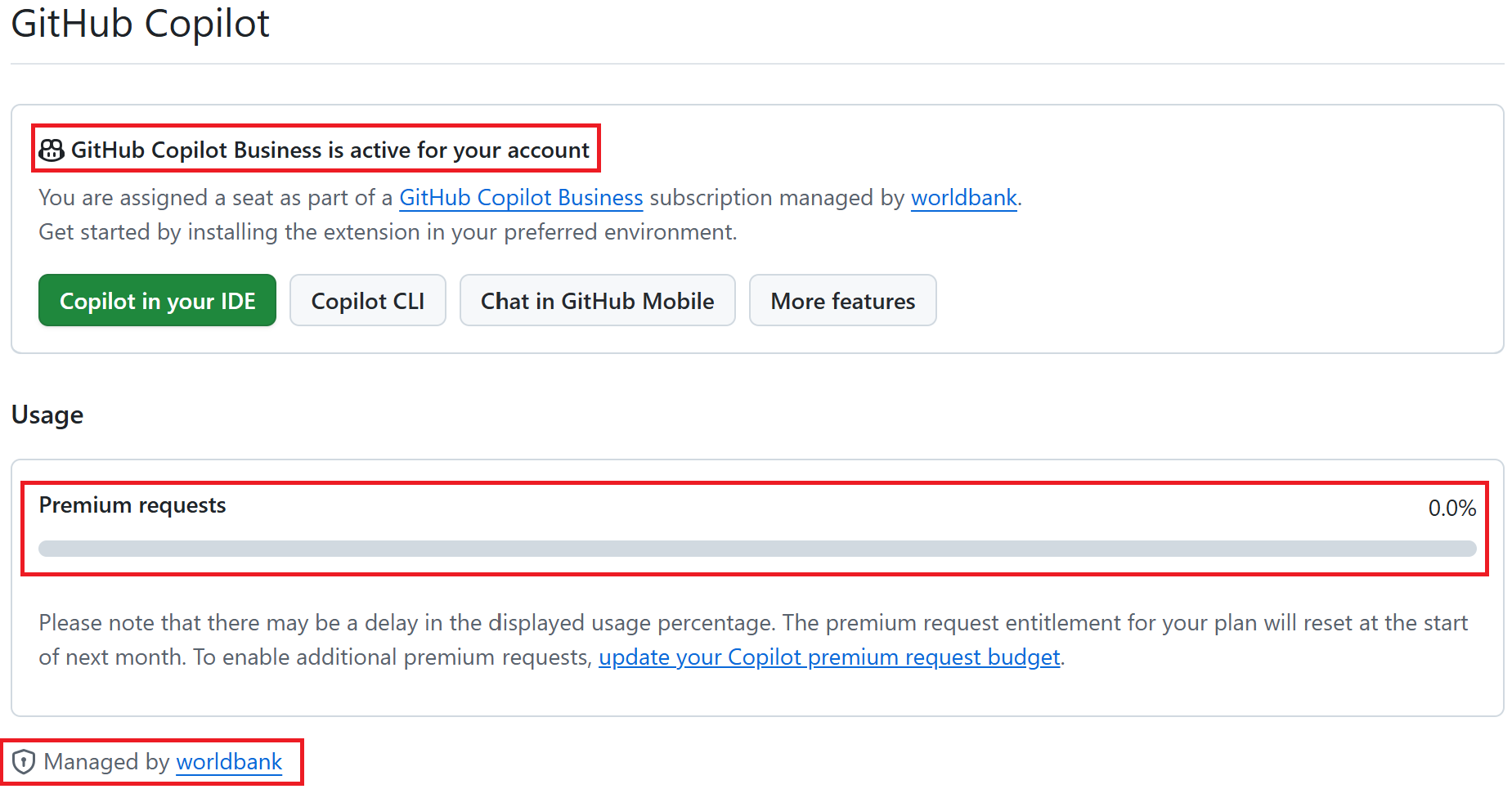
Another way is to check if you have access to premium models like Anthropic Claude or GPT-4.5 in the Positron Assistant settings (see instructions below).
Open Positron and sign in to your GitHub account (see “Connecting GitHub Copilot to Positron” section above)
Check that the GitHub Copilot extension is active in the Extensions panel
Try typing a comment in a code file to verify that Copilot suggestions appear
Note: If you have access to GitHub Copilot but don’t see suggestions in Positron, make sure you are signed into GitHub in Positron and that the GitHub Copilot extension is installed and enabled.
Step 5: To enable overuse of GitHub Copilot Agent
- Ask your manager for permission to use a budget code for overuse of GitHub Copilot Agent
- Set up a monthly limit of usage (you will be charged only for what you use)
- Contact github@worldbank.org asking to set a budget for your account and provide the budget code approved by your manager (copy manager in the email for approval confirmation).
Positron + GitHub Copilot / Anthropic Claude Setup
This step enables you to use the GitHub Copilot coding agent and other LLMs, such as ChatGPT or Anthropic Claude, with Positron.
See Positron Assistant: Getting Started for the full overview of what it does.
Warning: Sometimes it is needed to reload Positron after installing software or extensions for the changes to take effect.
Step 1: Connect GitHub to Positron
This requires a GitHub account linked to the World Bank organization. See GitHub Setup instructions above if you don’t have an account or haven’t linked it to the WB organization. To connect GitHub to Positron:
| Note | |
|---|---|
 |
Open Account menu |
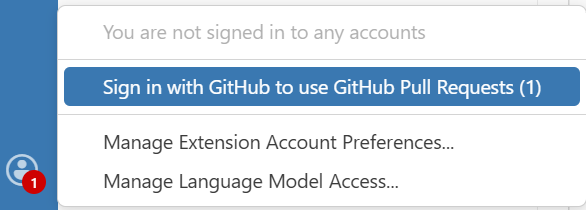 |
Click Sign in to your GitHub account |
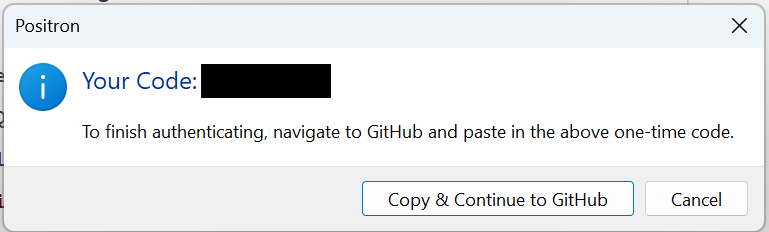 |
Authorize GitHub in your browser |
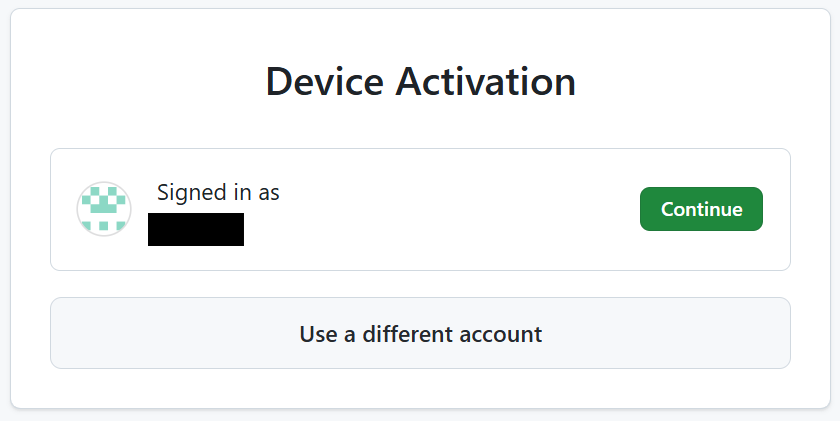 |
Confirm the authorization request |
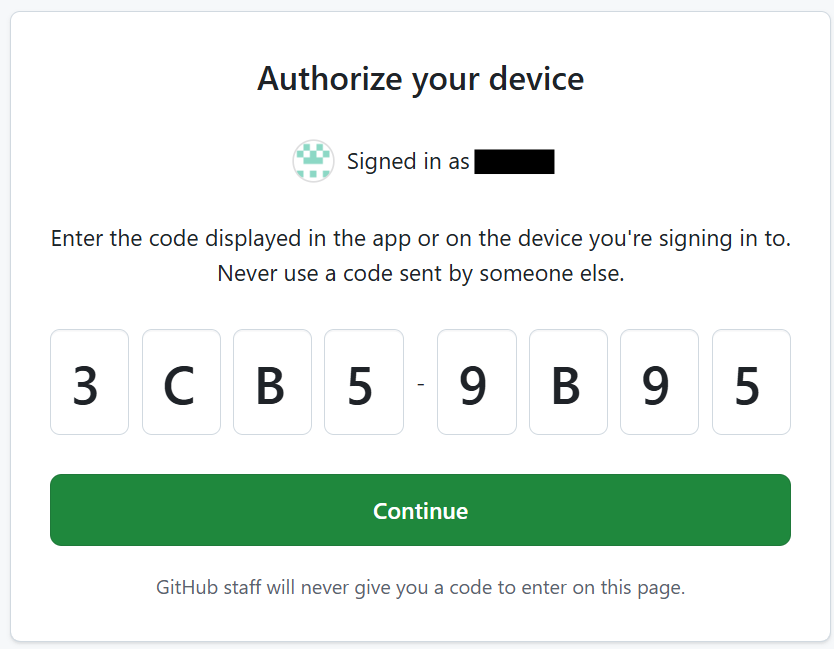 |
Complete the authentication process |
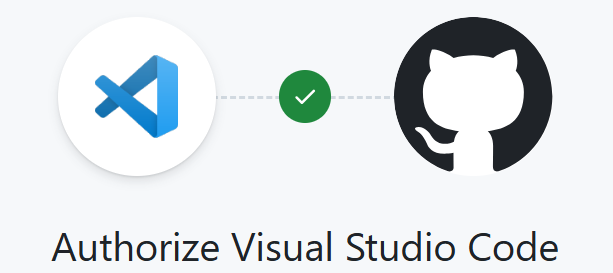 |
Grant necessary permissions |
 |
See also Positron Assistant Guide for more details on connecting GitHub and using the assistant.
Step 2: Enable Positron Assistant in Positron Settings
Open settings positron.assistant.enable and check the box to enable it. or
Ctrl+,>positron.assistant.enable> Check the box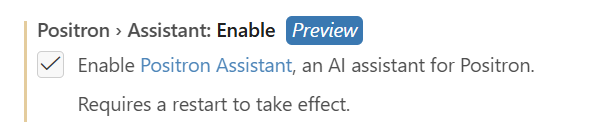
Restart Positron to apply the changes
or reload the window (Ctrl+Shift+P>Developer: Reload Window>Enter)
See Enable Positron Assistant for more details.
Step 3: Configure LLM Provider
By default, when logged into GitHub, Positron Assistant uses GitHub Copilot as the LLM provider. GitHub Copilot provides code completion, answers questions in chat, and operates in agent mode (able to run code directly).
Within GitHub Copilot, you can also configure other LLM providers, such as Anthropic Claude, OpenAI GPT, etc.
If you want to use Anthropic Claude or other LLMs as the provider, follow instructions in Configure language model providers.
Code completion will still be provided by the GitHub Copilot extension or will not work with Anthropic Claude.
Step 4: Use Positron Assistant
Ctrl+Shift+P>Help: Ask Positron Assistant>Enterto open it.In the input box that appears, type your question. For example:
Write a Stata do file that loads the auto dataset and summarizes the price variable.
Open it.
Explain how to run it.
To learn more about using Positron Assistant, see Use Positron Assistant
Additional Resources
- Positron Documentation
- GitHub Copilot Documentation
- World Bank GitHub: https://github.com/worldbank
Support
For help with setting up or troubleshooting the software, contact:
IT Help: ITHelp@worldbankgroup.org
Remember to provide assisting person with these setup instructions.
For help with accessing GitHub.com/Worldbank or GitHub Copilot from the worldbank:
Check: GitHub Setup instructions above
Reach out to: github@worldbank.org