
Revolutionize Your Analysis in Stata and R

AI Agent-Assisted Workflow with GitHub Copilot and Claude


Eduard Bukin ebukin@worldbank.org
Distributional Impact of Policies
Fiscal Policy and Growth Department

2026-02-05

Motivation

Chat and Web-Based AI tools are impressive!

ChatGPT | Copilot | Gemini | WB MAI

Use familiar technologies:

  • 🌐 Web-Browser,
  • 💬 Chat,
  • 📝 Stata editor,
  • 📋 copy-paste

Is this the best way to use AI for data analysis❓

In fact, there are many
AI-powered
Integrated
Development
Environments (IDEs)

for coding and data science!

The goal

of this seminar is to introduce you to AI-assisted data analysis with Positron IDE and GitHub Copilot | Claude.

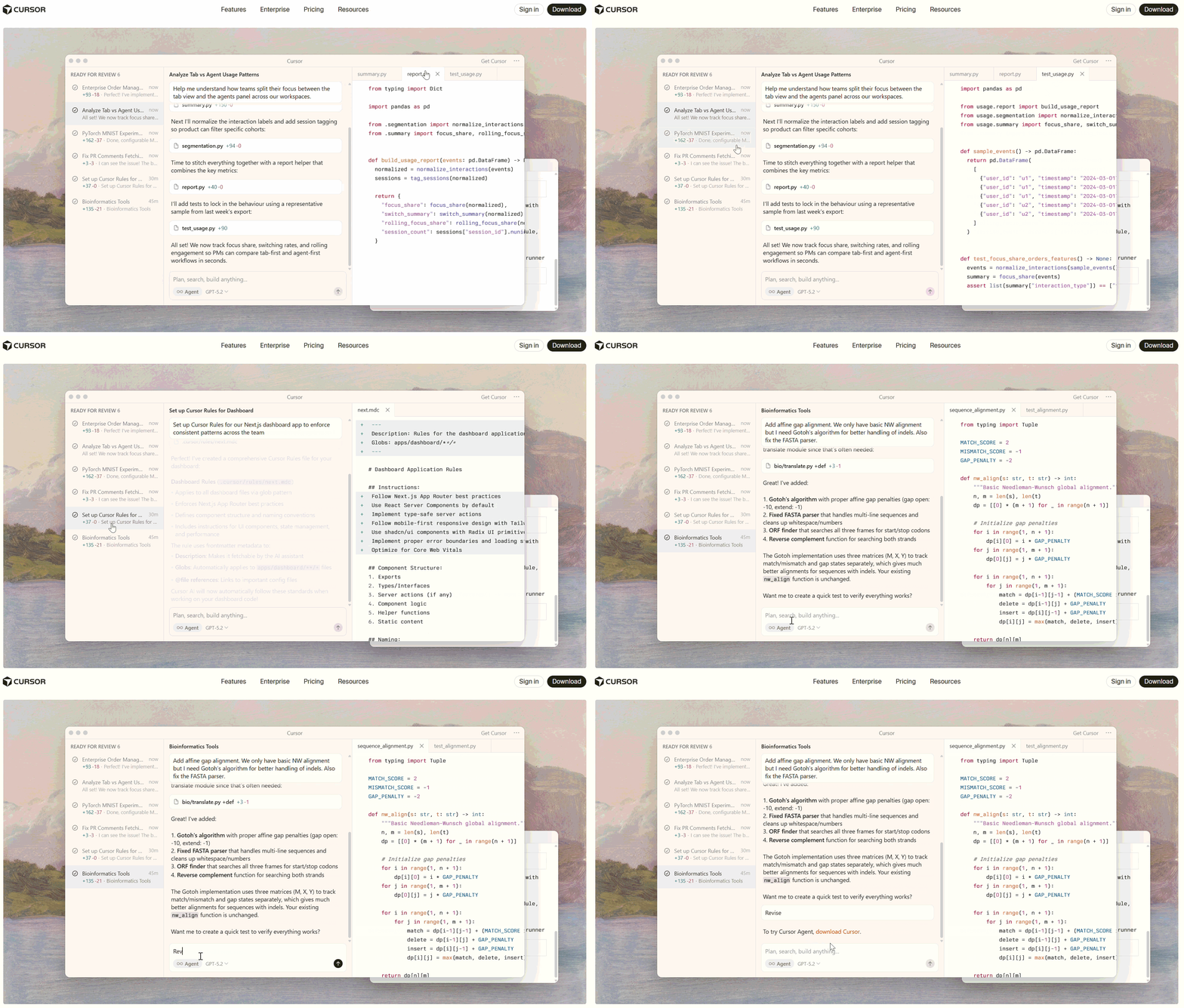
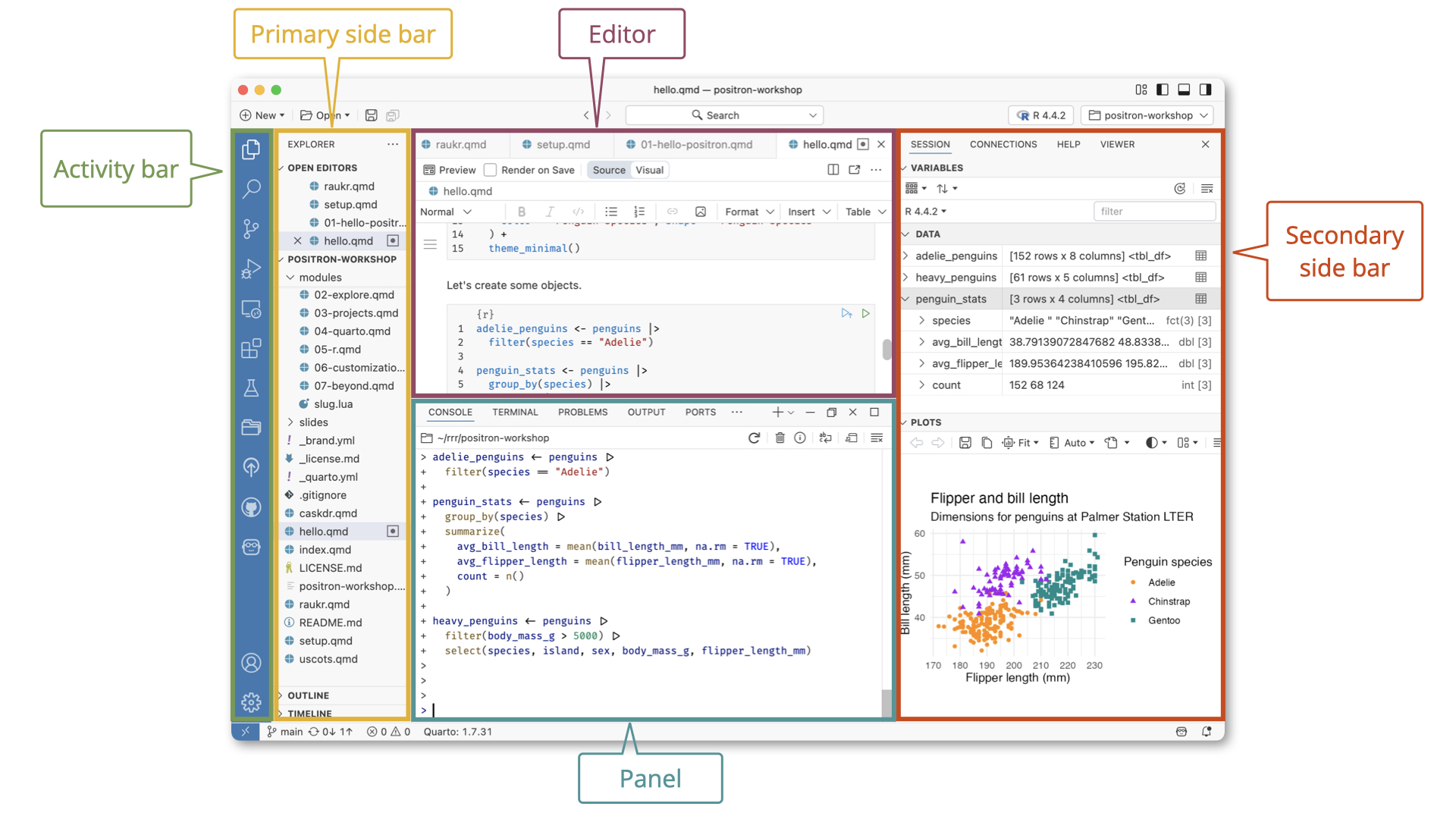
There are many IDEs ➔

Agenda

  • Introduce several AI-Concepts (vocabulary)

  • Share experience of using AI-assisted workflow in Positron with Stata and R

  • Provide kick-off instructions and resources.

Key Concepts

What do we need to know about modern analysis with AI?

  1. 💬 AI Integrated IDE: Chat | Agent | Inline Completion
  2. 🧠 Context awareness: How AI understands your project
  3. 🔌 Model Context Protocol (MCP): Universal adapter for AI
  4. 🤖 GitHub Copilot | Claude: LLM providers
  5. ✍️ Efficient prompting: Getting the best results
  6. ⚠️ Caveats and limitations: What to watch out for

💬 AI Integrated IDE

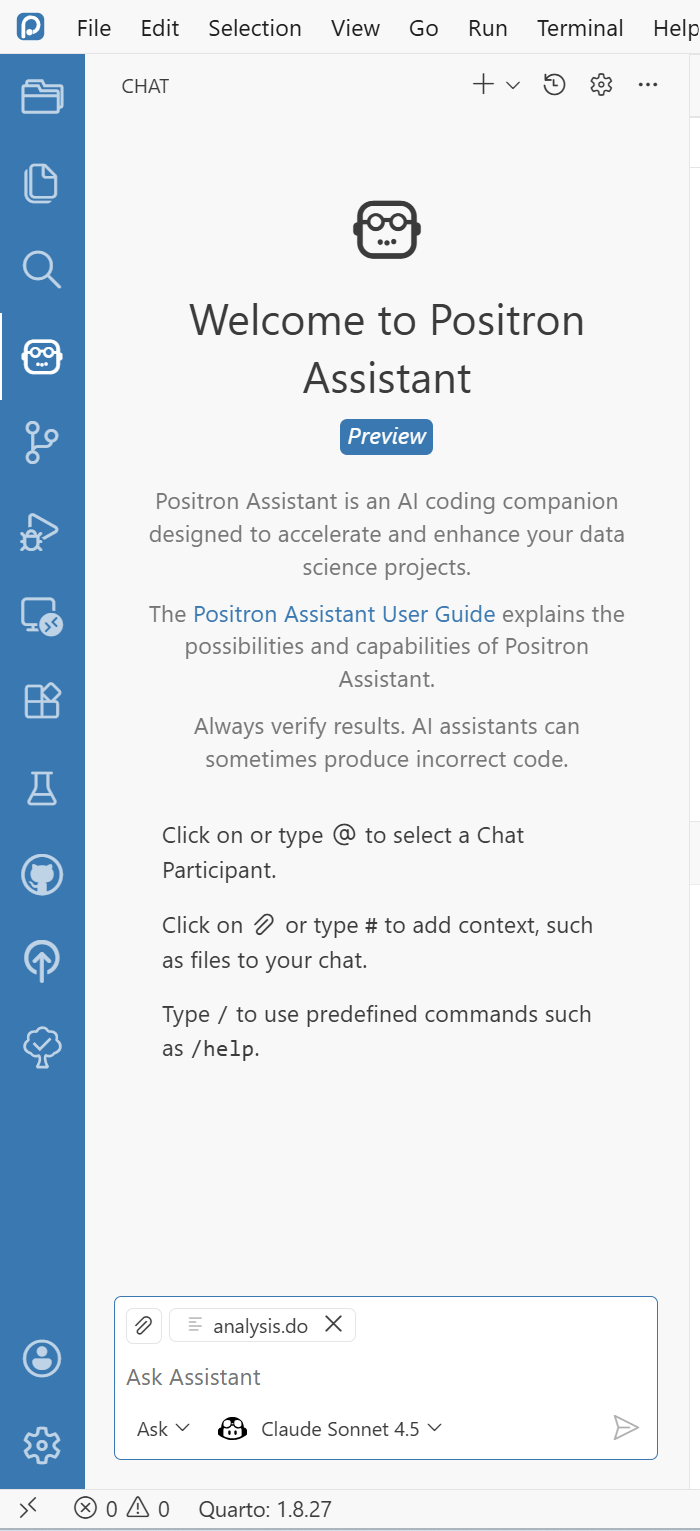
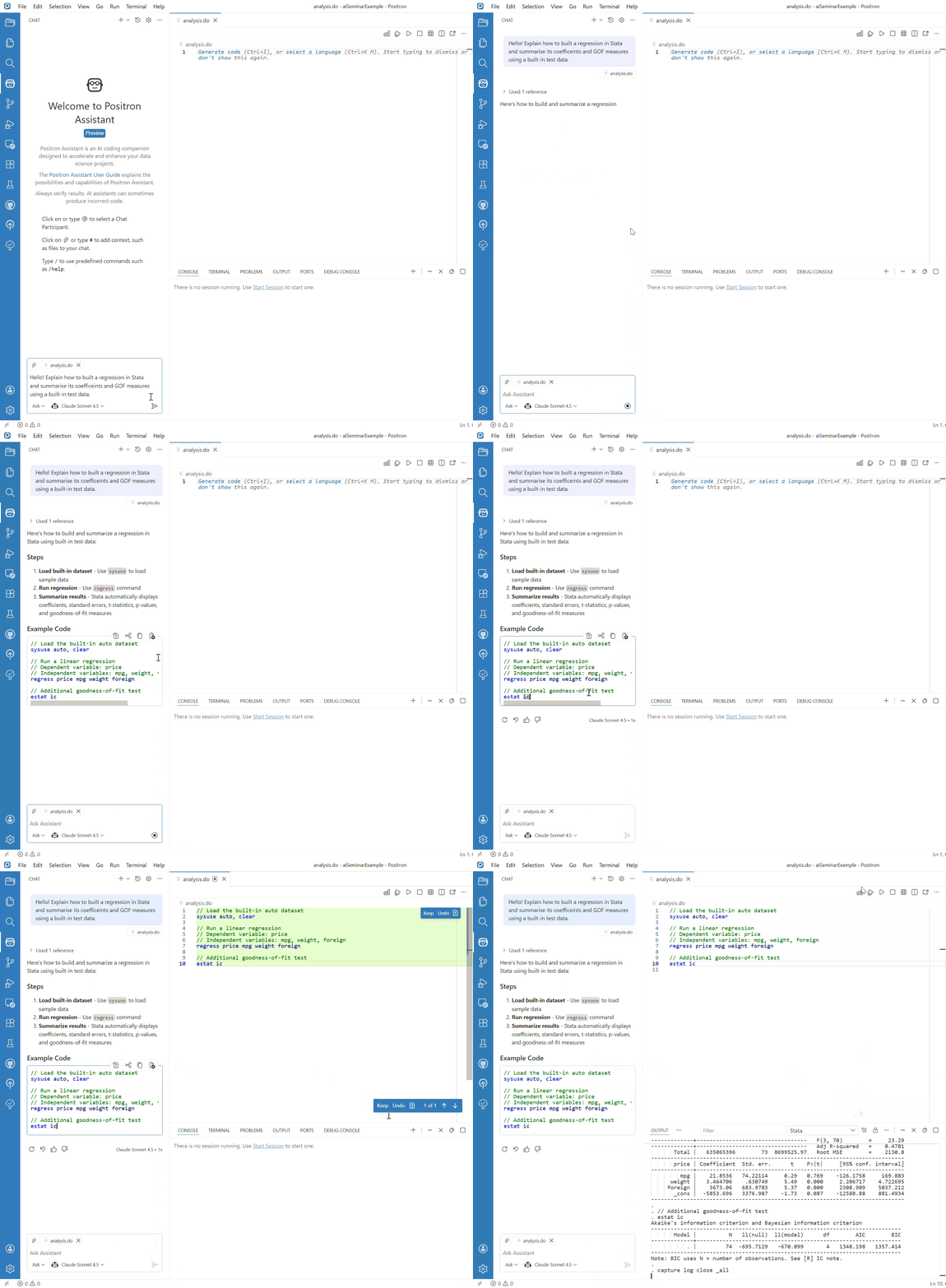
💬 AI: Chat

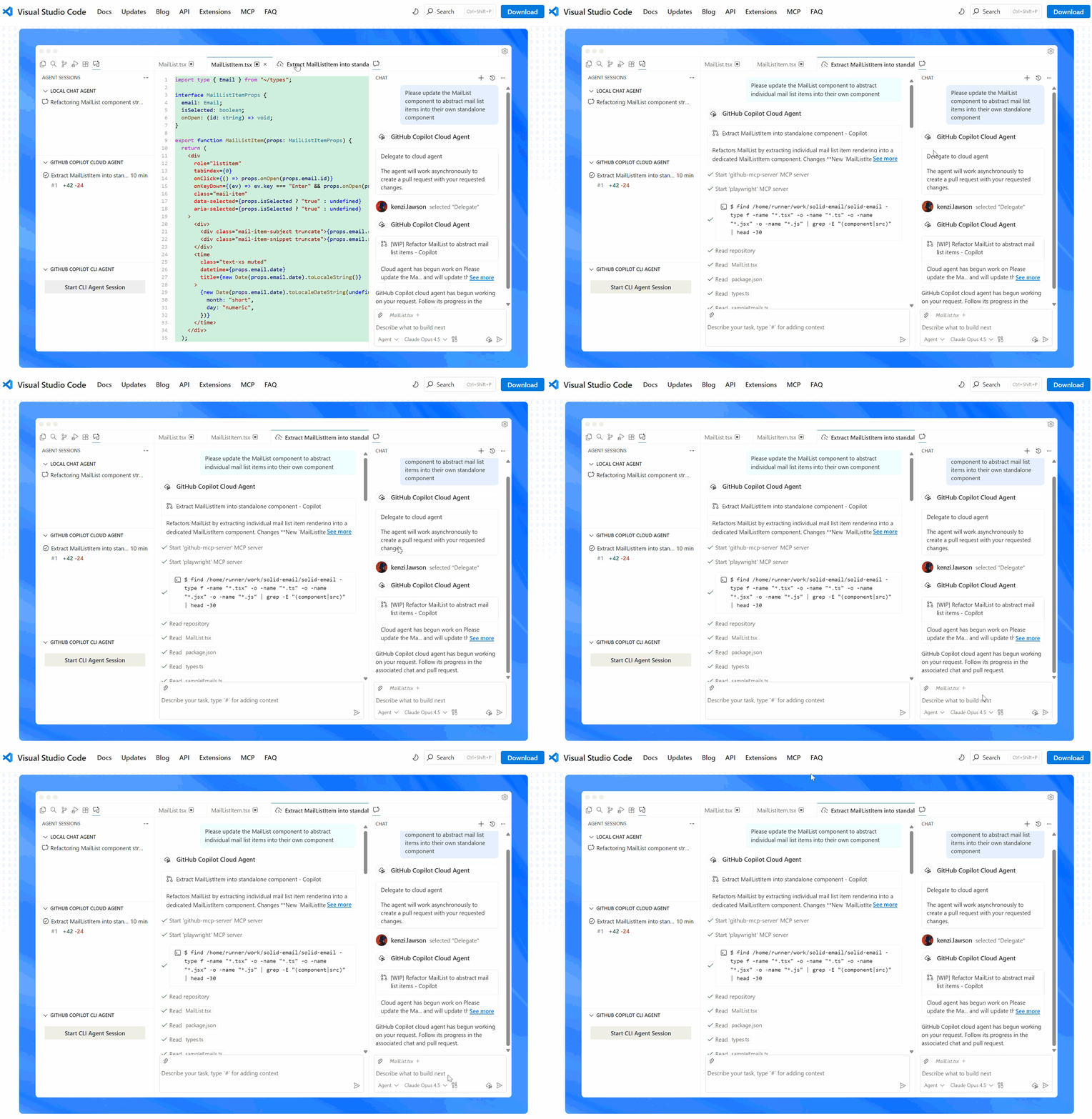
Positron Assistant

  • Ask AI (Claude 4.5) through Github Copilot

  • Provides explanations, suggestions, and code snippets.

  • Integrates with project context, and code.

  • Learn more:

    Assistant Chat

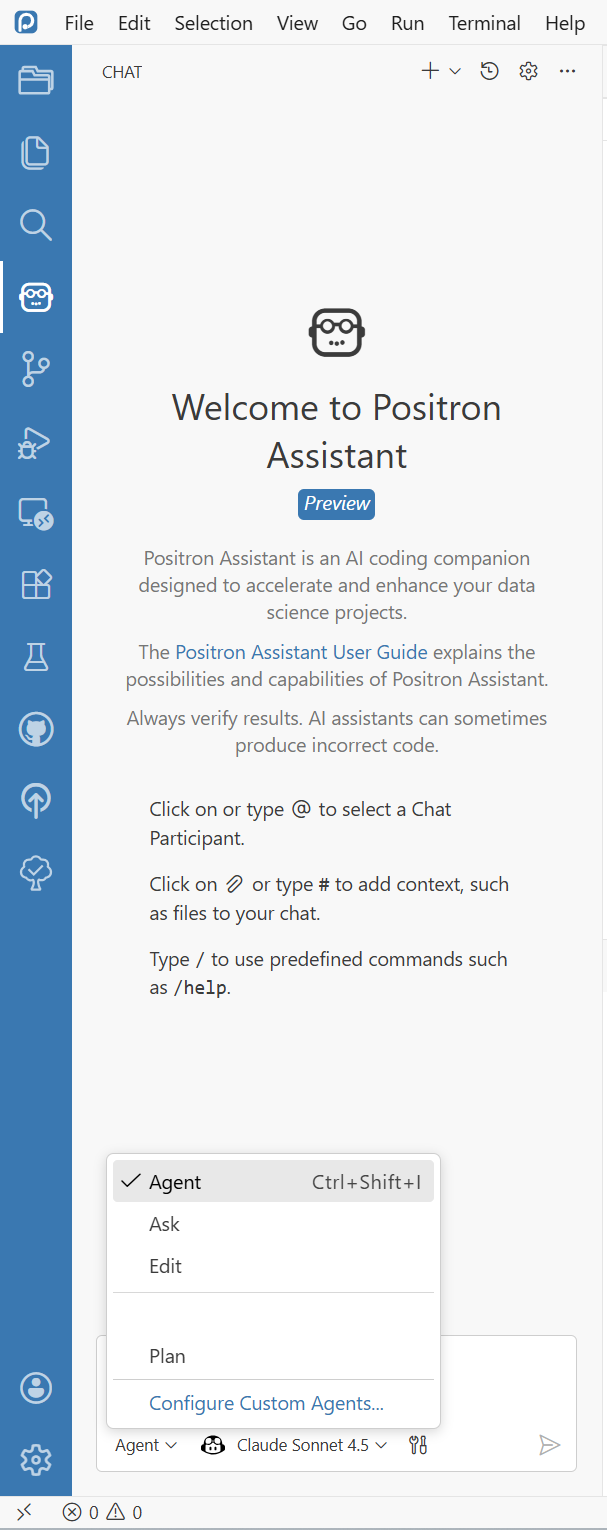
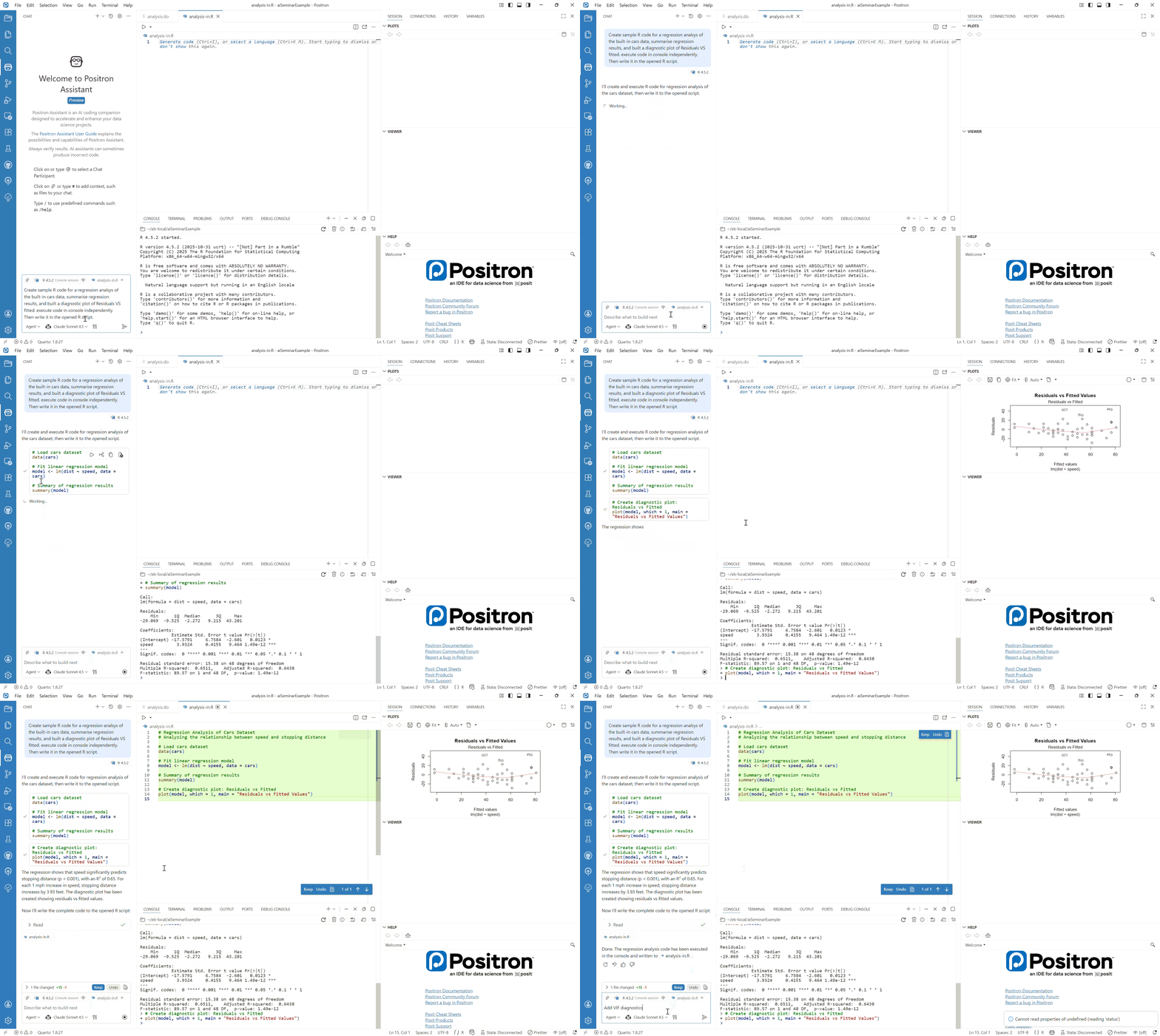
💬 AI: Agent

Positron Assistant

  • Executes instructions.

  • Acts independently

    • Runs code
    • Fixes errors
    • Learns
    • Reasons
  • See more in the live demo!

💬 AI: Inline Completion

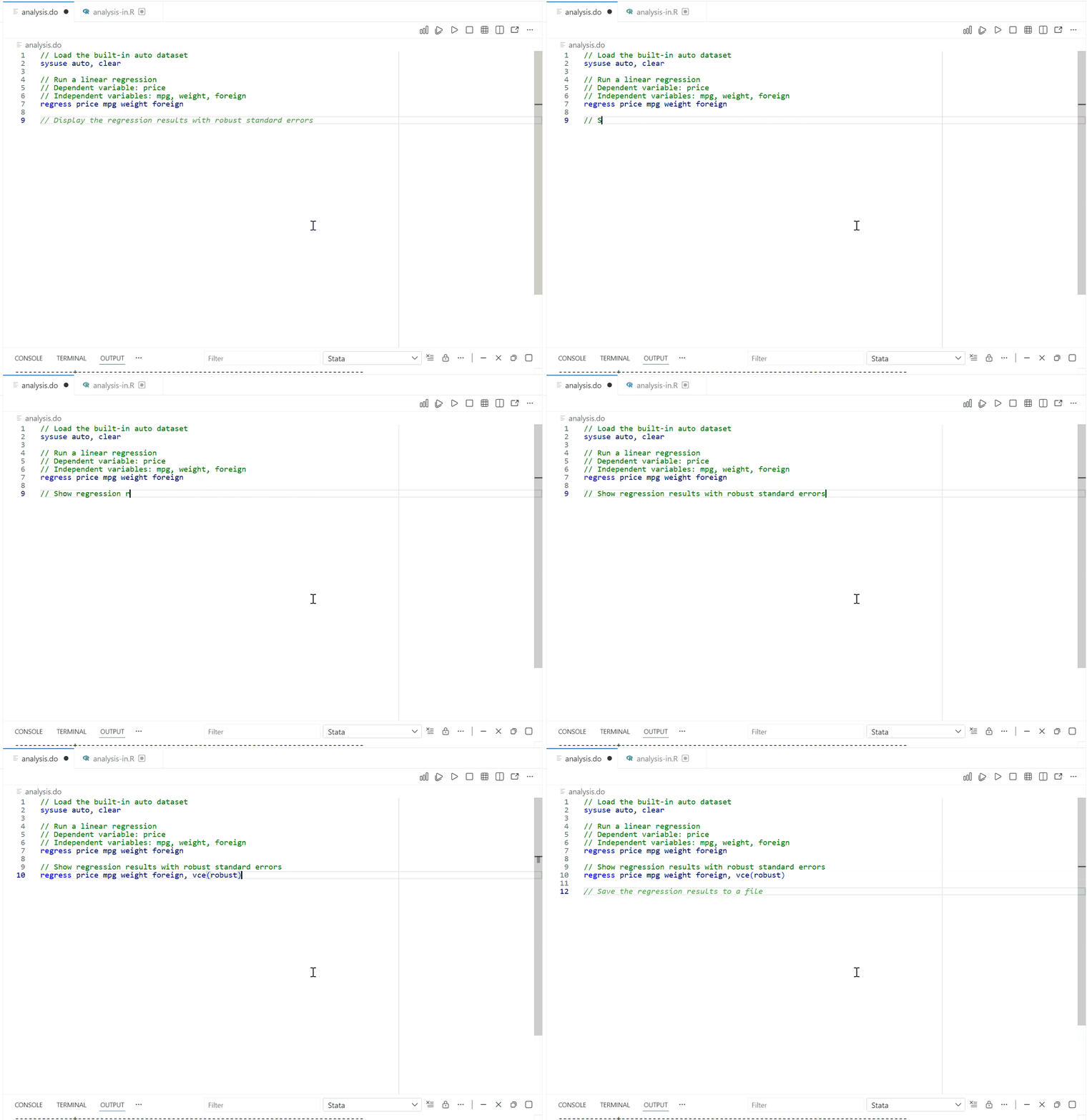
Positron Inline Code Completion: Suggests code snippets as you type.
🧠 Context Awareness

Positron accesses project metadata. Thus AI ‘knows’:

  • 📁 Files str.: Code, docs
  • 📊 Data: Var. names, types
  • ⏮️ History: Edits, commands
  • 📦 Environment: Packages
  • 🎯 Intent: Current task
  • Results: Output, errors

Why does it matter?

  • 🎯 Project-specific suggestions
  • 🔗 Understands dependencies
  • 🛡️ Reduces hallucinations
  • ⏱️ Improves efficiency

🔌 Model Context Protocol (MCP)

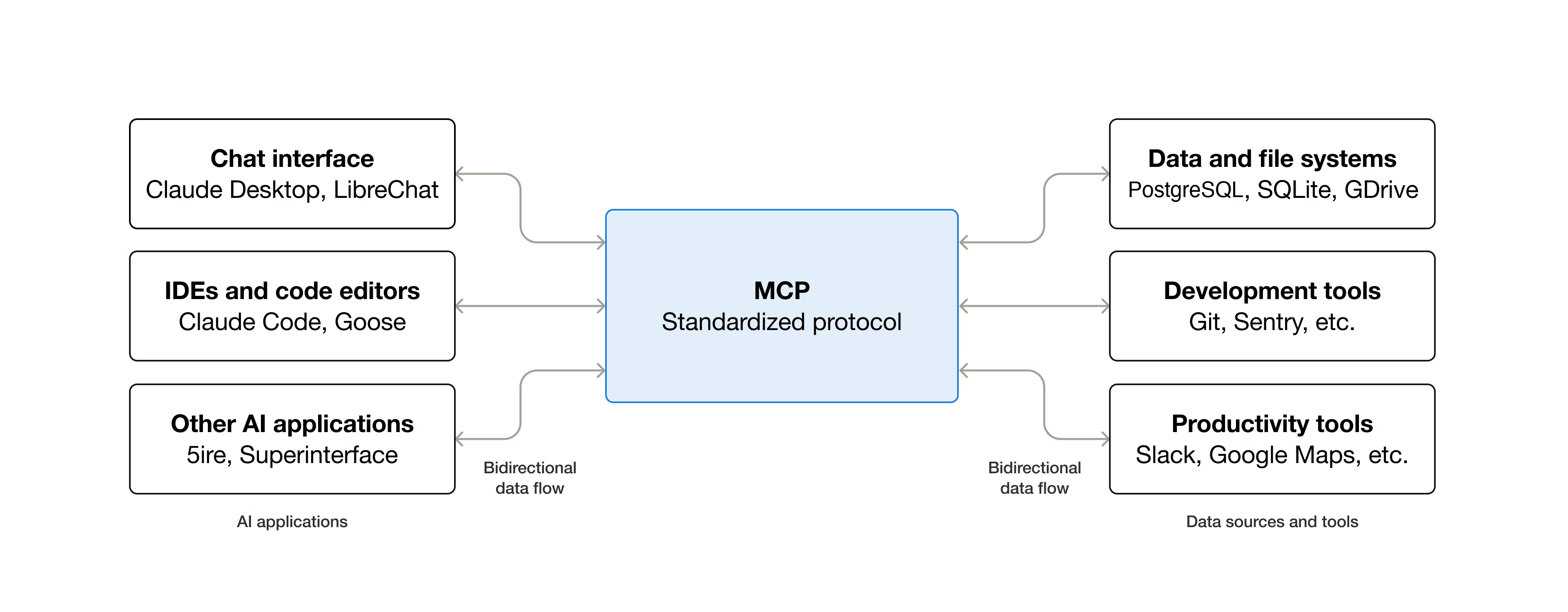
MCP is a universal adapter for AI—Anthropic— that connects data flows:
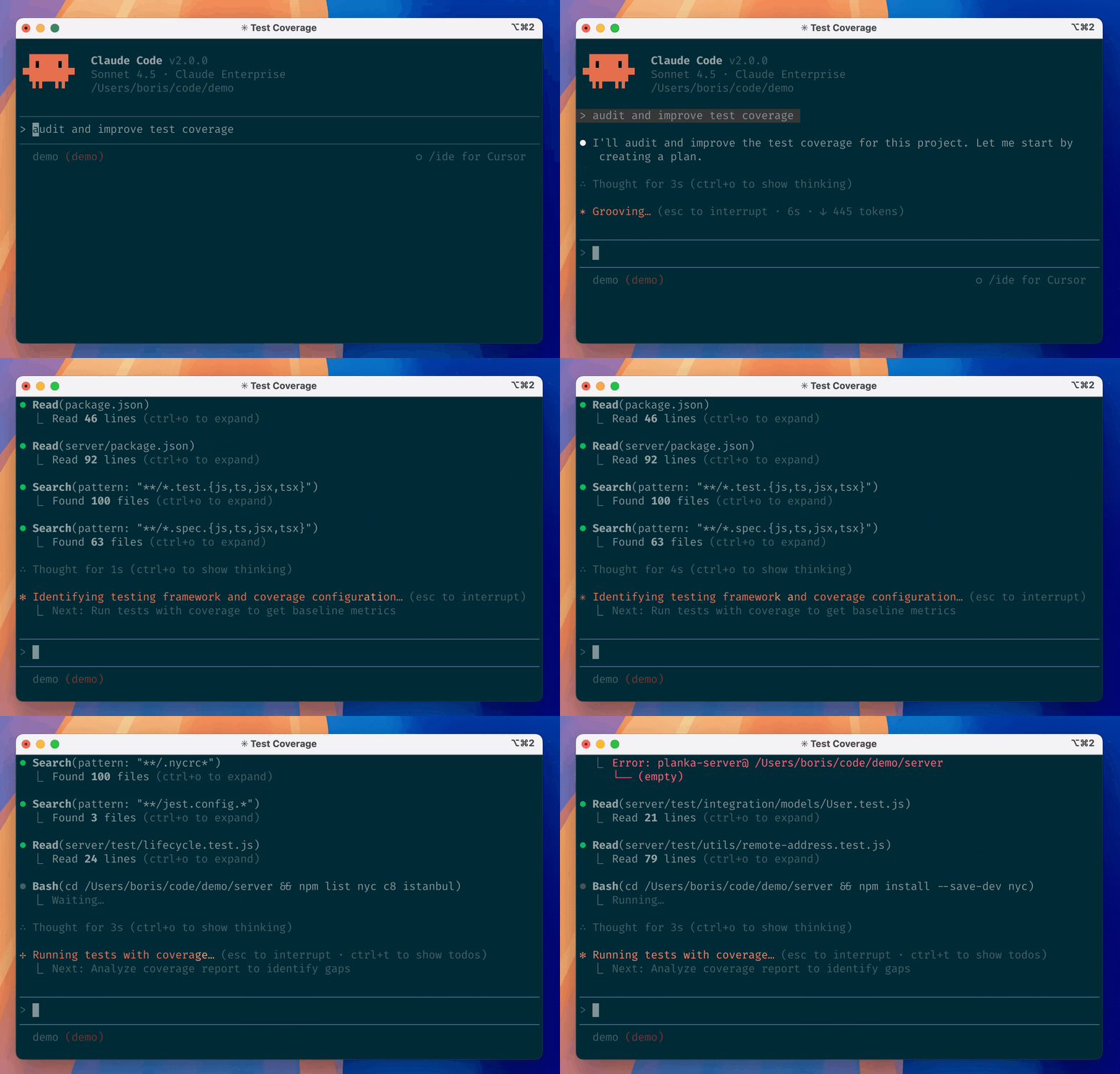
🤖 GitHub Copilot | Anthropic Claude

GitHub Copilot

Choose your LLM:

  • 🧠 Claude Sonnet/Haiku/Opus
  • 💡 OpenAI GPT-4/o1…

✍️ Efficient Prompting

  • 🎯 Be specific:

    “Write a Stata do-file to …” / “Refactor this R function to …”

  • 🧩 Provide context:

    “Goal: X; Dataset: Y variables; Constraints: Z (WB rules, packages, runtime)”

  • 📌 Define expected output:

    “Save as regression_results.xlsx, format as APA table” / “Create bar chart with 95% CIs”

  • 🔁 Summarize + clarify first:

    “Restate and ask clarifying questions before implementing”, “Explain why …”, “Give alternatives with trade-offs…”

  • 🪜 Iterate in small steps:

    “minimal changes”, “refine”

  • 🛑 Set boundaries:

    “Don’t use … data”, “Don’t print secrets, ask if in doubt.”, “Don’t change files”.

⚠️ Limitations and Remedies

  • ⚠︎ Wrong-but-plausible outputs / hallucinations: code runs but logic is wrong

    Verify and validate: ask the model to explain and justify the solution

  • ⚠︎ Context limits: not all files/data are in context; too large projects.

    Be explicit: state assumptions, expected inputs/outputs, and references

  • ⚠︎ Outdated knowledge: suggested APIs/packages/options may have changed

    Teach the model: provide references/links; ask it to learn

  • ⚠︎ Over-reliance: erodes fundamentals; mistakes slip through unchallenged

    Keep learning: ask for step-by-step reasoning; request alternatives and trade-offs

  • ⚠︎ Confidentiality / security / privacy

    Constrain context: exclude sensitive data; use .copilot-ignore; AI @ WB

  • ⚠︎ Reproducibility: answers can vary across sessions/models/settings

    Cutomize agents: save prompts, use Git; create AI agents

Summary

Why use IDEs, not a web-browser-based workflow?

  • Context-awareness
  • Streamlined workflow
  • Reduced friction

Why Positron?

  • Built for data science, not software development
  • Integrates with Stata, R, and Python seamlessly
  • Advanced AI features for data analysis

Where to Start?

Live Demo

From an old analysis in Stata to an upgraded Stata+R reproducibility package in under 10 minutes!

Tip

💡 Ask AI for help: “How do I download a project from GitHub and open it in Positron IDE? The link is: …”

Live Demo: Positron IDE overview

Thank You! Questins?

Additional materials

Software Setup Overview

Note

Full details: Setup Instructions

  1. Install prerequisite software (via WB Software Center)
    • Stata 19+, R 4.5+, Python 3.13+, Quarto, Git
    • Install Python uv package: pip install uv
  2. Install Positron IDE (system-level install): Request help from IT if needed
  3. Install key extensions in Positron
    • Stata MCP, Quarto
  4. Connect GitHub and configure Positron Assistant
  5. Start experimenting!
    • Open assistant: Ctrl+Shift+P > “Ask Positron Assistant”
    • Try: chat, agent mode, inline code completion

Positron IDE: Self-learning

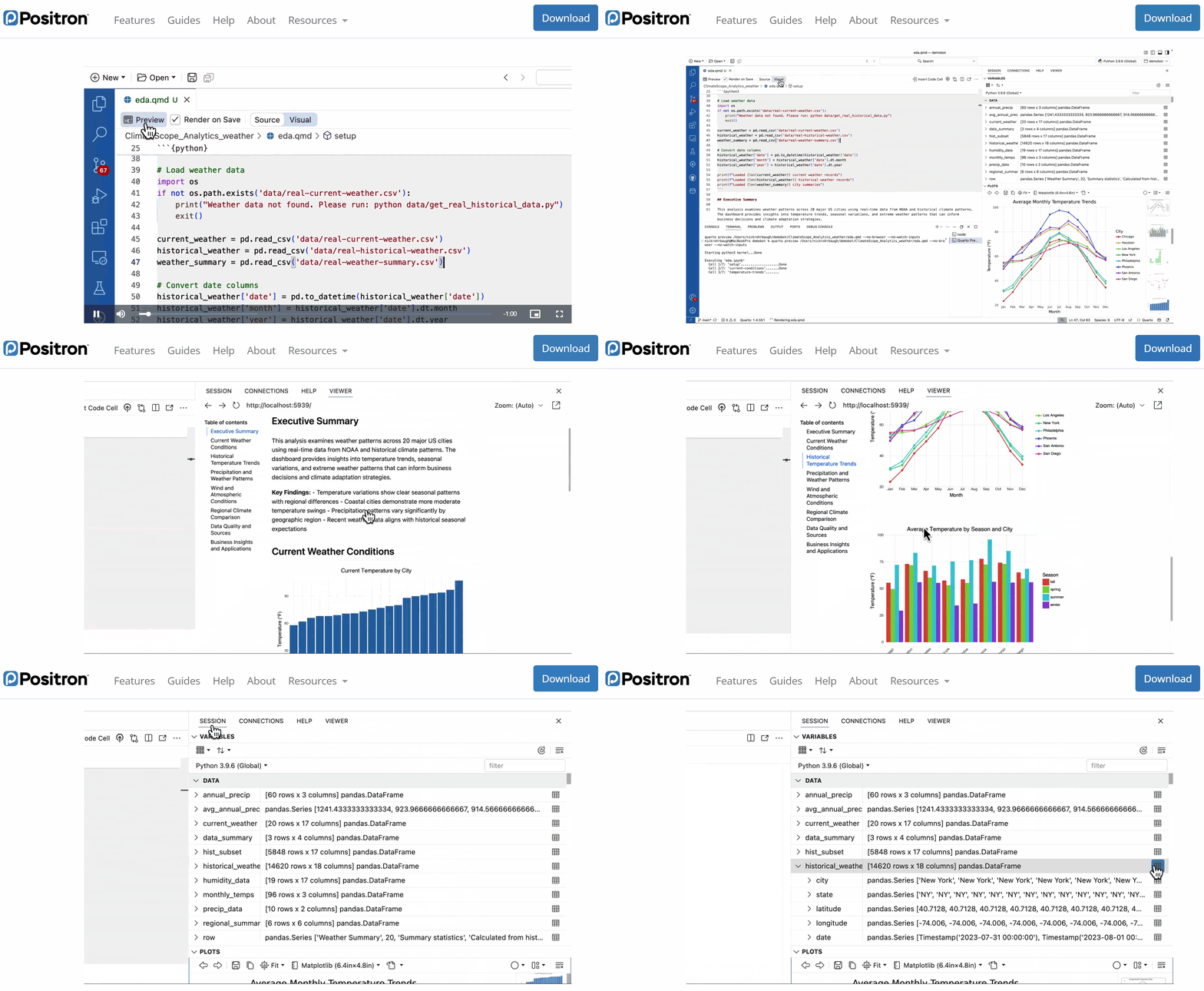
Positron: Modern AI-native IDE for data science

Positron: Assistant

Positron: Data explorer

Positron + Stata

  1. Make sure prerequisite software is installed (Stata, R, Positron)

  2. Install Python after that the uv package: pip install uv

  3. Install Stata MCP in Positron and configure Stata path and Edition

  4. Create a new Stata do-file, write some code, save it and press run it.