Additional materials
Key concepts are:
Positron IDE:
- panels and layouts
- file explorer, editor, and extensions
- command palette and settings
Workflow basics:
- working folder, console, terminal, session, data viewer, help pane, and more
Assistant:
- authentication
- workflow: chat, agents, conversations, and LLMs
Positron IDE Overview
Adapted from Positron UI https://positron.posit.co/layout.html
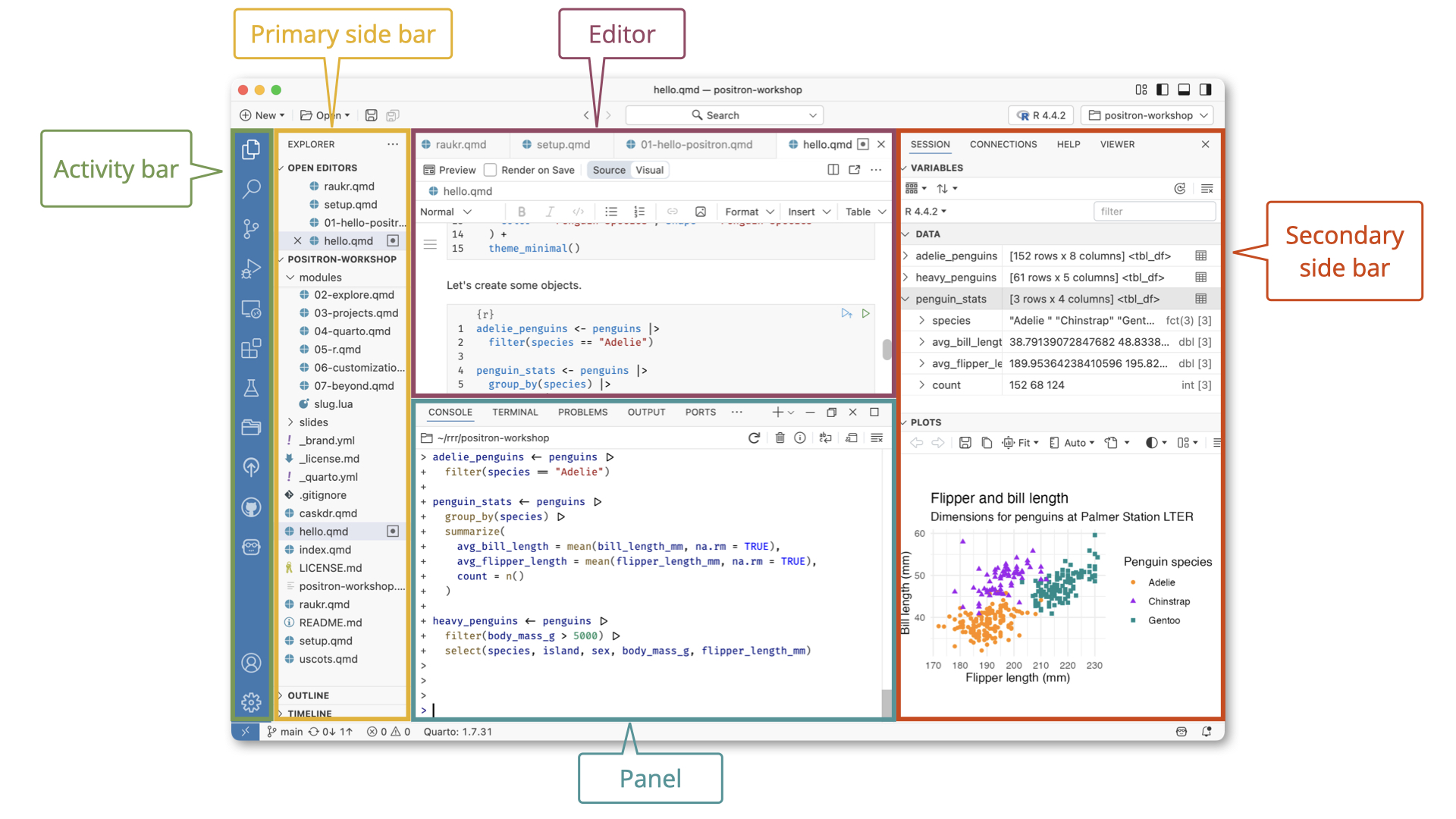
The Activity Bar provides quick access to switch between core views such as Explorer, Search, Source Control, and Extensions.
The Primary Side Bar is on the left by default and shows you different views depending on what you have chosen in the Activity Bar. When you choose the Explorer icon, this pane provides the File Explorer to navigate your project directory and the outline. When you choose the Assistant icon, this pane provides access to Positron Assistant.
The Editor is in the center by default, and is where you write your code. For editor controls, refer to VS Code Editor Basics.
The Panel is below the editor by default and contains the fully interactive, integrated Console as well as the Terminal. You can also access logs from Output channels in the Panel.
The Secondary Side Bar is on the right by default. You can switch between the Session pane (where you can explore the variables you have defined and the plots you have created), the Connections pane, the Help pane, the History pane, and the Viewer pane.
The Title Bar at the very top of the window shows the active file and project, along with window controls. Below it, the Top Bar provides global project tools such as file search, the project switcher, and the interpreter selector with the ability to start, stop, and switch interpreters. The Status Bar at the bottom of the window displays details such as your git branch, language mode, Quarto version, and cursor position.
Layout customization
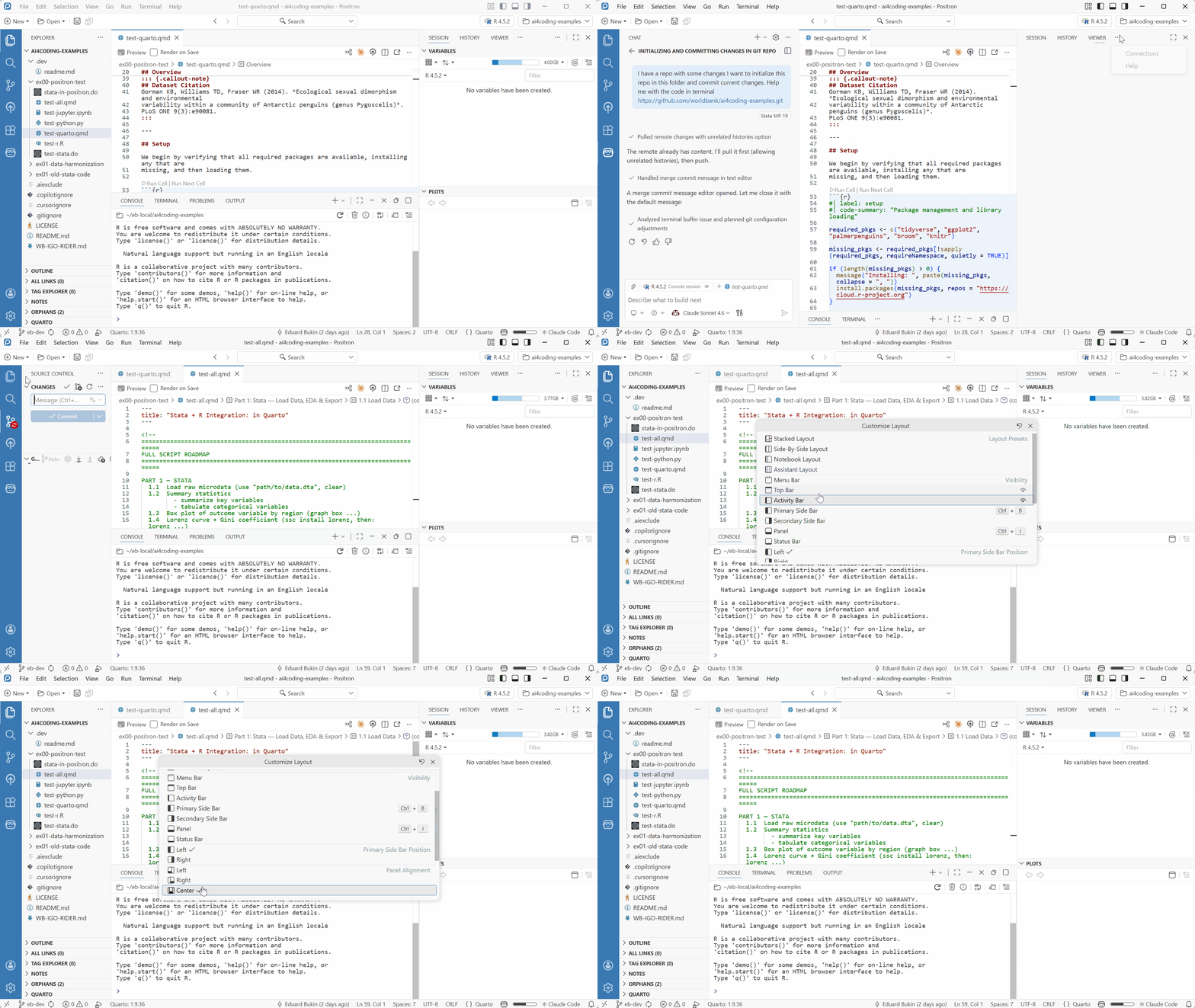
Positron offers flexible layout options to suit a variety of development workflows. Almost every component can be rearranged by dragging.
Command Palette
Command Palette - Ctrl+Shift+P - https://positron.posit.co/command-palette.html - is your gateway to all Positron features. It provides quick access to commands, settings, and more. For example, you can open files, run code, manage git, and interact with the assistant all from the Command Palette.
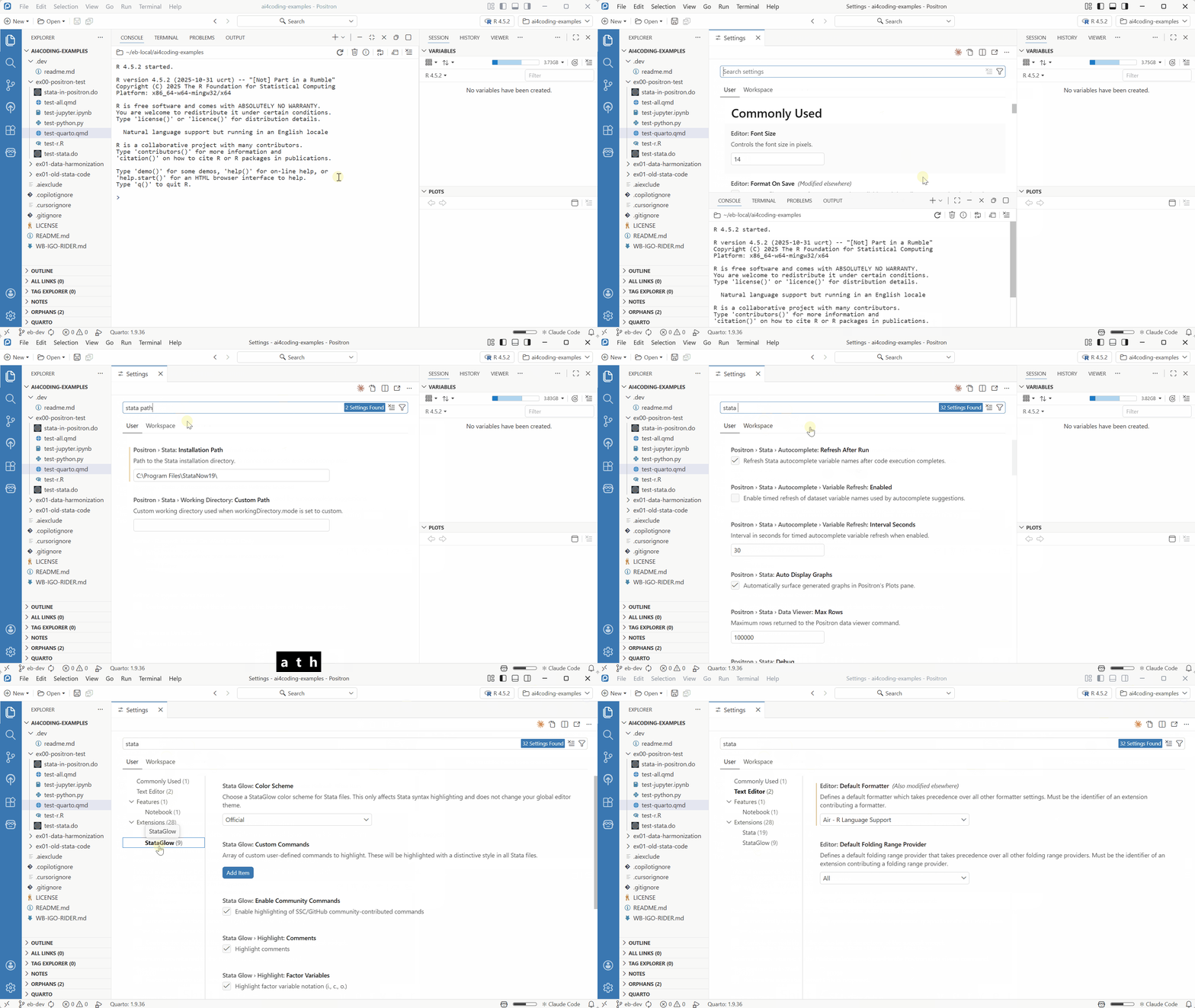
Try:
Ctrl+Shift+P→ type “Open file”Ctrl+Shift+P→ type “Assistant: Configure Language Model Providers”Ctrl+Shift+P→ type “Preferences: Open Settings (UI)” and search for “Stata” to find all related settings in one place.
Settings
Settings can be accessed through:
Ctrl+Shift+P(Command Palette) > search for “Preferences: Open Settings (UI)”- or through the menu
File > Preferences > Settings - or
Ctrl+,.
Here you can customize your Positron experience, including enabling the Assistant and configuring GitHub Copilot.
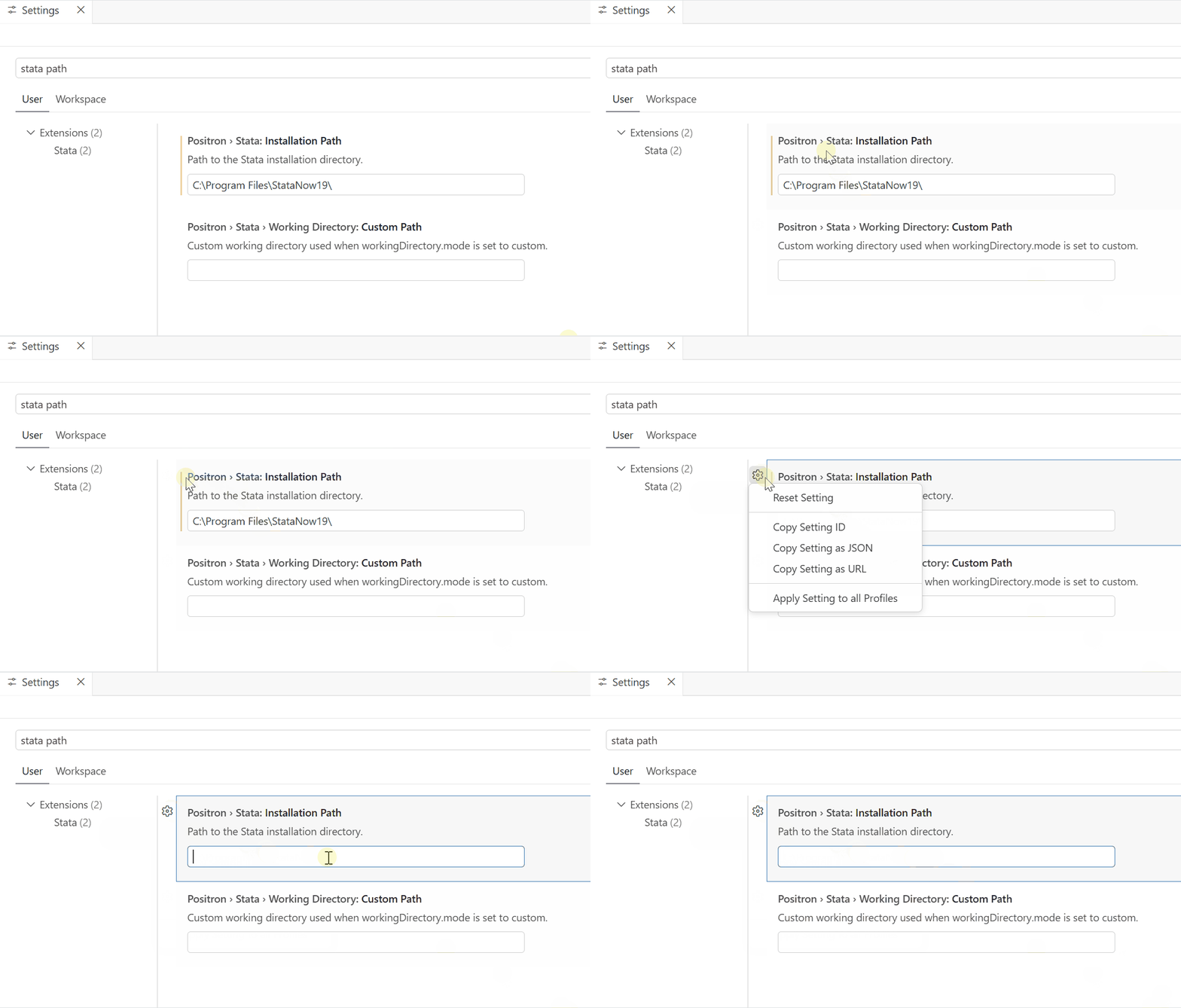
Settings marked with a vertical line are modified from their default values in your IDE. You can click “Gear > Reset” button next to each setting to revert it to the default value.
Read/watch more
Extensions https://positron.posit.co/extensions.html
Data analysis https://positron.posit.co/data-explorer.html
Workflow overview
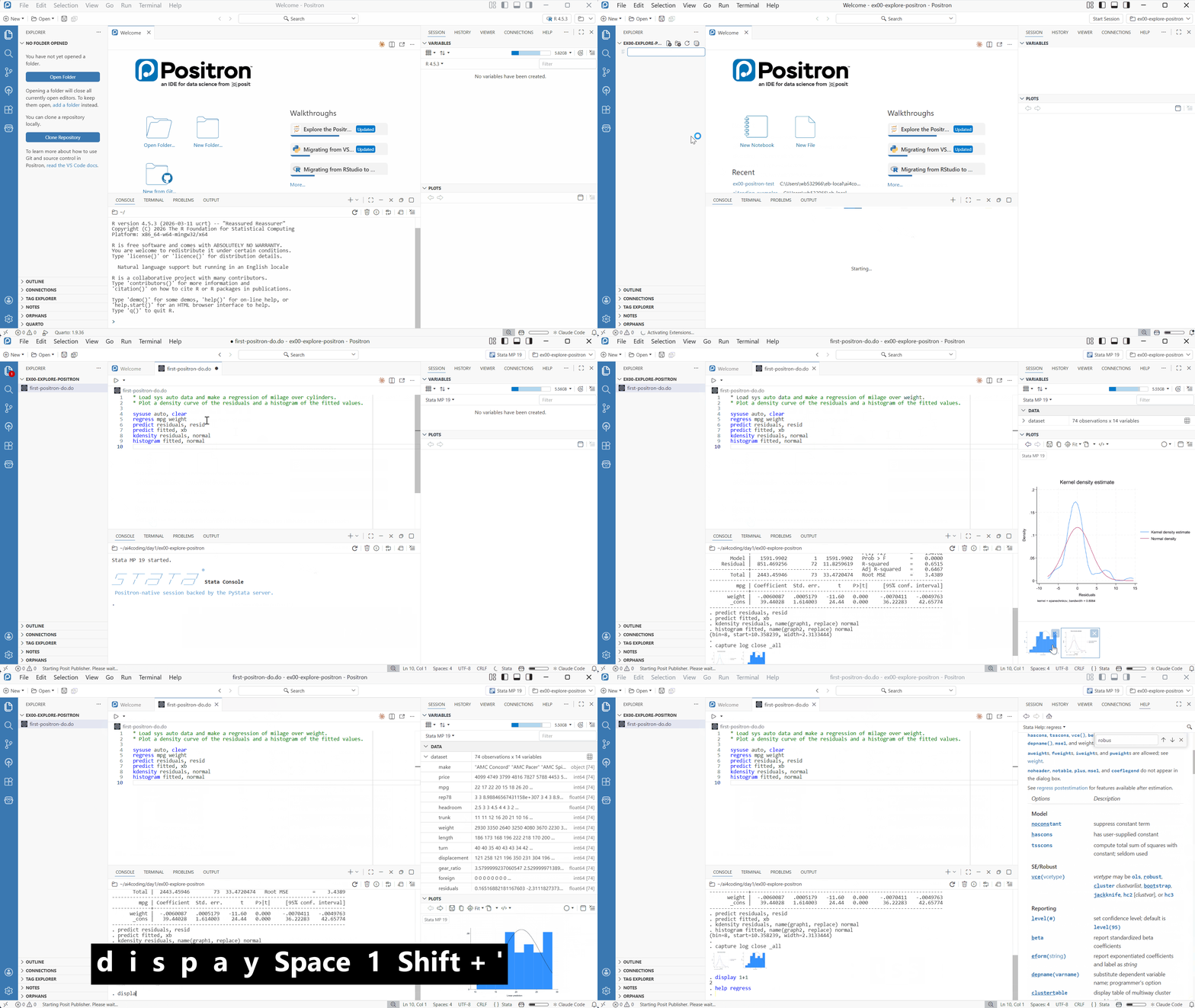
- Open/create a working folder
- Create your script or notebook and start coding
- Execute code.
- Use console directly
- Explore plots
- Data viewer
- Help pane for documentation
Assistant + GitHub Copilot: Setup and Overview
To use the assistant’s AI features, you need to Enable Positron Assistant and Configure GitHub Copilot.
This can be done as follows:
Ctrl+Shift+P→ “Preferences: Open Settings (UI)” → searchpositron.assistant.enable→ ☑️
Other settings to consider:
positron.assistant.showTokenUsage.enable- to show token usage details in the assistant chatpositron.assistant.toolDetails.enable- to show tool usage details in the assistant chat
The Assistant lets you use AI for inline code suggestions and chat-based help. See videos below for a quick tour or follow along with the course examples.