Installing GEOE3#
Follow the steps below to install the GEOE3 QGIS plugin.
Step 1: Open the Plugin Manager in QGIS#
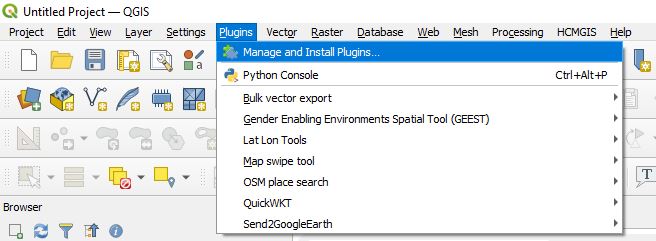
Launch QGIS.
Go to Plugins > Manage and Install Plugins….
Step 2: Install the Plugin#
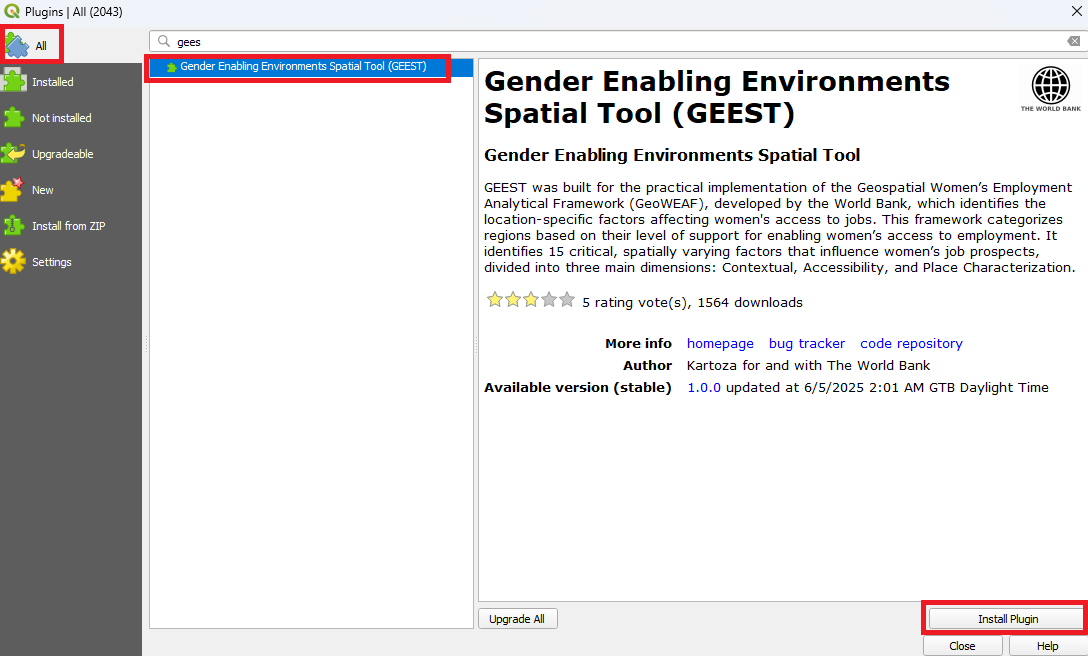
In the Plugin Manager window, select the All tab in the Plugin Manager.
Search for
GEOE3.
Select the plugin and click Install Plugin.
Step 3: Verify the Installation and Configure the Tool#
After installation, check the QGIS toolbar for the new GEOE3 icon Show/Hide GEOE3 Panel.
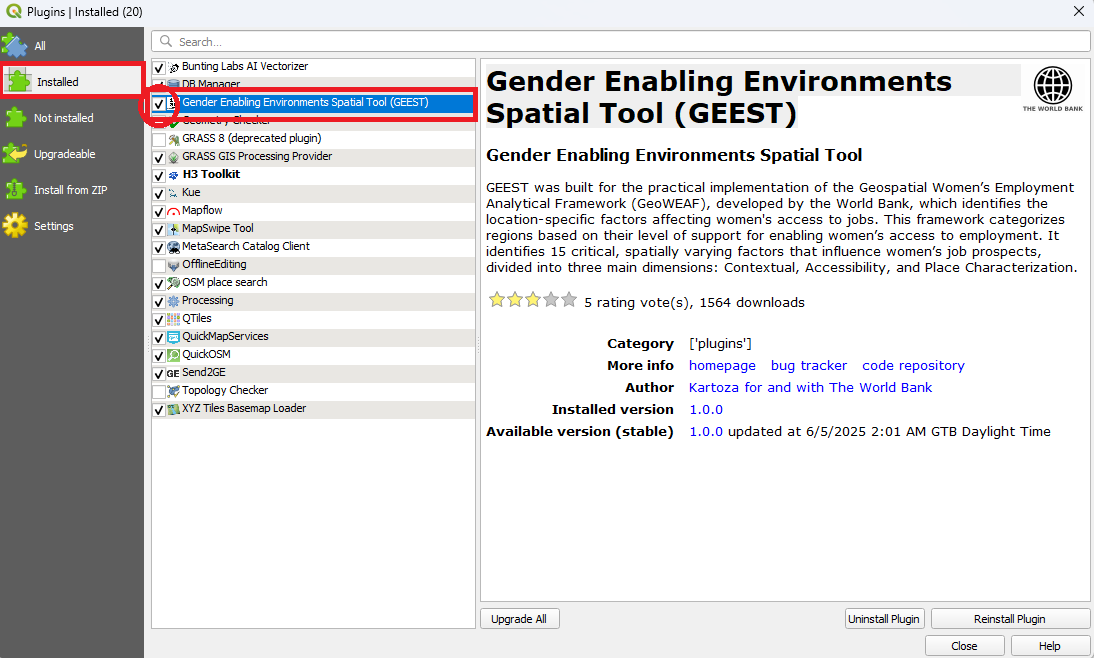
If the icon is not visible, go to Plugins > Manage and Install Plugins…, then click on the Installed tab.
In the list, find Geospatial Enabling Environments for Employment Spatial Tool (GEOE3) and ensure the checkbox is ticked. The GEOE3 panel should now appear in the QGIS interface.

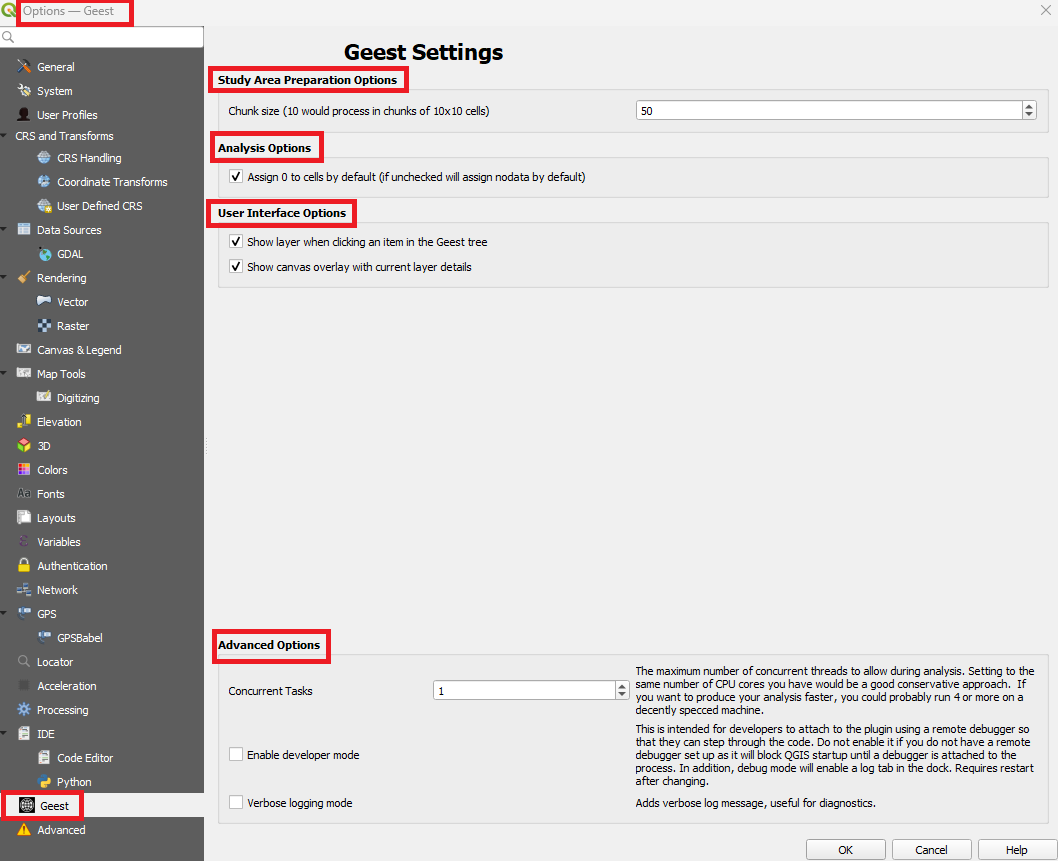
Optionally, you can customize the plugin’s behavior by navigating to: Settings Menu → Options → GEOE3 Settings. While the default settings are recommended, the following configurable sections are available:
▪︎ Chunk size Determines how many cells are processed at once. For example, a chunk size of
10processes 10×10 cell blocks. Increasing this value (e.g., to50) can improve performance on powerful machines, but may slow down or crash QGIS on lower-spec systems.▪︎ Analysis Options – Assign 0 to cells by default If checked, areas without data will be assigned a value of 0. If unchecked, those areas will be left as NoData. This is useful for consistent raster outputs when comparing or summing layers.
▪︎ User Interface Options ▫︎ Show layer when clicking an item in the GEOE3 tree Automatically activates the corresponding layer in QGIS when selected in the GEOE3 panel.
▫︎ Show canvas overlay with current layer details Enables an overlay that provides quick visual feedback about selected layers.
▪︎ Advanced Options – Concurrent Tasks Specifies how many processing threads to run simultaneously. Set this equal to the number of CPU cores for efficient performance (e.g., 4 or more on most systems).
▫︎ Enable developer mode Intended for debugging — attaches the plugin to a remote debugger. ⚠️ Not recommended unless you’re actively developing the plugin.
▫︎ Verbose logging mode Enables detailed logging useful for troubleshooting and diagnostics. Requires a restart to take effect.