# Installing GEOE3
Follow the steps below to install the GEOE3 QGIS plugin.
## Step 1: Open the Plugin Manager in QGIS
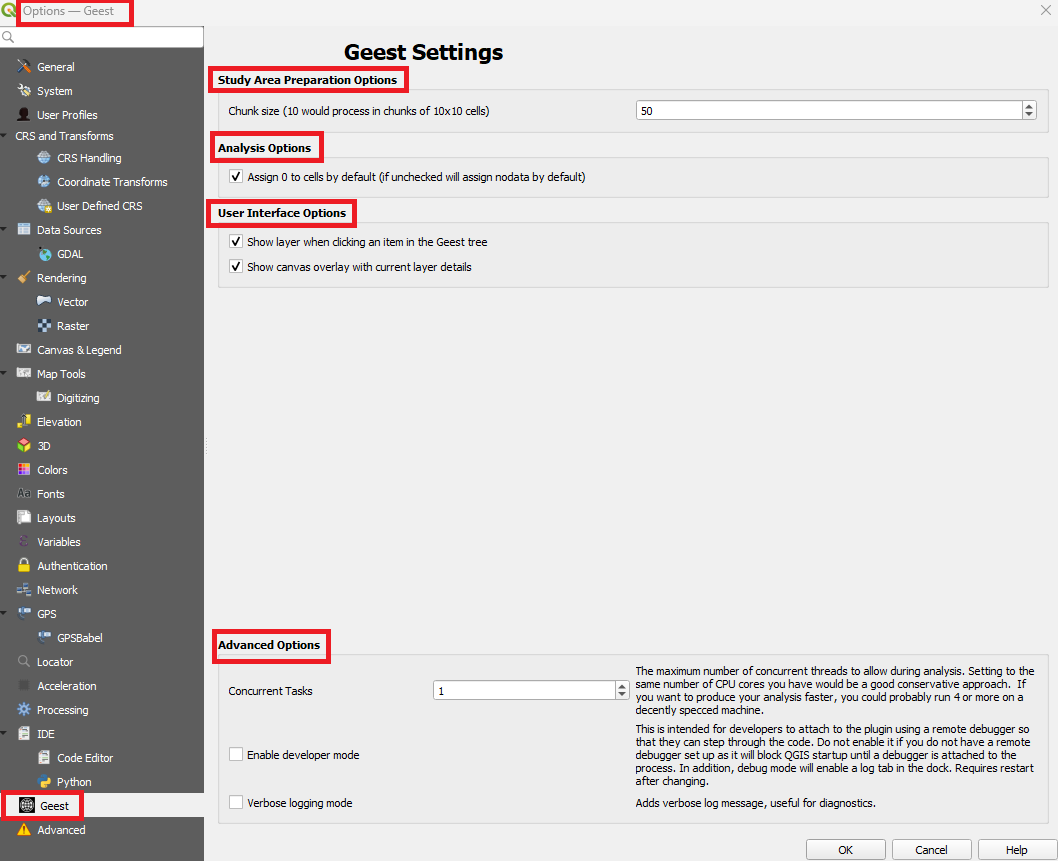
> - 1. Launch QGIS.
> - 1. Go to **Plugins** > **Manage and Install Plugins…**.
 ### Step 2: Install the Plugin
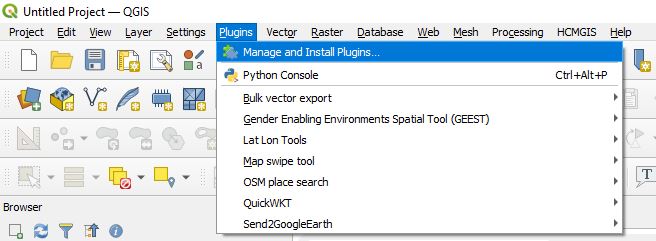
> - 1. In the **Plugin Manager** window, select the **All** tab in the Plugin Manager.
> - 2. Search for `GEOE3`.
> - 3. Select the plugin and click **Install Plugin**.
### Step 2: Install the Plugin
> - 1. In the **Plugin Manager** window, select the **All** tab in the Plugin Manager.
> - 2. Search for `GEOE3`.
> - 3. Select the plugin and click **Install Plugin**.
 ### Step 3: Verify the Installation and Configure the Tool
> - 1. After installation, check the QGIS toolbar for the new **GEOE3** icon *Show/Hide GEOE3 Panel*. [](https://raw.githubusercontent.com/worldbank/GEOE3/main/docs/images/new%20images/icons.jpg "Click to enlarge")
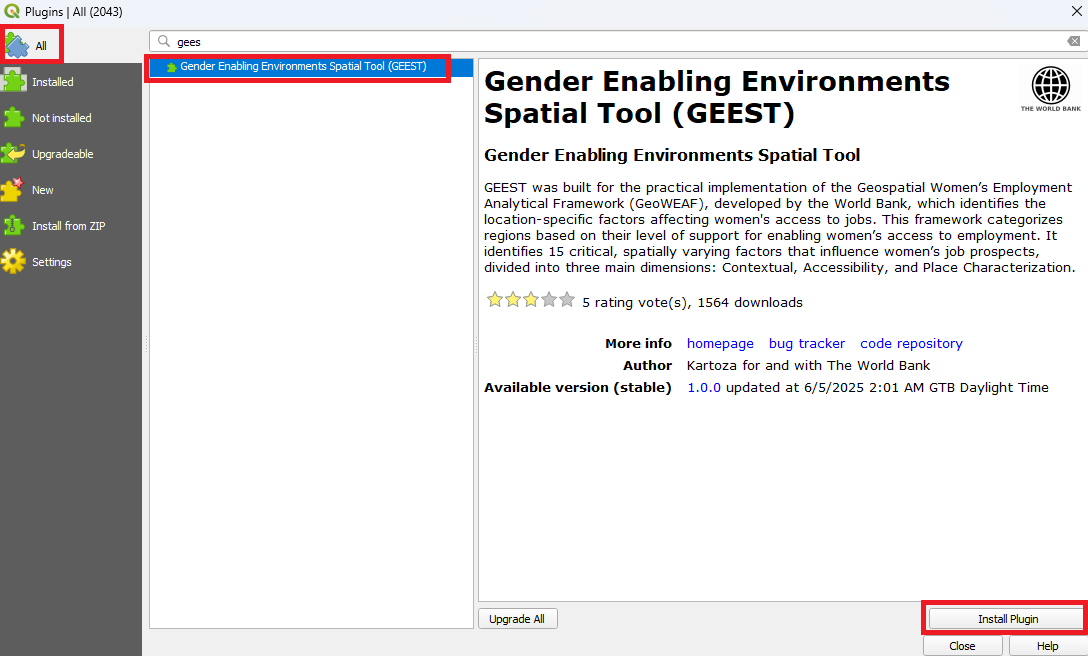
> - 2. If the icon is not visible, go to **Plugins** > **Manage and Install Plugins…**, then click on the **Installed** tab.
> - 3. In the list, find **Geospatial Enabling Environments for Employment Spatial Tool (GEOE3)** and ensure the checkbox is ticked. The GEOE3 panel should now appear in the QGIS interface.
### Step 3: Verify the Installation and Configure the Tool
> - 1. After installation, check the QGIS toolbar for the new **GEOE3** icon *Show/Hide GEOE3 Panel*. [](https://raw.githubusercontent.com/worldbank/GEOE3/main/docs/images/new%20images/icons.jpg "Click to enlarge")
> - 2. If the icon is not visible, go to **Plugins** > **Manage and Install Plugins…**, then click on the **Installed** tab.
> - 3. In the list, find **Geospatial Enabling Environments for Employment Spatial Tool (GEOE3)** and ensure the checkbox is ticked. The GEOE3 panel should now appear in the QGIS interface.
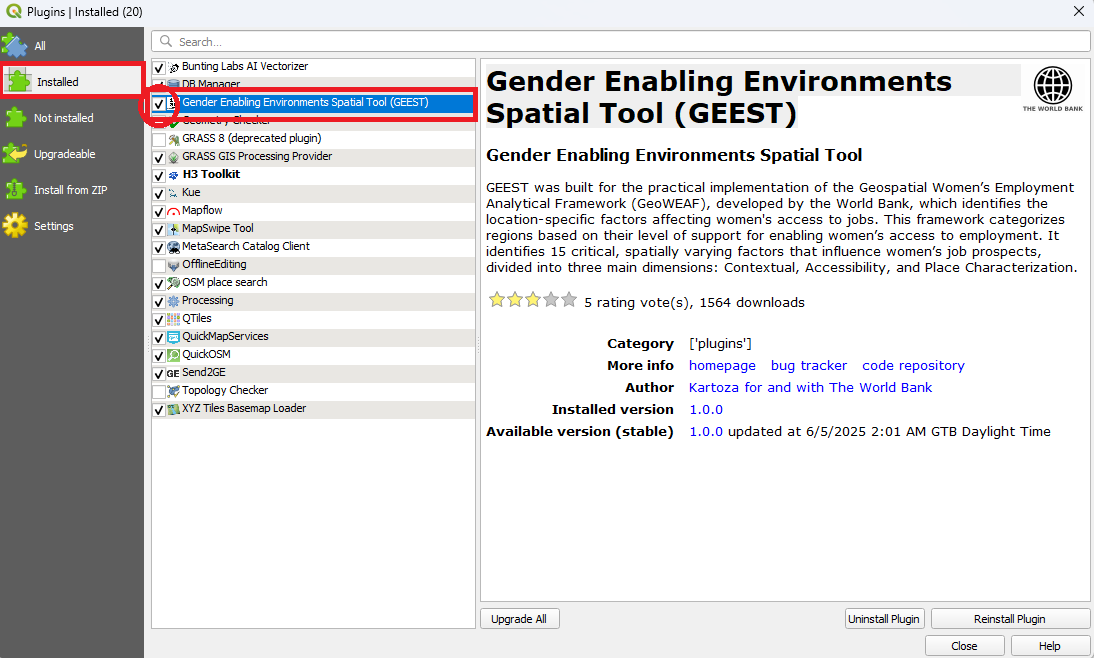
> - 4. Optionally, you can customize the plugin's behavior by navigating to:
> **Settings Menu** → **Options** → **GEOE3 Settings**. While the **default settings are recommended**, the following configurable sections are available:
>
> ▪︎ **Chunk size**
> Determines how many cells are processed at once. For example, a chunk size of `10` processes 10×10 cell blocks. Increasing this value (e.g., to `50`) can improve performance on powerful machines, but may slow down or crash QGIS on lower-spec systems.
>
> ▪︎ **Analysis Options – Assign 0 to cells by default**
> If checked, areas without data will be assigned a value of 0. If unchecked, those areas will be left as NoData. This is useful for consistent raster outputs when comparing or summing layers.
>
> ▪︎ **User Interface Options**
> ▫︎ **Show layer when clicking an item in the GEOE3 tree**
> Automatically activates the corresponding layer in QGIS when selected in the GEOE3 panel.
>
> ▫︎ **Show canvas overlay with current layer details**
> Enables an overlay that provides quick visual feedback about selected layers.
>
> ▪︎ **Advanced Options – Concurrent Tasks**
> Specifies how many processing threads to run simultaneously. Set this equal to the number of CPU cores for efficient performance (e.g., 4 or more on most systems).
>
> ▫︎ **Enable developer mode**
> Intended for debugging — attaches the plugin to a remote debugger. ⚠️ Not recommended unless you're actively developing the plugin.
>
> ▫︎ **Verbose logging mode**
> Enables detailed logging useful for troubleshooting and diagnostics. Requires a restart to take effect.