2. Snapshot extraction
Question: How are figures and tables extracted as images?
Rationale
PDF pages are rendered as images in memory before the detector runs. The detector returns a label, confidence score, and bounding box with normalized coordinates for each retained region. Normalized coordinates describe the left, top, right, and bottom edges as fractions of page width and height, measured from the top-left corner.
The production workflow crops these rectangles directly and saves each region as a PNG file. It does not pad boxes, merge panels, or persist page coordinates.
Target state
- The snapshot-only command saves inspectable PNG files.
- The curator can distinguish the target data snapshots from irrelevant detections.
Maturity levels
| Level | Steps |
|---|---|
| Foundational | A curator identifies analytical regions on source pages and saves or inspects example data snapshots manually. |
| AI-ready | A developer runs the documented detector, retains its candidate PNG outputs, and checks selected data snapshots against their source pages before further processing. |
| AI-native | An organization integrates detection into document intake and checks candidate relevance and data snapshot completeness under human review. Automatic quality monitoring is not supplied by this example. |
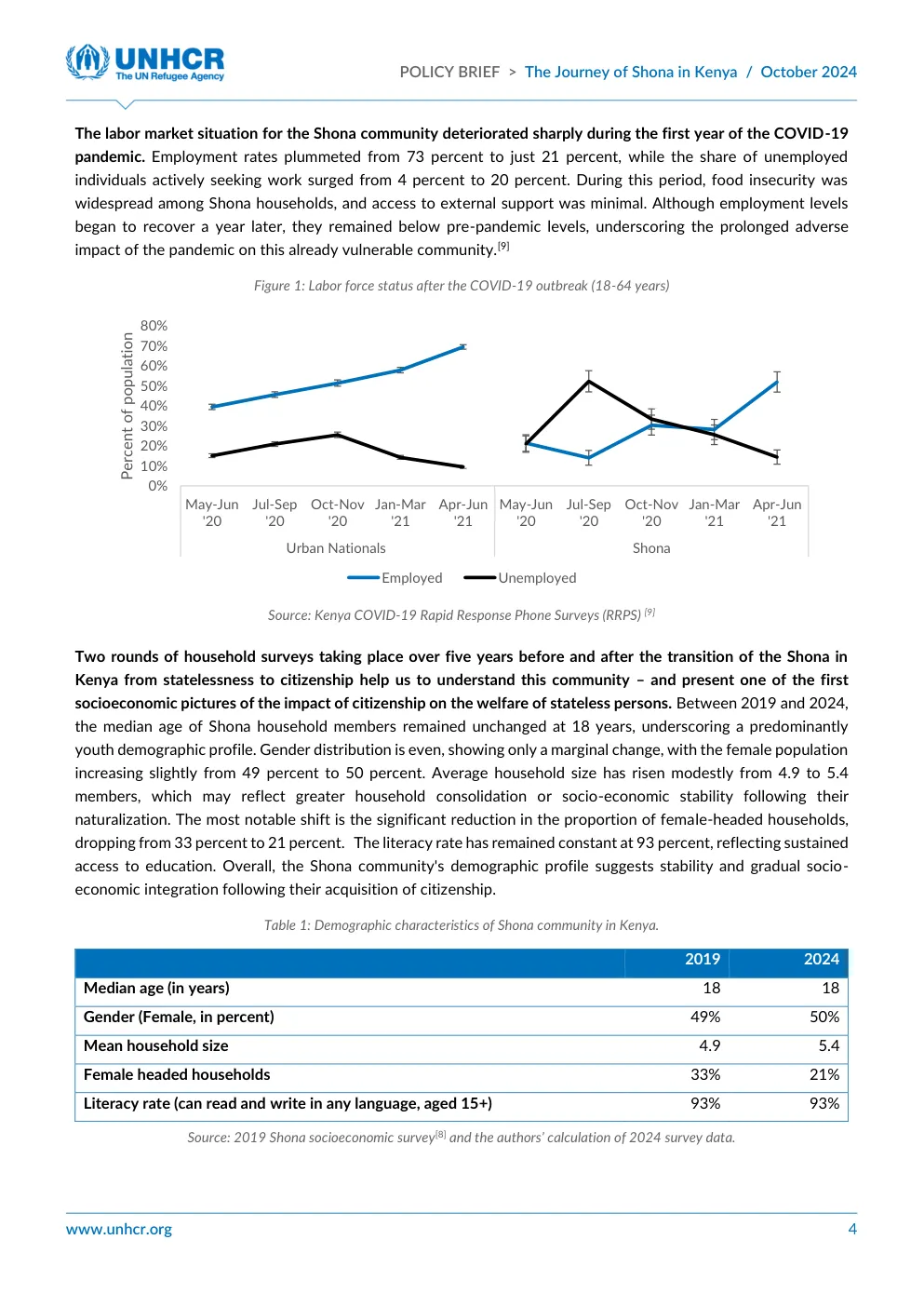
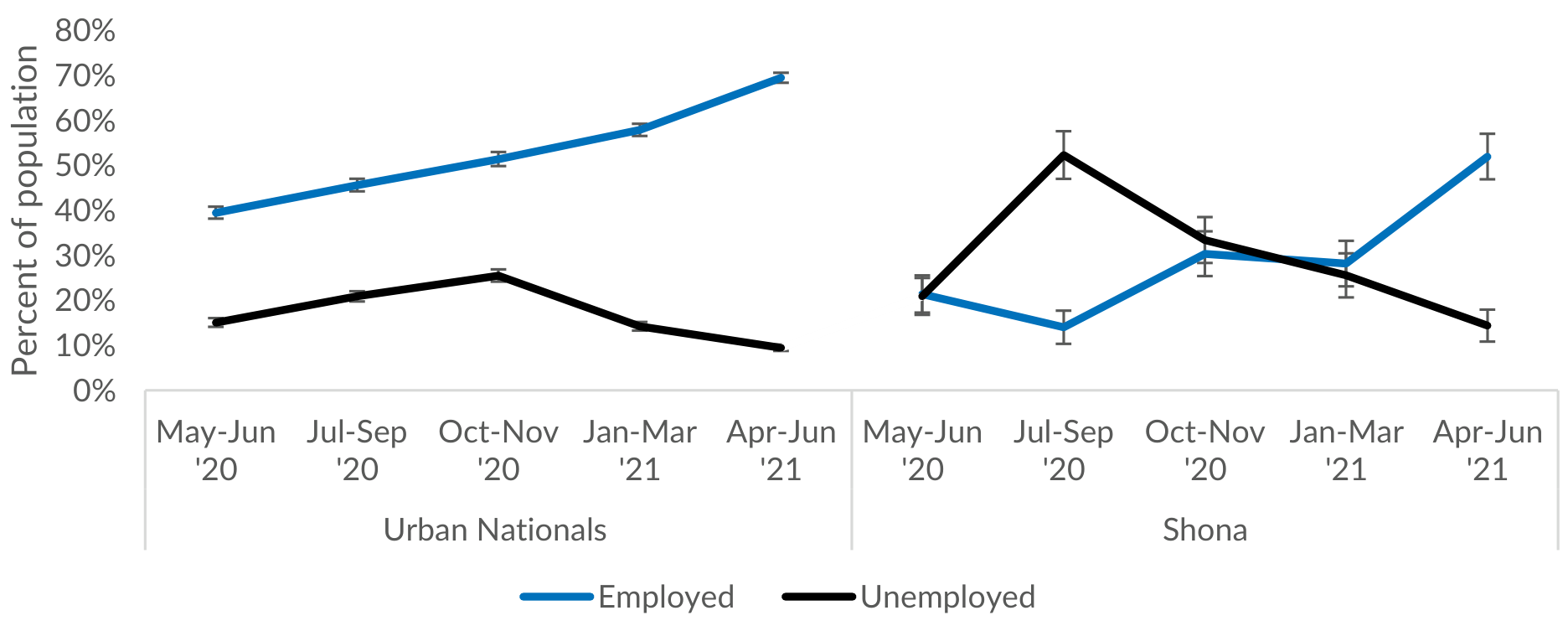
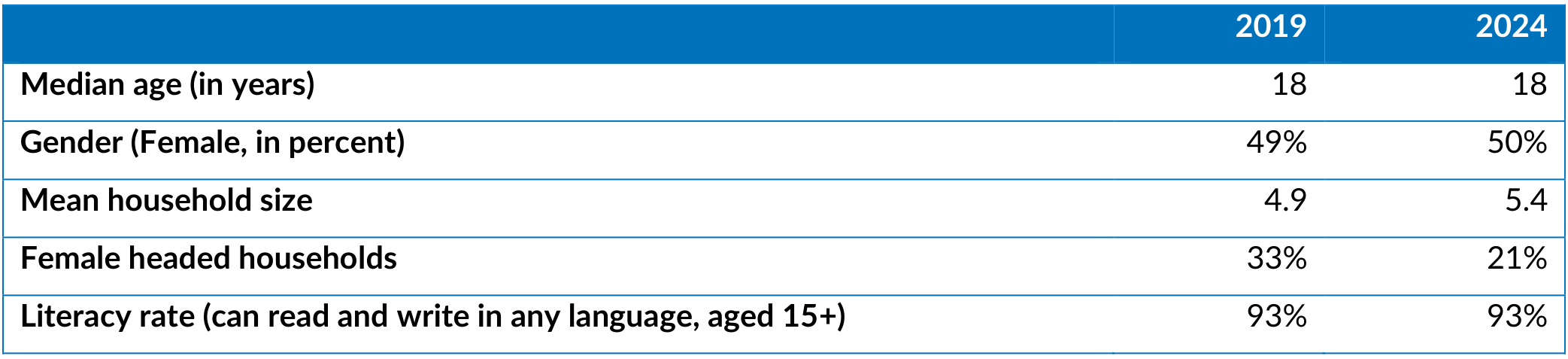
The snapshot-only run processes the twelve-page sample PDF used in the tutorial and saves seven figure-labelled candidate images and one table-labelled candidate image. The cover photograph is figure_000. The chart figure_001 and demographic table table_000, both from PDF page 4, are the two data snapshots selected for the next chapter.
Recipes
2.1 Run snapshot-only extraction
- Level
- AI-ready
- Skills
- Developer and data curator
- Indicative time
- Ten minutes to prepare the command; detector execution time varies
Result: The document has been processed and snapshot files are present in the output directory.
The following command uses the PDF acquired in chapter 1 with DocLayout-YOLO on CPU. The pipeline renders each page at 300 DPI by default, which is suitable for this purpose. All twelve pages are processed.
python -m ai4data.data_snapshot.extract_data_snapshot \
  --input=data/policy_brief_on_shona_community_from_stateless_to_citizens.pdf \
  --output-dir=output/cookbook-data-snapshot \
  --device=cpu
If a compatible NVIDIA GPU and CUDA runtime are available, select GPU inference with --device=cuda:0. The recorded example uses CPU. An unavailable CUDA device causes an error; there is no automatic CPU fallback.
- Use a fresh destination so that an earlier file does not cause the entire PDF to be skipped.
- Run the command and inspect progress and printed paths. A directory can also be passed to the
--inputparameter which will search recursively for PDFs. - Keep source filename stems unique within a run, including across subdirectories; outputs are flattened into one model directory.
Worked example. The recorded run saved figure_000.png through figure_006.png and table_000.png, each prefixed by the complete PDF stem. figure_000 is the cover photograph, figure_001 is the chart on PDF page 4, and table_000 is the demographic table on that same page. These counts describe saved detector outputs. The photograph demonstrates why human review is still needed.
Under the tutorial's output directory, these files have the following layout:
output/cookbook-data-snapshot/
└── doclayoutyolo/
    └── snapshots/
        ├── policy_brief_on_shona_community_from_stateless_to_citizens_figure_000.png
        ├── policy_brief_on_shona_community_from_stateless_to_citizens_figure_001.png
        ├── policy_brief_on_shona_community_from_stateless_to_citizens_figure_002.png
        ├── policy_brief_on_shona_community_from_stateless_to_citizens_figure_003.png
        ├── policy_brief_on_shona_community_from_stateless_to_citizens_figure_004.png
        ├── policy_brief_on_shona_community_from_stateless_to_citizens_figure_005.png
        ├── policy_brief_on_shona_community_from_stateless_to_citizens_figure_006.png
        └── policy_brief_on_shona_community_from_stateless_to_citizens_table_000.png
What this does not do. This command does not generate metadata or persist page coordinates, confidence scores, page images, or a quality report. No OCR stage is performed.
2.2 Inspect the figure and table data snapshots
- Level
- AI-ready
- Skills
- Developer and data curator
- Indicative time
- Fifteen minutes to inspect the two selected data snapshots
Result: The two examples have been checked against their source page.
The figure counter and table counter are independent and start at zero. They continue across the document, so the printed Figure 1 can have the filename suffix figure_001. The index does not encode a page number or the printed caption.
-
Open the source page, the figure data snapshot, and the table data snapshot.
-
Check the chart's series legend, horizontal period labels, vertical percentage scale, and both population-group panels.
-
Check that the table retains its five demographic rows and both year columns. Compare the image with the page to identify excluded captions or source notes.
-
Record quality observations separately and preserve the produced data snapshot.
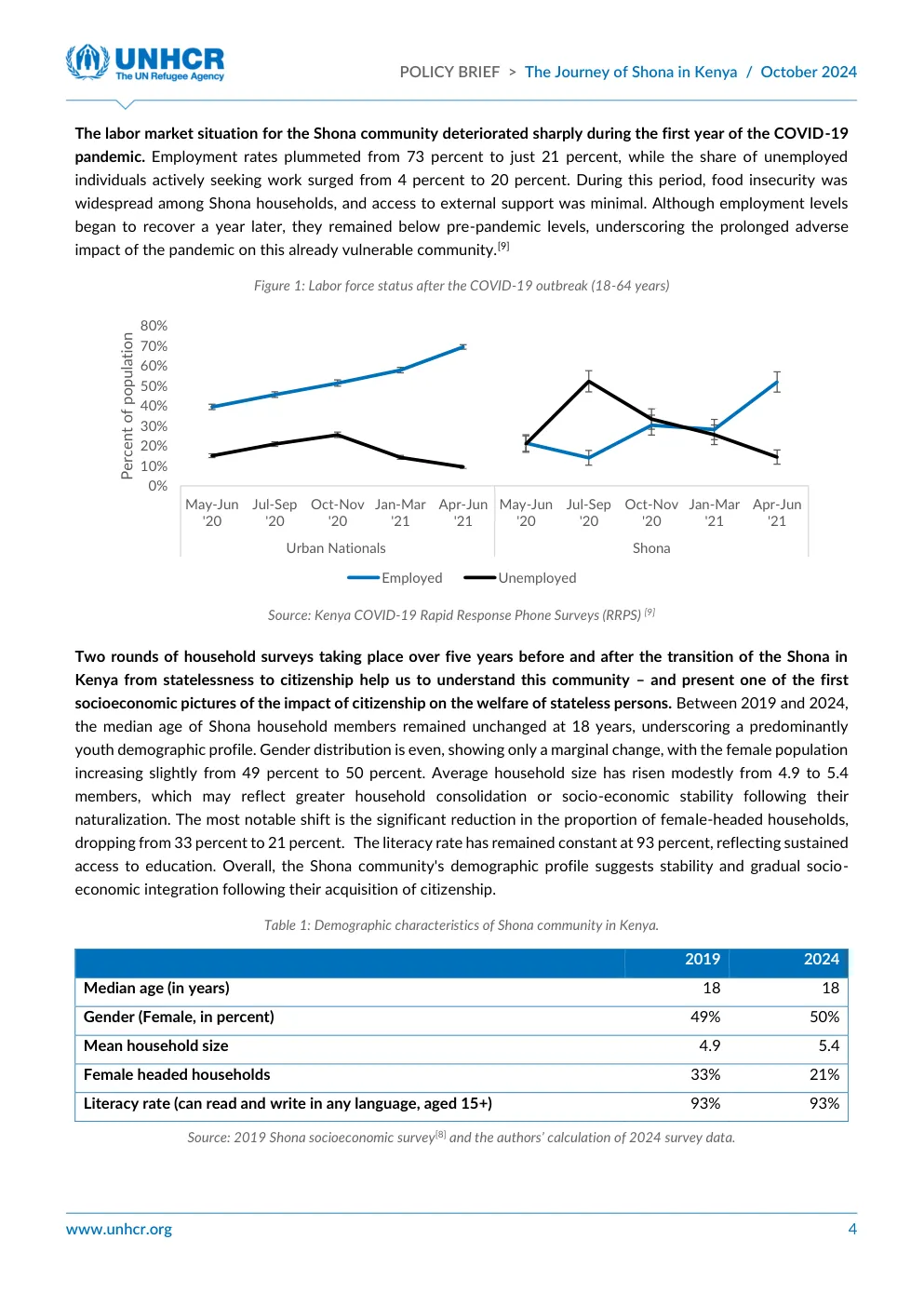
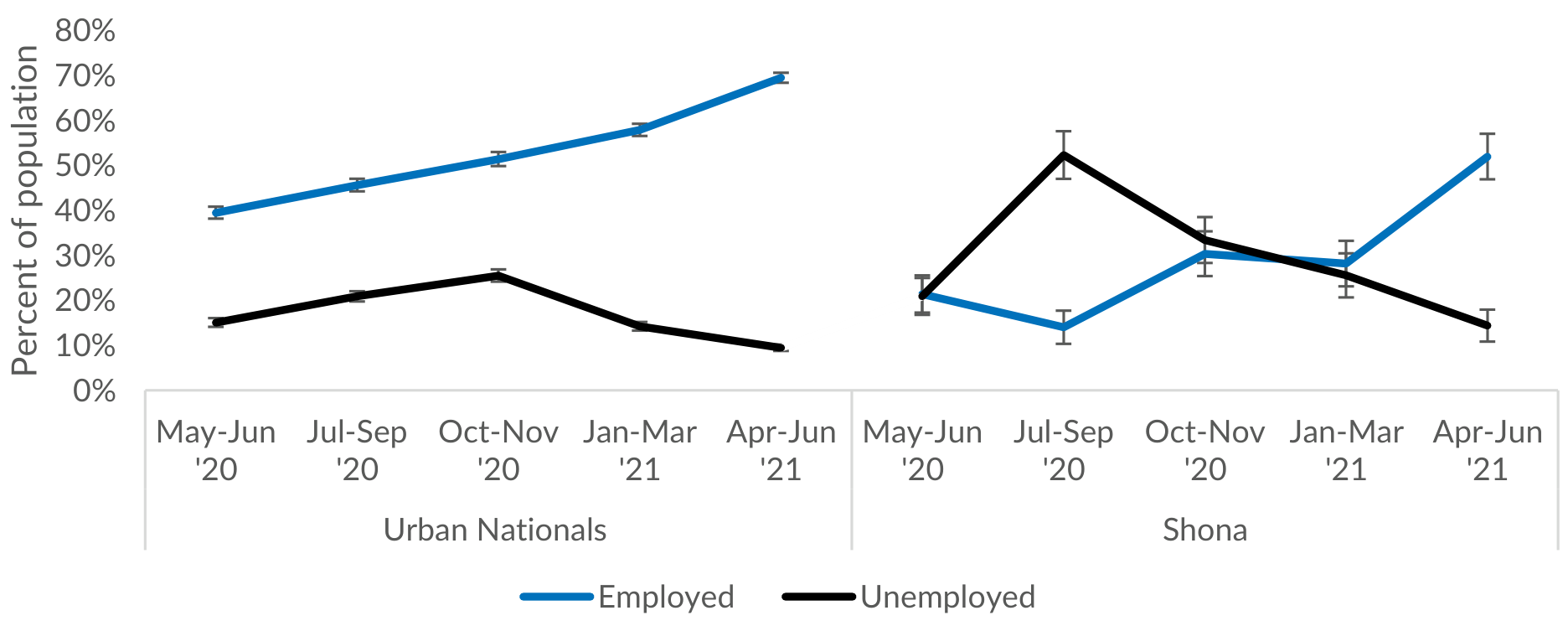
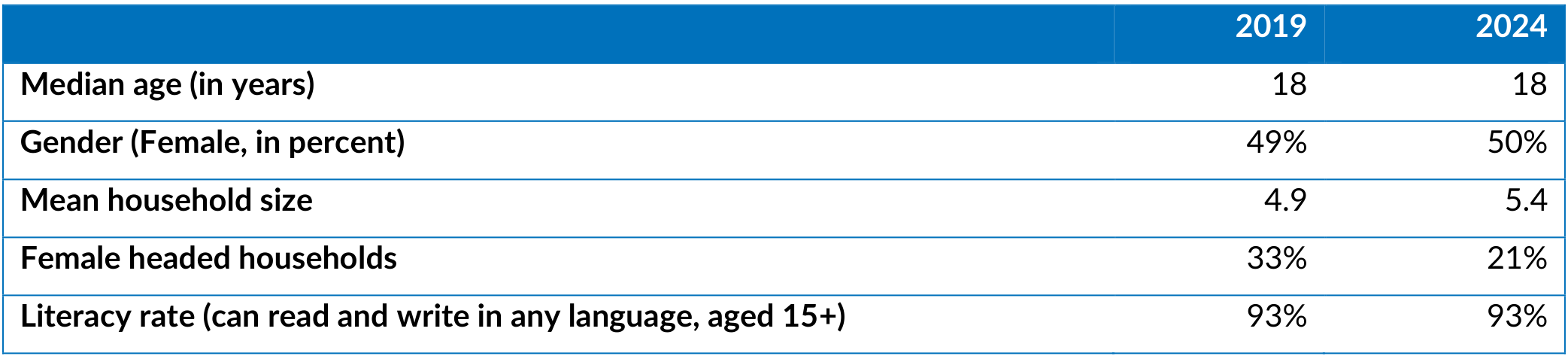
Worked example. Both selected data snapshots retain their main analytical content but exclude their printed captions and source notes. This is a limitation: the later metadata extraction stage receives only that image and cannot be expected to recover those excluded details.
What this does not do. A visual comparison of two selected data snapshots is not a document-level precision or recall evaluation.
The two selected PNG data snapshots now provide the image inputs for chapter 3. The full detector-output folder remains available for inspection; selecting these two images does not remove or reclassify any of its other candidates.
Implementation options
- Pass a directory to
--input, such as--input=data/, to search recursively for PDFs. Source filename stems must remain unique across subdirectories. - Use
--device=cpufor CPU inference or--device=cuda:0when a compatible NVIDIA GPU and CUDA runtime are available. - Add
--forceto replace existing outputs for the input PDFs. It deletes matching data snapshots (and metadata, if any) before extraction. A failed run does not restore those files. Use a new output directory to preserve earlier results. Chapter 6 explains recovery and rerun behavior. - Use
--dpito pass a different rendering resolution (default: 300). Higher resolution consumes more rendering memory and storage.
Resources
- The production README documents installation, supported commands, and Python interfaces.
- The schema reference explains the metadata fields and validation boundaries.
- The benchmark paper introduces data snapshots and reports detection and spatial accuracy metrics of the included models.
Common mistakes
- Reading the filename index as a printed figure number points to the wrong artifact.
- Counting every figure-labelled candidate image as analytical content includes irrelevant detections.
- Missed context can make the data snapshot incomplete.
Verification
- Inspect the printed paths and the
output/cookbook-data-snapshot/doclayoutyolo/snapshots/directory. The recorded example contains seven figure-labelled PNGs and one table-labelled PNG; investigate differences before relying on the example filenames. - Open
figure_001andtable_000beside PDF page 4. The selected chart should retain its panels and legend, and the table should retain its five rows and both year columns. - Check the page beyond each data snapshot boundary. The recorded data snapshots omit their printed captions and source notes, while the cover photograph is an irrelevant analytical candidate.
Checklist
Ticks are saved in this browser only.